All Tymeslot features
Scheduling, calendar and video integrations, payments, automation and embedding: everything Tymeslot does, on one page.
Get a Telegram message whenever a meeting is booked, requested, cancelled or rescheduled. This guide covers setting up a shared bot on a self-hosted instance.

Aggiornato il 7 settembre 2026
Tymeslot sends a formatted Telegram message as soon as a meeting is booked, requested, cancelled or rescheduled, so you hear about it without checking your inbox.
/newbot
and follow the prompts to choose a name and username.
123456789:ABCdef.... Save it.
MyTymeslotBot). Users start a conversation with this bot to link their account.
Tymeslot uses a shared secret to check that incoming webhook calls really come from Telegram. Generate a random value. Telegram accepts up to 256 letters, digits, underscores and hyphens; this command gives 64 hexadecimal characters:
openssl rand -hex 32
Save the output; you will set it as
TELEGRAM_WEBHOOK_SECRET
in the next step.
Add the following variables to your deployment environment:
TELEGRAM_BOT_TOKEN=123456789:ABCdef...
TELEGRAM_BOT_USERNAME=MyTymeslotBot
TELEGRAM_WEBHOOK_SECRET=<your generated secret>
Setting
TELEGRAM_BOT_TOKEN
is enough to switch on shared bot mode; no separate feature flag is needed. The application refuses to start if the token is set but
TELEGRAM_BOT_USERNAME
or
TELEGRAM_WEBHOOK_SECRET
are missing.
TELEGRAM_ENABLED=true
without setting TELEGRAM_BOT_TOKEN.
Users will then enter their own bot credentials in the dashboard.
Tymeslot registers its Telegram webhook only in shared bot mode.
After you restart with the new variables, Tymeslot registers its webhook with Telegram on startup, retrying a few times if Telegram is briefly unreachable. To confirm it worked, call the Telegram Bot API directly:
curl https://api.telegram.org/bot<YOUR_TOKEN>/getWebhookInfo
The response should show your instance URL under
url
and pending_update_count: 0.
Registration runs on every restart and is safe to repeat.
Once the bot is running, your users connect their Telegram account from Dashboard → Automation → Telegram:
If the user has started the bot before, Telegram does not resend the
/start
command when they tap the button again.
For that case, the form also shows the full command, for example /start abc123..., which the user can paste into the bot chat to finish linking. If the link expires first, click Generate New Link.
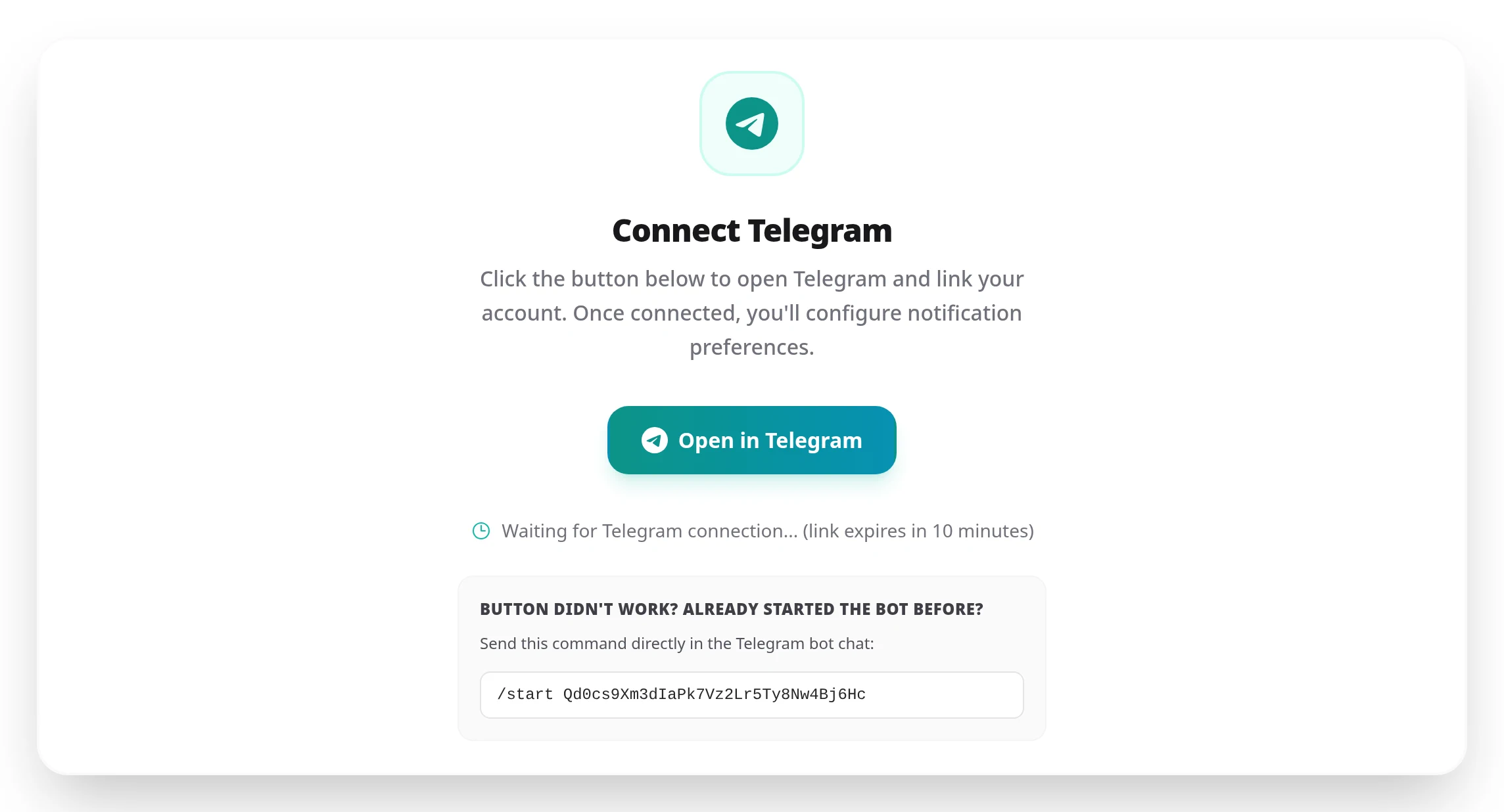
/start
command underneath.
Telegram only delivers webhooks to a publicly reachable HTTPS URL. For local development, use ngrok to expose your local server:
ngrok http 4000Then start Tymeslot with the ngrok URL as the host:
export TELEGRAM_BOT_TOKEN=...
export TELEGRAM_BOT_USERNAME=...
export TELEGRAM_WEBHOOK_SECRET=...
export PHX_HOST=abc123.ngrok-free.app
export URL_SCHEME=https
mix phx.server
In production, Tymeslot registers
https://<PHX_HOST>/api/telegram/webhook
with Telegram at startup. In development it skips that step, so register your ngrok URL yourself with Telegram's setWebhook method, passing the same secret:
curl -F url=https://abc123.ngrok-free.app/api/telegram/webhook -F secret_token=$TELEGRAM_WEBHOOK_SECRET https://api.telegram.org/bot$TELEGRAM_BOT_TOKEN/setWebhookRun it again whenever your ngrok URL changes (the free plan assigns a new URL each session).
PHX_HOST
sets the host in the webhook URL Tymeslot registers at startup and in the
"View in dashboard" link inside each notification. The scheme comes from the Phoenix endpoint's URL config, which
URL_SCHEME
sets in development, and that config also supplies the host when
PHX_HOST
is unset. With neither variable set, development uses
http
and localhost.
Scheduling, calendar and video integrations, payments, automation and embedding: everything Tymeslot does, on one page.
Instant Slack notifications for every booking, cancellation, and reschedule. Connect via OAuth for branded messages and channel switching, or paste an Incoming Webhook URL for a quick setup.