The dashboard calendar, redesigned

13 listopada 2026 · 5 min czytania
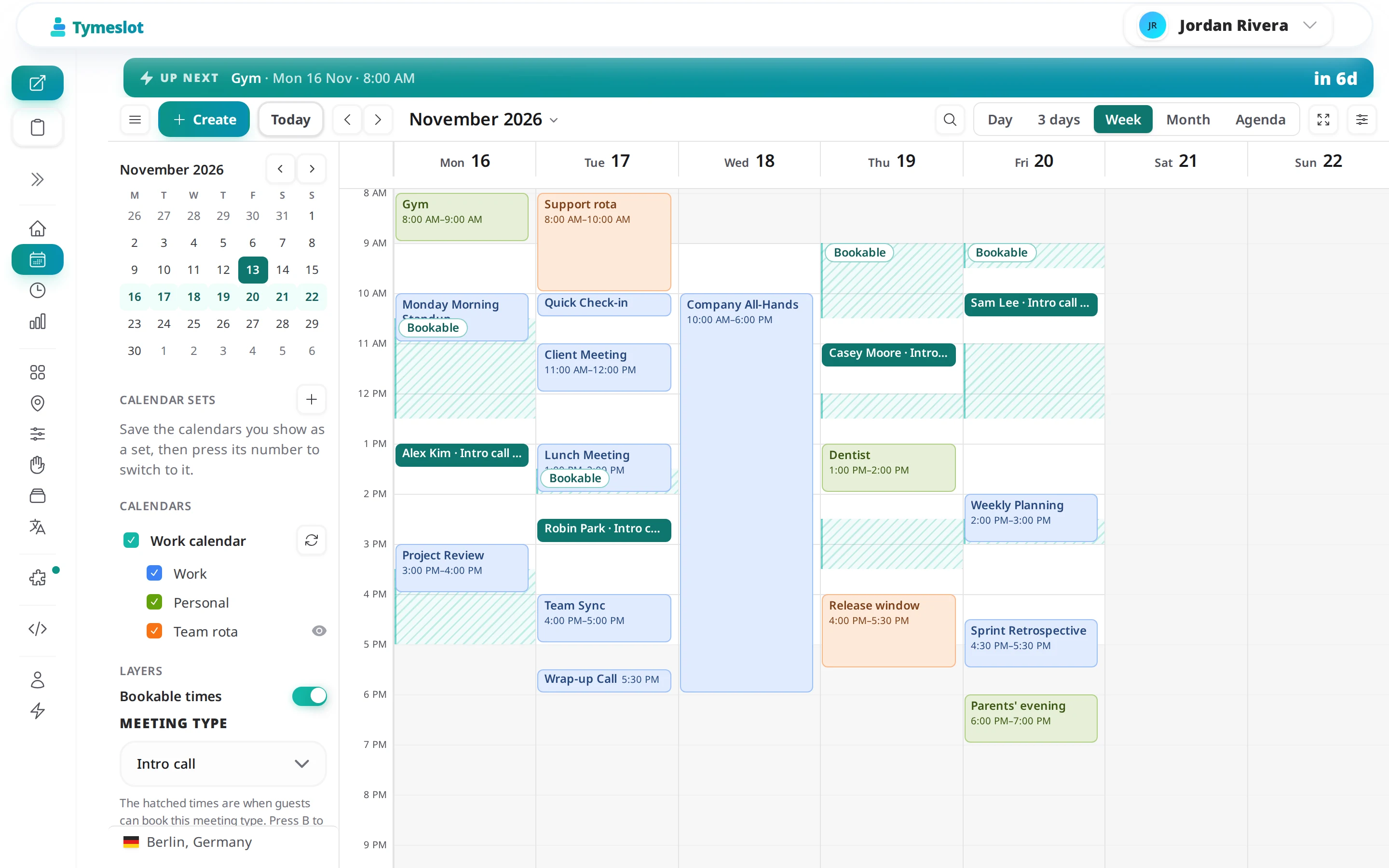
The calendar is the first thing you see when you open the Tymeslot dashboard, and for a while it showed its age. It did the job, but it was built a piece at a time, and it looked it.
So we redesigned it, all of it. The layout, the way you create and change events, how bookings appear, and what you can do from the keyboard are new. Here is a tour.
A layout that gives the grid the room
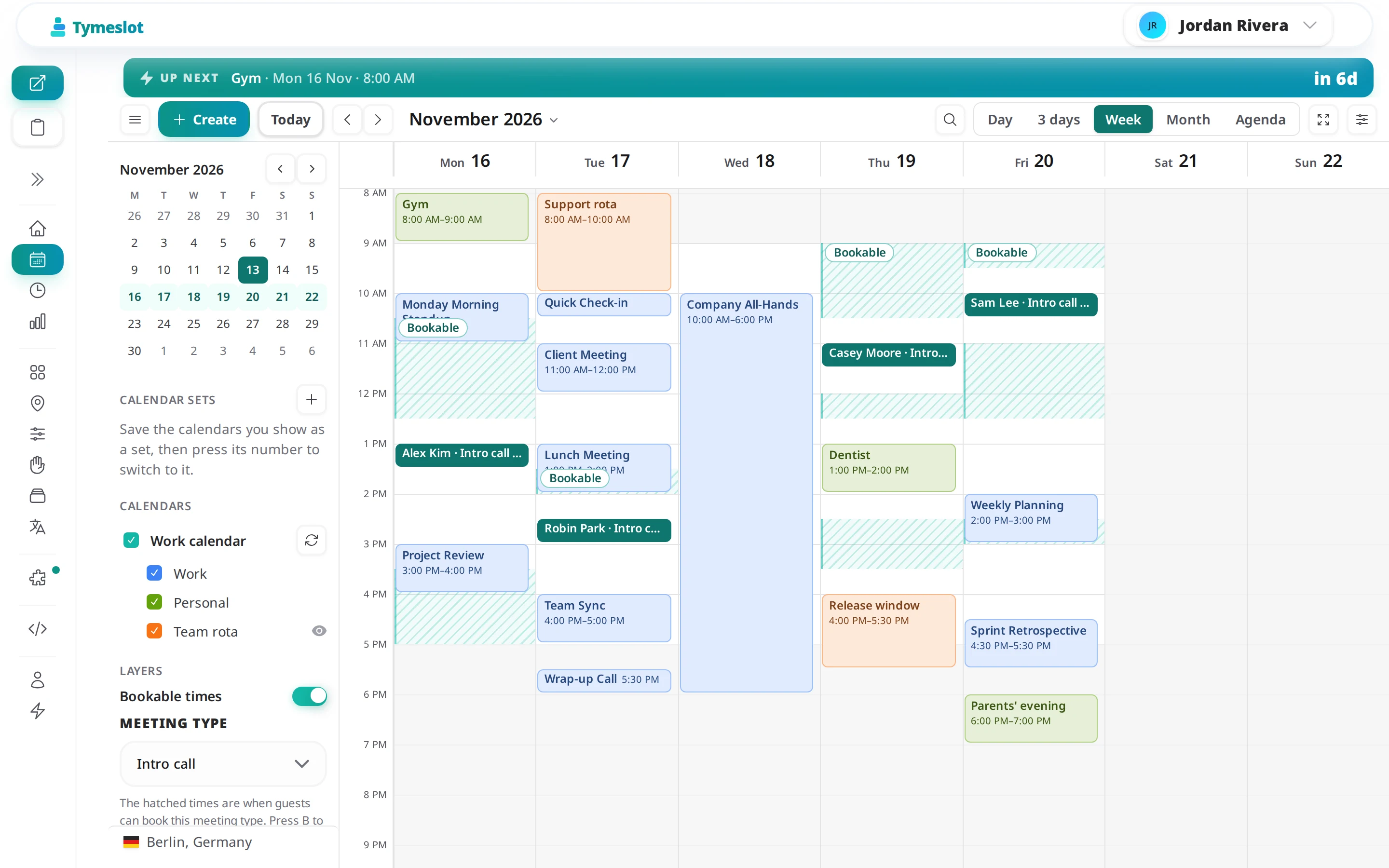
On a computer, the dashboard's menu folds into a column of icons while you are on the calendar, so the grid gets the width. Expand menu, in that column, brings the full menu back. Press F for focus mode, which hides the menu and the strips above the calendar altogether; press F again to bring them back. Tymeslot remembers focus mode for your next visit.
Beside the grid sits the calendar's own rail: a small month for jumping to a date, your calendars by account in their colours, and, at its foot, the time zone the calendar shows. That is the zone on your profile rather than your browser's, so when you travel the grid still reads in the clock you chose.
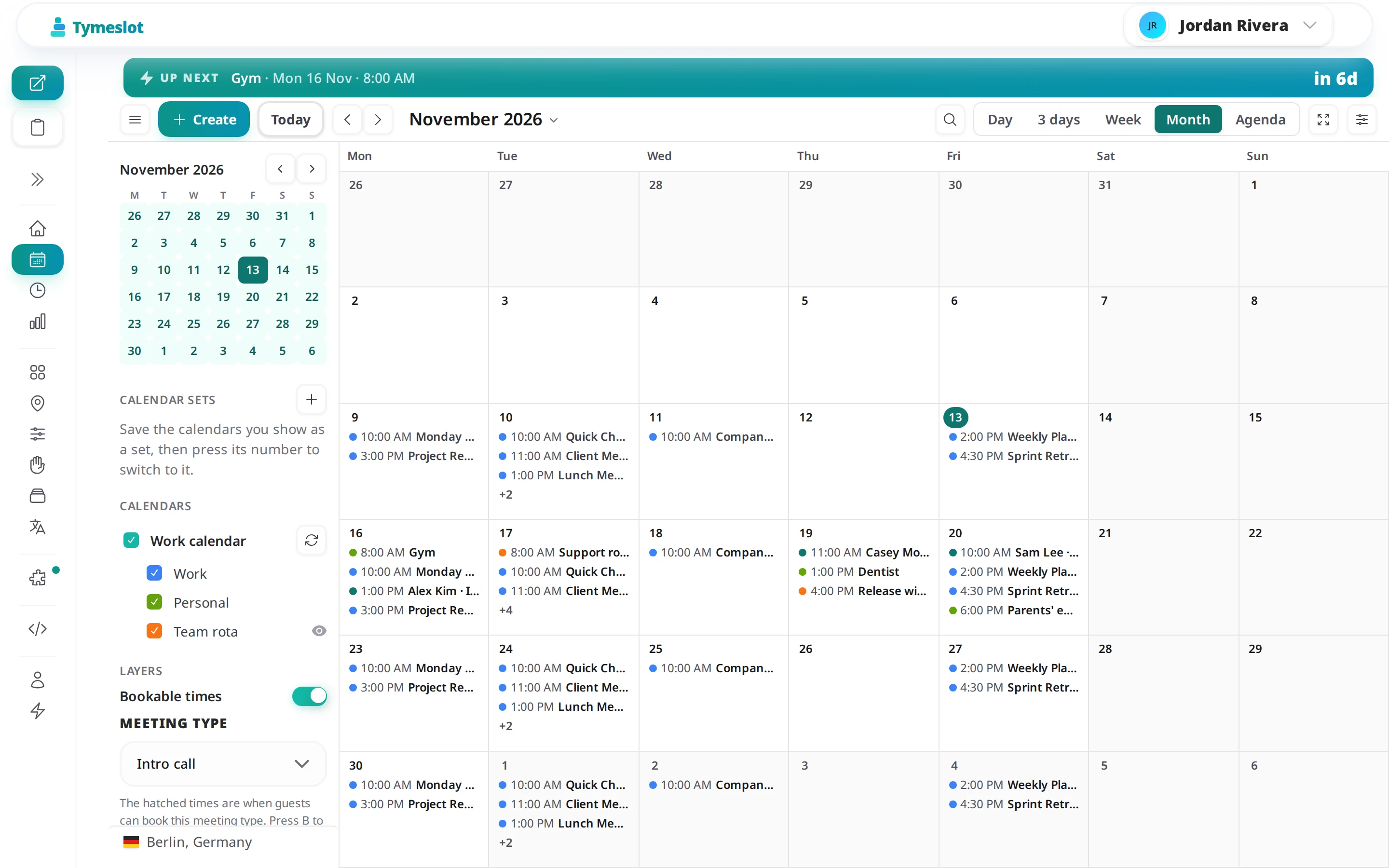
The views are Day, 3 days, Week, Month and Agenda, on D, X, W, M and A, with J and K to step through time. Display options gathers what used to sit in the calendar settings, plus a compact density and folding the hours from midnight to 07:00 into a thin strip.
Create and change events where you see them
Click an empty slot, or drag across the time you want, and a small box opens on the spot instead of a form. Type the event the way you would say it: "Lunch with Maya tomorrow 12:30" or "Dentist fri 16:00 for 45m" fills in the title, the day, the time and the length, and Enter saves it. Add a guest by typing @ and their address; the button then reads Save and invite, since saving emails them.
Drag an event to a new time or day, and the change comes with Undo, in the message that follows it or with Ctrl Z (Cmd Z on a Mac). Edit opens a side panel with every detail, saved as you go, and each guest carries their answer: Going, Declined, Maybe or Awaiting reply.
Bookings next to everything else
Your bookings sit on the same grid as your connected calendars. They do not drag, because a booking's time belongs to the guest who made it. Their preview offers Reschedule and Cancel booking, which email the guest exactly as the Meetings page does, and a request still waiting for you offers Accept and Decline. If you moved a booking's event in your own calendar app, the preview offers to move the booking to match.
The calendar can also show what guests see. Switch on Bookable times in the rail, or press B, pick a meeting type, and the times guests can book it are hatched on the grid. They come from the same calculation as your booking page, with busy events, buffers and your notice period already taken out. In the week above, Wednesday has no hatching because the all-hands from ten to six sits on a calendar that blocks.
Click the Bookable label on a hatched time to copy the bookable times of the days on screen as text, ready to paste into an email, or to block that time. Going the other way, quick create can open extra hours for a meeting type, just this once or every week.
The keyboard reaches all of it
Ctrl K (Cmd K on a Mac), or /, opens a command bar over the calendar.
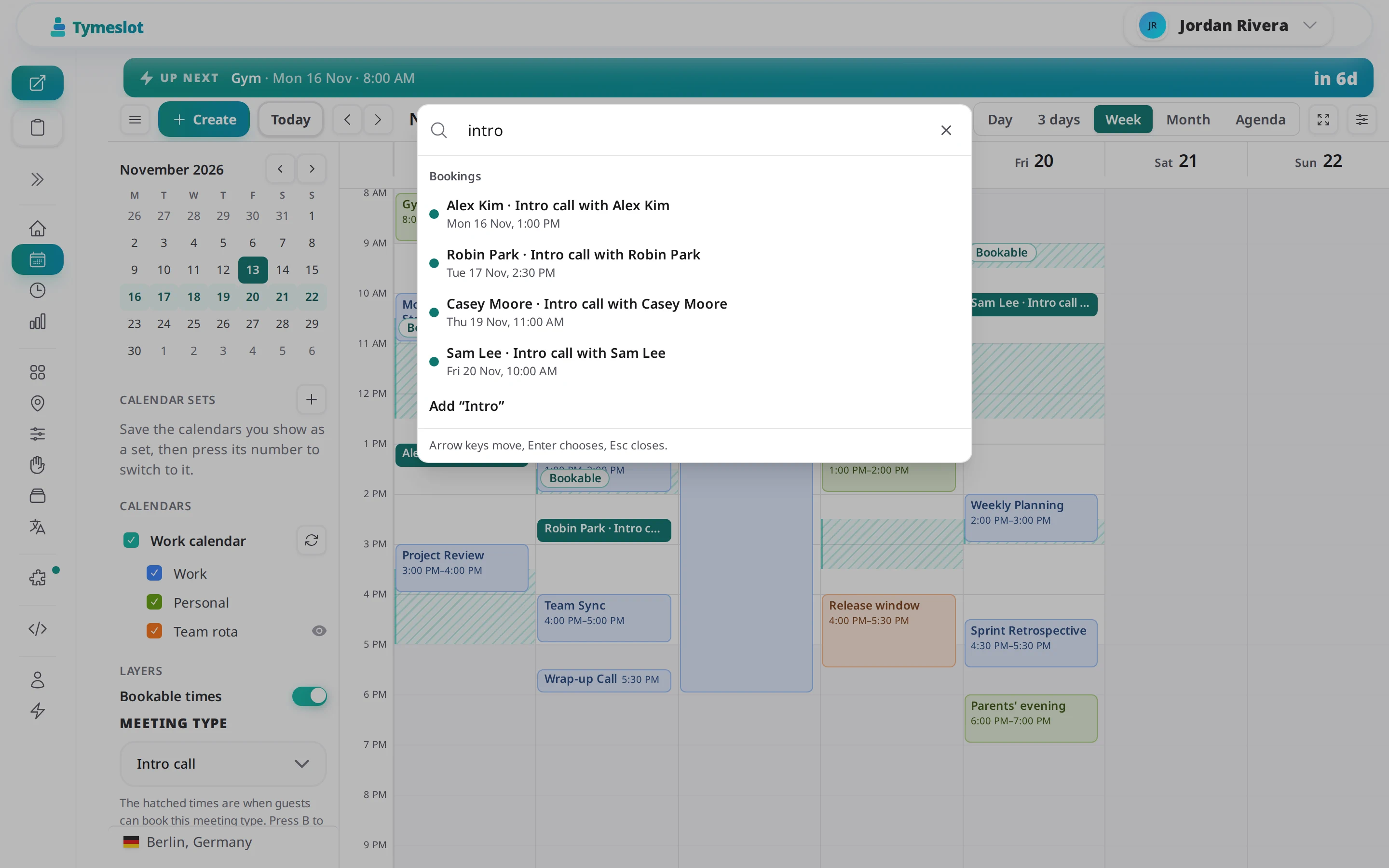
Type two letters and it searches events by title, notes or place, and bookings by title, guest or meeting type, nearest first. Choose a result and the calendar moves to it and opens it. Type a date such as "17 oct" to go there, or an event such as "tomorrow 10:00 Dentist" to add it. The same bar runs the calendar's commands: change the view, turn on focus mode, change the clock or the week start, import a file.
If you connect several accounts, calendar sets save the calendars you are showing under a name, such as Work or Home, up to nine of them. Press 1 to 9 to switch, and 0 to go back to your own choice. A set only changes what you see; a calendar outside it still blocks your availability if it is set to block.
On a phone
On a phone, tabs along the bottom switch between Agenda, Day, 3 days and Month, and the rest of the rail opens as a sheet.
Try it
The calendar is part of Tymeslot's open-source core, so it is the same on tymeslot.app and on your own server. Open it from the dashboard and press ? for every shortcut, or read the calendar guide for the details.