All Tymeslot features
Scheduling, calendar and video integrations, payments, automation and embedding: everything Tymeslot does, on one page.
Ask bookers anything you need to know before the meeting: ten question types, set per meeting type, with the answers carried into your confirmations, emails and calendar events.

Actualizado el 13 de octubre de 2026
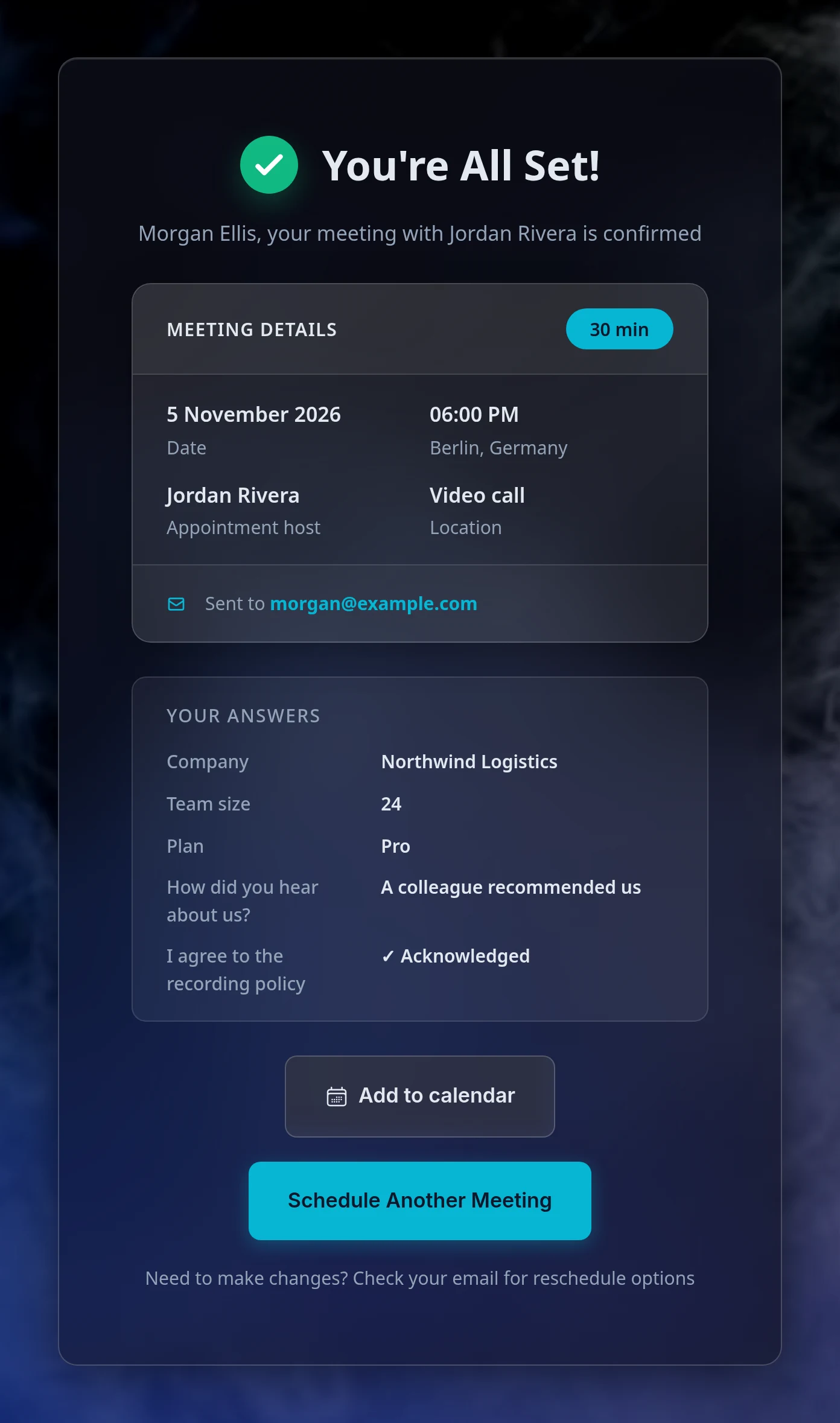
A discovery call needs different context from a delivery slot or a coaching session. Custom questions collect what each meeting type needs, such as a phone number, an order ID or a single yes/no, without a separate form tool. The answers travel with the booking: to the confirmation page, to the host's and the booker's emails, into the calendar event description and onto your dashboard.
Custom questions are set per meeting type, so a 15-minute intro call can ask one set of questions and a 60-minute strategy session another. On tymeslot.app they are part of the Pro plan; self-hosted installs include them.
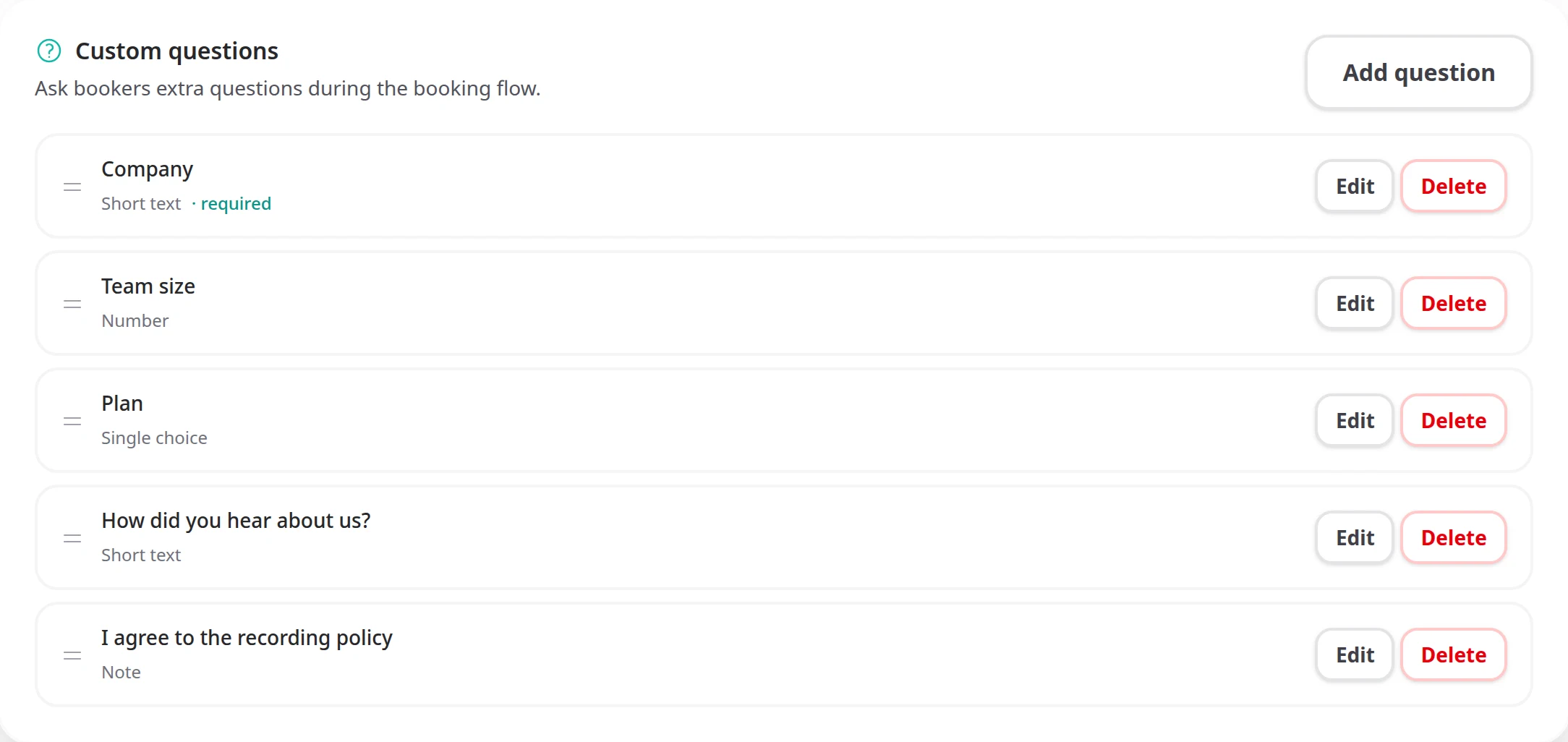
Each question has a type that controls how the input is rendered, what it accepts, and how the answer is validated and displayed.
Short text
A single-line free-text answer. Good for names, order numbers, or short context.
Number
A numeric answer. You can set a minimum and maximum, which suits headcounts, budgets or ratings.
Single choice
The booker picks exactly one option from a list of two to fifty choices.
Multiple choice
The booker picks any number of options from a list of two to fifty choices.
Yes / No
A yes-or-no answer shown as two tiles in your booking page's style. Both Yes and No are valid answers when the question is required.
Phone
A phone number, checked for a plausible format. Useful when you may want to follow up by phone.
URL
A web address, checked for a valid URL format. Good for portfolio links, LinkedIn profiles or a deck to review.
Date
A date picker. You can limit it to a range with a minimum and maximum.
Time
A time-of-day picker, which can also be limited to a range. Pair it with a date question when you need a moment other than the meeting time.
Note for acknowledgement
A block of text the booker ticks to acknowledge, such as a cancellation policy or a pre-meeting instruction. The time of the acknowledgement is saved with the answer.
Every question has the same basic settings, plus the type-specific extras described above.
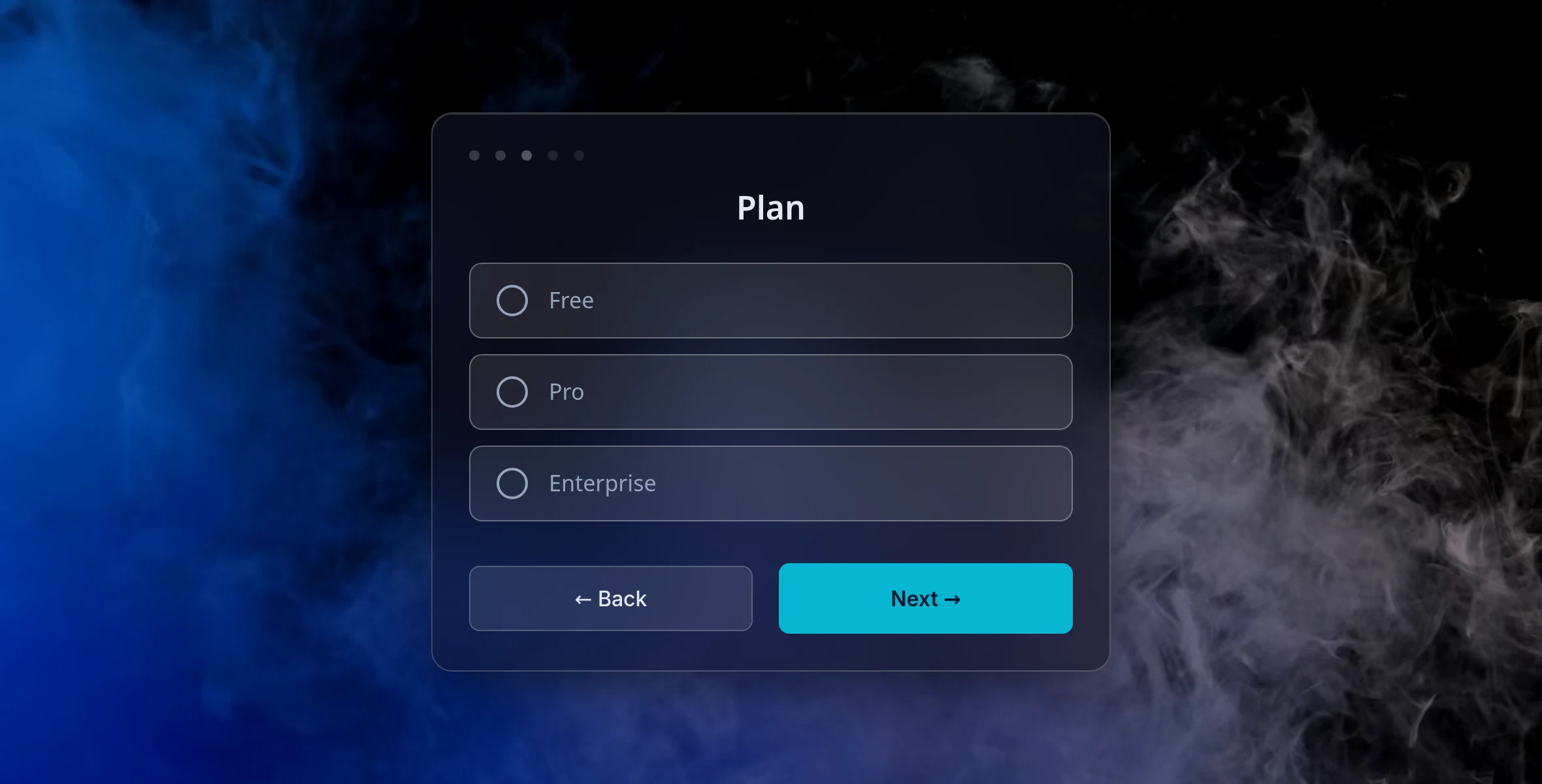
Custom questions come between picking a time and entering contact details. Each question gets its own page, so the booker answers one thing at a time, with back and continue buttons in your booking page's theme.
Once a booking is confirmed, the answers are part of the meeting and appear wherever its details do.
When a booking is created, Tymeslot saves a copy of the questions with it, including each label, type, option list and required setting. If you later rename a question, swap its type, or remove it from the meeting type, existing bookings keep showing the original question text and the original answer exactly as the booker supplied it.
You can refine your questions at any time without changing past bookings.
Yes, as many as you need. Each one has its own page in the booking flow, so the booker never faces a long form.
Yes. The editor asks you to confirm when the change would discard settings that do not apply to the new type; for example, switching from single choice to short text clears the option list. Past bookings keep their original snapshot and are unaffected.
Yes. A required question cannot be skipped: continuing without an answer shows a message in your booking page's theme. Optional questions can be skipped.
They do not, yet. Webhook payloads carry the booker's contact details and message, but not their answers to custom questions. See the Webhook Events Reference for what each payload contains.
Yes. Custom questions are part of the booking flow itself, so they appear wherever the flow does: on your booking page, in an inline embed, in a popup or behind a floating button.
There's no fixed cap on the number of questions per meeting type. Choice questions accept between two and fifty options. Labels are capped at 120 characters and help text at 300.
Scheduling, calendar and video integrations, payments, automation and embedding: everything Tymeslot does, on one page.
Keep several named sets of working hours (weekday office hours, evening consults, weekend intensives), each with its own breaks and booking rules, and give every meeting type the one it belongs to.
Hold a booking until you have agreed to it, and tell the person who booked exactly where they stand.
Propose candidate times, invite people by email or share one link, and let everyone mark each time Yes, If need be or No. Confirm the winner and Tymeslot books it as a meeting you manage, with everyone invited.