Back to Overview

Availability Schedules

Keep several sets of working hours side by side, and give each meeting type the one it belongs to.

Luka Breitig — Software Engineer & AI Developer
Luka Breitig

Software Engineer & AI Developer

One calendar, several working weeks

Most people do not have one working week. Client calls belong in the afternoon, first meetings with someone new belong in a quiet morning slot, and the occasional weekend intensive belongs nowhere near either. An availability schedule is a named set of working hours, breaks and booking rules. Keep up to five, and point each meeting type at the one it belongs to.
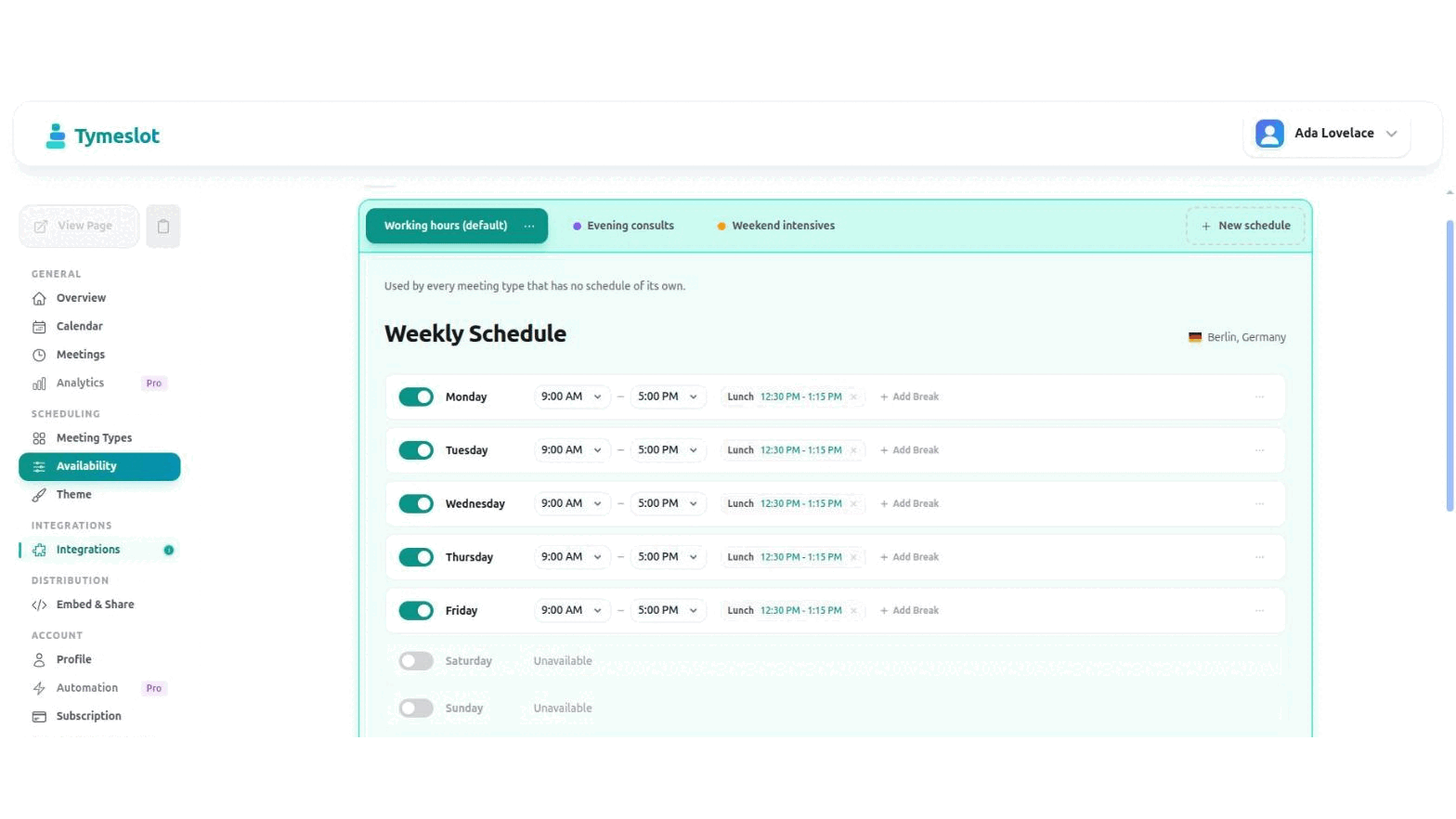
The availability editor with three named schedules as tabs: Working hours, Evening consults and Weekend intensives
Each schedule is a tab in its own colour. The colour follows the schedule everywhere it appears.

The default schedule

Every account starts with one schedule, marked default. It is the fallback: any meeting type that has not been given a schedule of its own is bookable against it.

  • Meeting types follow the default, not a copy of it — promote a different schedule to default and every meeting type that was following along moves with it. Nothing needs editing one by one.
  • The default cannot be deleted — make another schedule the default first, then delete the old one.

Creating a schedule

Go to Dashboard → Availability and select New schedule. Name it after what it is for — "Evening consults" tells you more in six months than "Schedule 2" will.

  • Set the week — switch days on or off, set the hours for each, and add breaks like lunch. A break only accepts times inside that day's hours.
  • Set the booking rules — buffer between meetings, how far ahead people can book, and the minimum notice you need. These belong to the schedule, so each one can differ.
  • Duplicate an existing one — the overflow menu on the active tab copies its hours, breaks and rules under a new name.

🎯 Pointing a meeting type at a schedule

Open Dashboard → Meeting Types, edit a type, and find Schedule under Booking Rules. Pick a schedule, or leave it on Default to keep following whichever schedule is the default at the time.

The choice saves as you make it — there is no separate save step. Whatever you pick decides which hours that type's booking page offers, and which rules apply when someone confirms.

💡 A worked example

Working hours

Mon–Fri, 9:00–17:00, lunch blocked. The default, so anything new follows it automatically.

Evening consults

Mon and Wed, 18:00–20:30, 30-minute buffer, 30-day window. Used by one paid consultation type.

Weekend intensives

Saturdays only, 10:00–14:00, bookable three months ahead so people can plan around it.

Connected calendars still apply

A schedule says when you are willing to take bookings. Your connected calendars say when you are already busy. Both are checked, so an event on your calendar removes the slot even if the schedule allows it.

Frequently Asked Questions

How many schedules can I have?
Five. That is a deliberate limit rather than a technical one — the schedules appear as a row of tabs, and past a handful they stop reading as navigation. The New schedule button greys out once you reach it; delete one to make room.
What happens to a meeting type if I delete the schedule it uses?
It falls back to your default schedule and stays bookable. The confirmation dialog lists by name every meeting type that will move, so you can see the consequence before confirming.
Can two meeting types share one schedule?
Yes, as many as you like. A schedule is not consumed by being used — change its hours once and every meeting type pointing at it follows.
What are the coloured dots on the tabs?
Each schedule gets its own colour so you can tell at a glance which one you are editing. The same colour marks that schedule where a meeting type chooses one, so "the amber schedule" means the same thing on both screens.

🔗 Related Articles

Read Custom Booking Questions

Custom Booking Questions

Ask bookers anything you need before the meeting — short text, choices, yes/no, dates, acknowledgements, and more. Answers ride along to confirmations, emails, and your calendar.