All Tymeslot features
Scheduling, calendar and video integrations, payments, automation and embedding: everything Tymeslot does, on one page.
Give every booking its own room on a Jitsi Meet server you run, optionally locked down with token authentication so only the people invited can get in.

Aktualizováno 23. září 2026
By the end of this guide, Tymeslot will create a room on your own Jitsi Meet server for every booking. If your server uses token authentication, each link you and your guest receive will carry its own access token for that one room.
Tymeslot never contacts your Jitsi server when you add the integration or when someone books; it only builds the links. The one exception is
Test connection
on the dashboard, which refuses a server at a private address unless a self-hosted Tymeslot sets ALLOW_PRIVATE_IPS_FOR_VIDEO=true. A Jitsi server on an internal network therefore works, on the managed service too, for every participant who can reach it.
Jitsi rooms are addressed by URL alone, so Tymeslot does not need an API to create them. When someone books, Tymeslot works out a room name, a 16-character hash derived from the booking, and adds it to your server's address:
https://meet.example.com/3f9a1c07b2d84e65
. Each booking produces a different name, so no two meetings share a room.
A server without authentication lets in anyone who has the link. A server with token authentication also expects a signed token in the link. If you give Tymeslot your server's App ID and secret, it signs a separate token for you and for your guest and adds it to each person's link.
https://meet.example.com
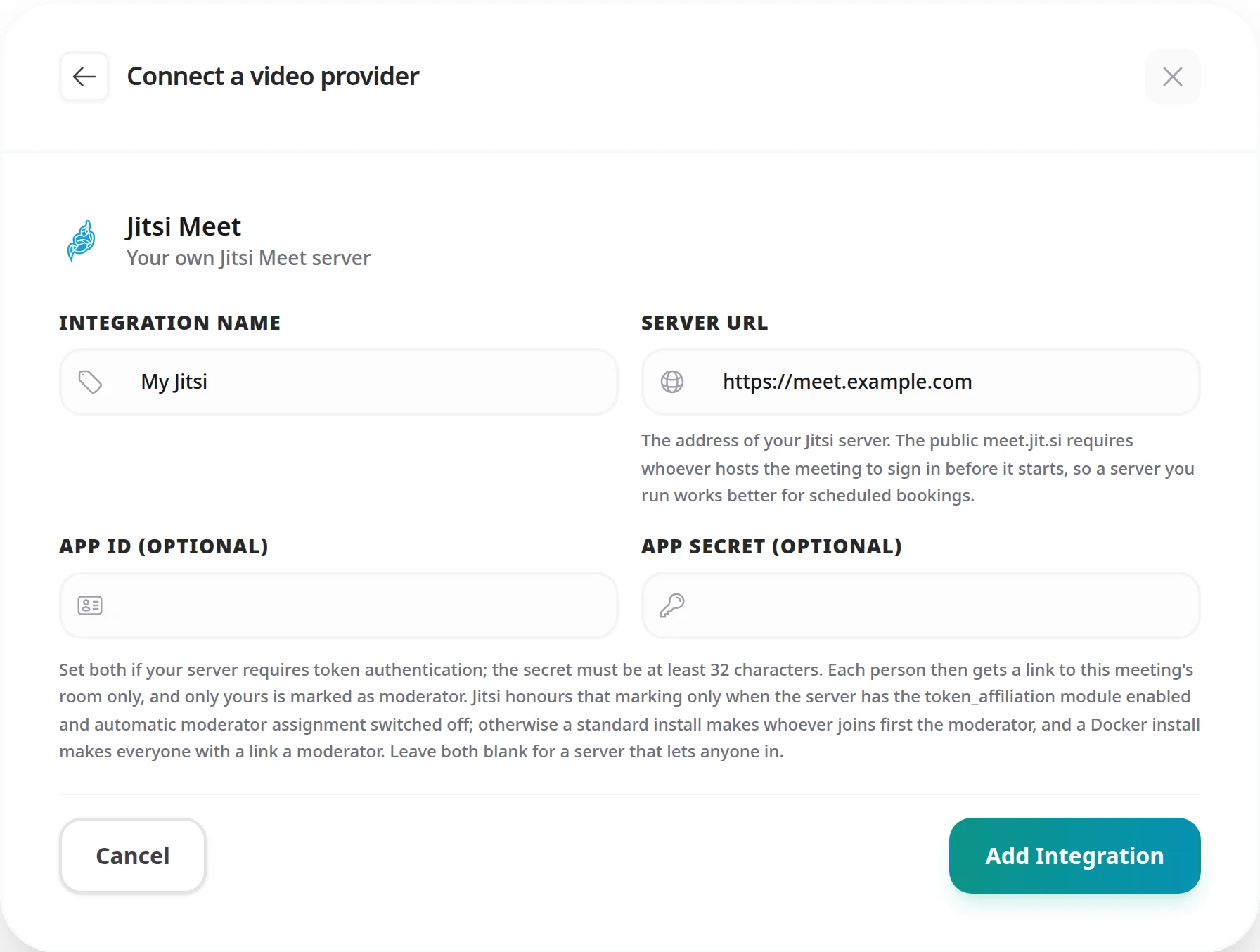
Expected result: your Jitsi server appears in your list of video integrations.
Skip this step if your server admits anyone. Otherwise, Tymeslot needs the same App ID and secret your server checks tokens against. On a server installed from packages, they sit in the Prosody configuration for your Jitsi domain, usually
/etc/prosody/conf.d/meet.example.com.cfg.lua
:
VirtualHost "meet.example.com"
    authentication = "token"
    app_id = "your_app_id"
    app_secret = "your_app_secret"
On a Docker installation, the same values are environment variables in your
.env
file:
ENABLE_AUTH=1
AUTH_TYPE=jwt
JWT_APP_ID=your_app_id
JWT_APP_SECRET=your_app_secret
Enter the App ID in App ID and the secret in App secret. Tymeslot needs both or neither: it refuses one without the other.
Every link Tymeslot sends to a guest carries a token signed with this secret. Anyone holding one of those links can guess secrets offline, as fast as their hardware allows, until one produces the same signature. A long random secret puts that out of reach; a short one does not. Tymeslot therefore refuses a secret shorter than 32 characters (bytes). If yours is shorter, generate a new one on the server and update your Jitsi configuration first:
openssl rand -hex 32?jwt=…
Your token marks you as moderator and your guest's does not. A standard Jitsi server ignores that marking:
jitsi-meet-tokens
, whoever joins first becomes moderator, guest or not.
AUTH_TYPE=jwt, everyone holding a token becomes moderator.
For the marking to decide who moderates, configure your server as follows:
token_affiliation
to the main MUC component, beside
token_verification
. On Docker, add
token_affiliation
to
XMPP_MUC_MODULES
(comma-separated).
jicofo.conference.enable-auto-owner = false
. On Docker, set
ENABLE_AUTO_OWNER=0
and also
JICOFO_ENABLE_AUTH=0
.
muc_wait_for_host
, set
wait_for_host_disable_auto_owners = true
. On Docker, set WAIT_FOR_HOST_DISABLE_AUTO_OWNERS=true.
With that in place, you are moderator whenever you are in the room. A guest who arrives early waits without moderator controls until you join.
Each meeting type chooses its own video providers. Repeat these steps for every meeting type that should use Jitsi:
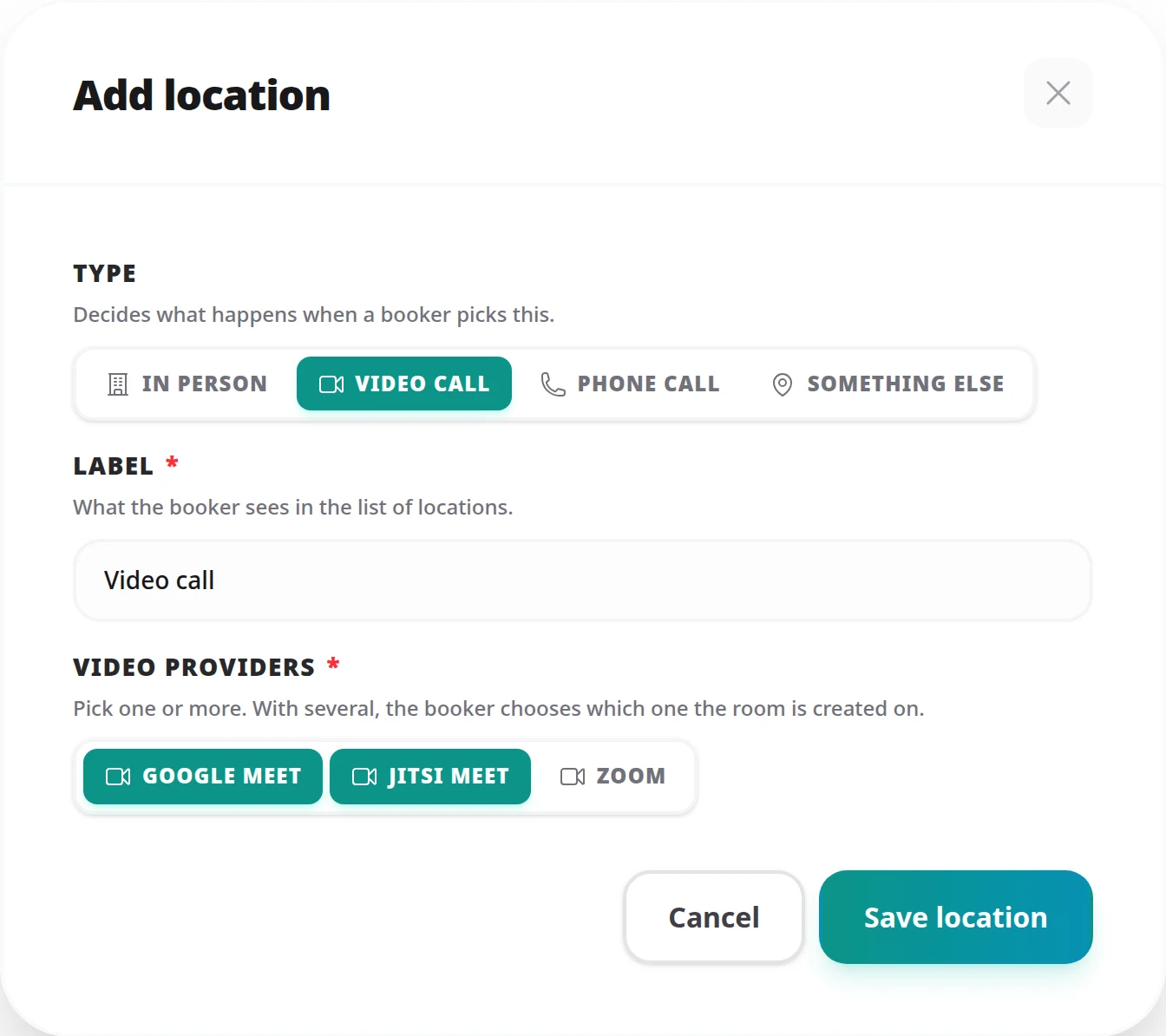
Expected result: the next booking that uses this location carries its own room link on your Jitsi server.
You can tick several providers on the same location, for example Jitsi alongside Google Meet or Zoom. The person booking then chooses which one the room is created on. See Meeting Locations for everything a meeting type's locations can do.
No. Without it, Tymeslot sends the plain room link and anyone who has it can join. The room name is a hash that differs for every booking and cannot be worked out without the booking's internal ID, which is enough for many setups.
Tokens help when you want the server itself to refuse anyone who does not hold a valid link, for example to stop strangers using your server for their own meetings.
Yes. Enter https://meet.jit.si as the server URL and leave both credentials
blank. Bear in mind the caveat above: someone has to sign in with a Google,
GitHub or Facebook account before the meeting can start, so plan for that at
meeting time.
That almost never happens: creating a token only fails if the App ID, the App secret or the room name is missing, or on an unexpected error while signing. If it does, the booking keeps its plain room link and Tymeslot logs why. A server that requires tokens refuses that link.
Check that the App ID and App secret in Tymeslot match your server's configuration. Tymeslot signs a token with whatever credentials you gave it and has no way to tell they are wrong, so a mismatch only shows up when your server rejects the token.
?jwt=…
value
Scheduling, calendar and video integrations, payments, automation and embedding: everything Tymeslot does, on one page.
Auto-create Google Meet rooms for every confirmed booking via the Calendar API. Attendees receive the link by email and can join without a Google account.
Auto-create Microsoft Teams meetings for every confirmed booking. Covers the Graph permissions Tymeslot asks for, when a tenant admin has to consent, and what happens when an account cannot host meetings.
Auto-create Zoom meetings for every confirmed booking. Connects over OAuth. Use a paid plan (Pro, Business or Enterprise): Zoom applies its free-plan limits, including meeting length, to meetings created this way.