Google Meet Integration
Auto-create Google Meet rooms for every confirmed booking via the Calendar API. Attendees receive the link by email and can join without a Google account.
Auto-create Zoom meetings for every booked appointment. Requires a paid Zoom plan — Pro, Business, or Enterprise. Free Zoom accounts cannot create meetings programmatically.

Updated August 11, 2026
By the end of this guide, every confirmed booking will automatically create a Zoom meeting on your account and include the join link, passcode, and dial-in in confirmation emails sent to both you and the attendee.
On tymeslot.app, the Zoom app is already configured — just click "Connect Zoom" in your dashboard and authorise on Zoom's consent screen. No setup required.
Self-hosters need to create their own Zoom Marketplace app and configure three environment variables. The rest of this guide walks through that process.
http://localhost
for local development).
Tymeslot Self-Hosted
. This is what users see on Zoom's consent screen.
In the Marketplace app's App Credentials
tab, add your callback URL. Replace
your-domain.com
with your Tymeslot host:
https://your-domain.com/auth/zoom/video/callbackThe redirect URL is automatically added to the OAuth Allow List by Zoom — no manual step needed. You can add further allowed URLs (e.g. a staging host) from the same Allow List section if needed.
Still on the Basic Information tab, scroll down to Deauthorization Notification and paste your deauth endpoint:
https://your-domain.com/auth/zoom/deauthorize
Zoom signs every deauthorization request with HMAC-SHA256 against the
Secret Token
shown in that same section. Copy it — you'll set it as
ZOOM_DEAUTH_SECRET
in the next step. The deauthorization endpoint is required before submitting the
Marketplace app for production review.
Then in the Scopes tab, add:
meeting:write:meeting
— create meetings on the user's behalf
meeting:read:meeting
— verify meeting status
meeting:delete:meeting
— remove the meeting when a booking is cancelled
user:read:user
— fetch the connected user's profile for display
meeting:write:meeting:user
,
meeting:read:meeting:user
,
meeting:delete:meeting:user
, and
user:read:user:user
.
meeting:delete:meeting
has to reconnect their account before cancellations will reach Zoom.
From the Basic Information tab, copy your Client ID and Client Secret, and the Secret Token from the Deauthorization Notification section. Generate a 32-byte state secret for CSRF protection. Then add these to your Tymeslot environment:
export ZOOM_CLIENT_ID="<your client id>"
export ZOOM_CLIENT_SECRET="<your client secret>"
export ZOOM_STATE_SECRET="$(openssl rand -hex 32)"
export ZOOM_DEAUTH_SECRET="<marketplace secret token>"
For Docker Compose deployments, add these to your
.env
file. For Cloudron, set them in the App Configure dialog. Restart Tymeslot after
setting them.
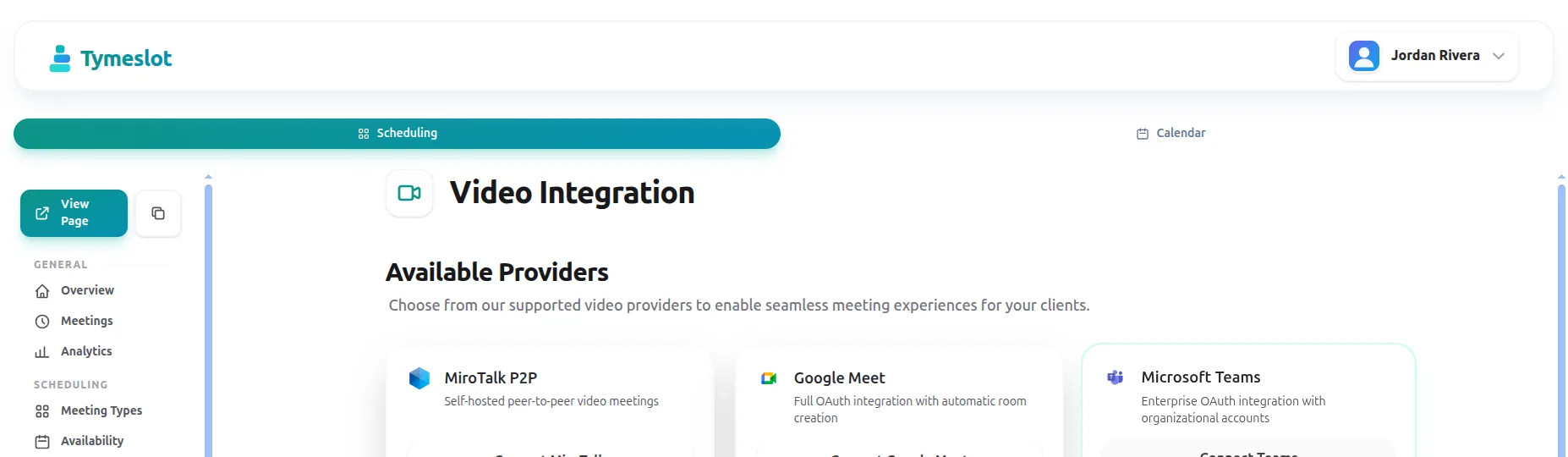
Each meeting type chooses its own video provider. To use Zoom for a specific meeting type:
While your Zoom app is in Development mode, only your own Zoom account can install it. That is fine for single-tenant self-hosting where you are the only Zoom-connected user.
To let other users (e.g. team members or your customers) connect their own Zoom accounts to your Tymeslot deployment, submit the Marketplace app for publication via App Submission in the portal. Zoom's review typically takes 1–3 weeks. During that period you can manually whitelist individual Zoom accounts via the Marketplace's Beta Test → Add User form.
Zoom's review requires:
No. The Zoom REST API requires a paid plan (Pro and above) to create meetings programmatically. Free accounts can authenticate but the API call returns a 400 with code 200.
That's how Zoom's OAuth works. Tymeslot refreshes the token automatically using the refresh token before each meeting creation. Refresh tokens last 90 days; reconnect from the dashboard if a refresh fails.
Yes. Either disconnect from the Tymeslot dashboard, or revoke at zoom.us/profile → Apps → Tymeslot → Remove.
Yes. Tymeslot's Zoom integration is User-managed: each user authorises their own Zoom account independently, and their OAuth tokens are stored separately. As long as your Marketplace app is either published or has the user's Zoom account added via Beta Test, each user can connect their own Zoom account and book meetings from it.
The deauthorization webhook
is required: Zoom POSTs to
/auth/zoom/deauthorize
whenever a user uninstalls your app, and Tymeslot uses it to clear stored
OAuth tokens. It's wired up automatically once
ZOOM_DEAUTH_SECRET
is set (see Step 3). Other Event Subscription webhooks (meeting events, edits)
are optional and not used by the booking flow.
https://zoom.us/j/...
.
Auto-create Google Meet rooms for every confirmed booking via the Calendar API. Attendees receive the link by email and can join without a Google account.
Auto-create Microsoft Teams meetings for every confirmed booking. Requires Microsoft 365 Business or Enterprise with admin-consented API permissions.
Host video meetings with MiroTalk P2P — fully self-hosted, no subscriptions, peer-to-peer bandwidth. Covers Docker setup, reverse proxy, and TURN server config.