Microsoft Teams Integration
Auto-create Microsoft Teams meetings for every confirmed booking. Covers the Graph permissions Tymeslot asks for, when a tenant admin has to consent, and what happens when an account cannot host meetings.
Auto-create Google Meet rooms for every booked meeting. Attendees receive the meeting link in their confirmation email.

Updated 23 September 2026
By the end of this guide, every confirmed booking will get its own Google Meet room, and the link will appear in the confirmation emails sent to you and your guest. You never set up a room by hand.
GOOGLE_CLIENT_ID
and
GOOGLE_CLIENT_SECRET
(see the
Google OAuth App Setup
guide)
SERVICE_DISABLED
error
When a booking is confirmed, Tymeslot calls the Google Meet API to create a standalone meeting space and includes the resulting link in the booking confirmation email. A meeting space is not a calendar event, so Google Meet never writes a second event into your calendar alongside the booking; the booking itself is recorded once, on whichever calendar provider you use. When the booking is cancelled, Tymeslot ends the meeting's active conference.
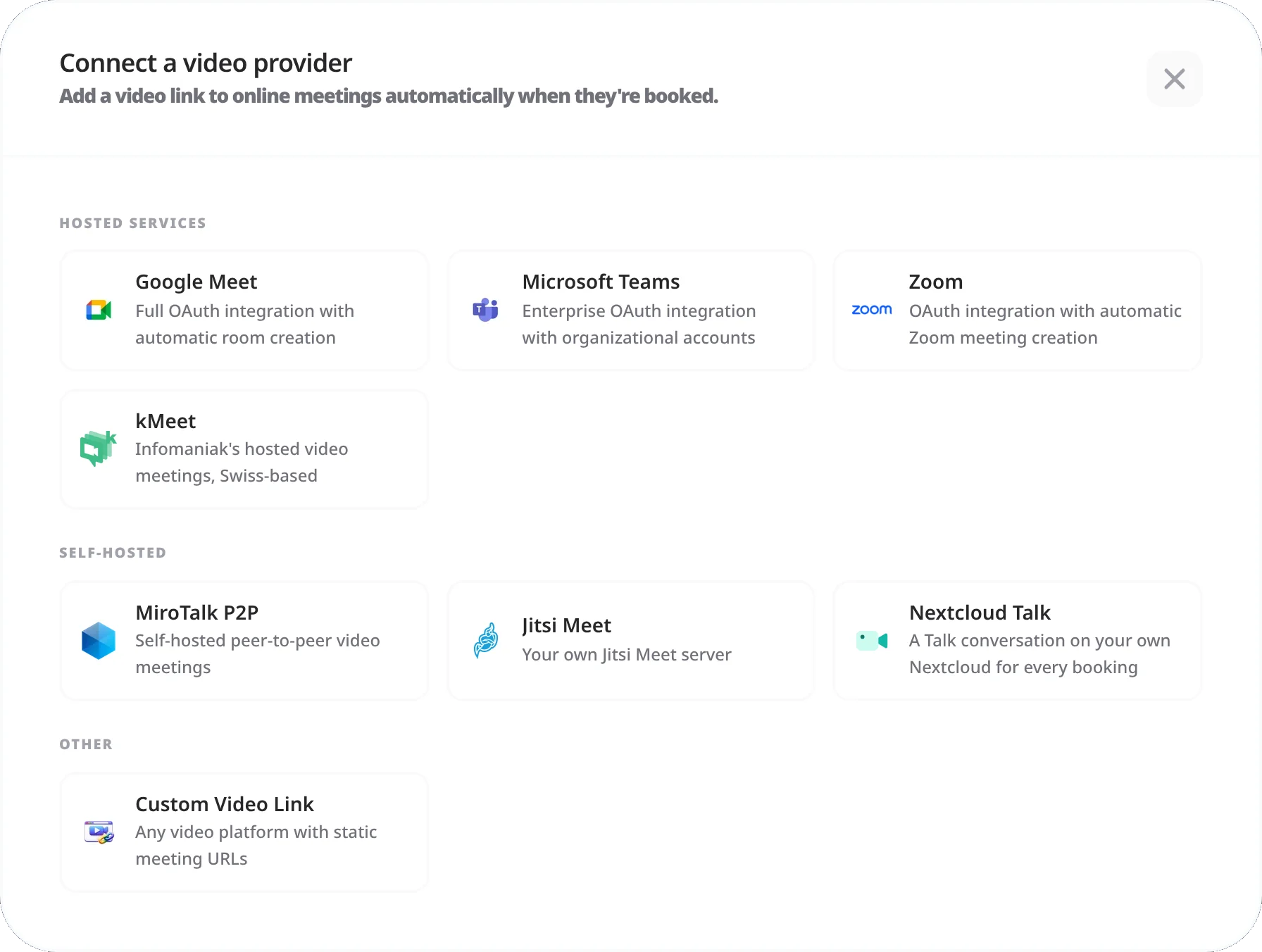
Google Meet is enabled per meeting type as a video call location. Repeat for each meeting type where you want automatic Meet rooms:
Expected result: every new booking that uses this location has a Meet room created automatically when the booking is confirmed.
You can tick several providers on the same location, for example Google Meet alongside Zoom or Microsoft Teams. The person booking then chooses which one the room is created on. See Meeting Locations for everything a meeting type's locations can do.
After a booking is confirmed for a Google Meet meeting type:
meet.google.com/xxx-xxxx-xxx.
If the booking has no Meet link, see the troubleshooting section below.
The booking confirmation email sent to attendees contains:
The Meet link is missing from the confirmation email
The most common cause is the Google Meet API not being enabled in your Google Cloud project. Go to Google Cloud Console → APIs & Services → Enabled APIs and look for "Google Meet API" in the list. If it is missing, enable it from the Library and make a new test booking. Standard Gmail and Google Workspace accounts all support Meet.
Room creation fails consistently
Tymeslot retries a failed room creation in the background. If rooms keep failing, check Dashboard → Integrations → Video for a warning on your Google Meet integration. A warning there usually means Google has expired or revoked the connection; click Reconnect on the integration to sign in again.
Meet room created on the wrong Google account
Meet rooms are created on the Google account that connected the Google Meet integration. If you have multiple Google accounts and the wrong one is connected, go to Dashboard → Integrations → Video, disconnect the current Google Meet connection, and reconnect using the correct account.
Tymeslot needs two things before it can create Meet links. First, the Google Meet API must be enabled in your Google Cloud project: go to Google Cloud Console → APIs & Services → Enabled APIs and confirm "Google Meet API" is listed. Second, Google Meet must be connected in Tymeslot: go to Dashboard → Integrations → Video and check that Google Meet appears in your list of video integrations.
The Google Meet API call failed when the booking was made. Tymeslot keeps retrying in the
background, and after a few failed attempts it sends the confirmation without a link rather than
hold it back. A link created later shows on Dashboard
→ Meetings
and in reminder emails. If no link appears, self-hosters can check the application logs for
entries referencing
google_meet
or a
SERVICE_DISABLED
response. A revoked or expired OAuth token is another common cause; disconnecting and reconnecting the
Google Meet integration under Dashboard
→ Integrations
→ Video
fixes that.
No. Personal Google (Gmail) accounts fully support Google Meet at no cost. Workspace accounts add organisational controls, such as who can start or join meetings and recording policies. Those are admin settings and do not affect how Tymeslot creates Meet links.
Yes. Google Meet allows anyone with the meeting link to join as a guest directly from their browser, with no Google account or app needed. The meeting host (the Google account that created the room) must join for the call to begin unless the Quick access setting is enabled in Meet settings, which allows guests to enter without waiting for the host.
Yes, this is standard Google Meet behaviour. Guests who arrive before the host see a waiting screen until the host joins. If you want attendees to be able to start the call without you, enable Quick access in your Google Meet settings (meet.google.com → Settings → Host controls). Quick access is a per-host setting in Google Meet; Tymeslot cannot change it.
Auto-create Microsoft Teams meetings for every confirmed booking. Covers the Graph permissions Tymeslot asks for, when a tenant admin has to consent, and what happens when an account cannot host meetings.
Auto-create Zoom meetings for every confirmed booking. Connects over OAuth. Use a paid plan (Pro, Business or Enterprise): Zoom applies its free-plan limits, including meeting length, to meetings created this way.
Host video meetings on your own MiroTalk P2P server, with no subscription and peer-to-peer video between participants. Covers Docker setup, reverse proxy, and TURN server config.