All Tymeslot features
Scheduling, calendar and video integrations, payments, automation and embedding: everything Tymeslot does, on one page.
Give every booking its own kMeet room on Infomaniak's Swiss infrastructure. There is nothing to configure, and your guests join without an account.

Aktualizováno 23. září 2026
By the end of this guide, kMeet will be connected to Tymeslot and switched on for a meeting type. Every booking on that type then gets its own kMeet room link, sent to you and your guest in the confirmation emails.
kMeet is Infomaniak's hosted video meeting service. It runs on Infomaniak's infrastructure in Switzerland and is built on Jitsi Meet, the open-source video conferencing software.
kMeet rooms are addressed by URL alone, so Tymeslot does not call an API to create them. When someone books, Tymeslot works out a room name and adds it to the fixed address
https://kmeet.infomaniak.com
. The room exists as soon as the first person opens the link.
The room name is a 16-character hash derived from the booking, for example
https://kmeet.infomaniak.com/3f9a1c07b2d84e65
. Each booking produces a different name, so no two meetings share a room.
Expected result: kMeet appears in your list of video integrations.
Each meeting type chooses its own video providers. Repeat these steps for every meeting type that should use kMeet:
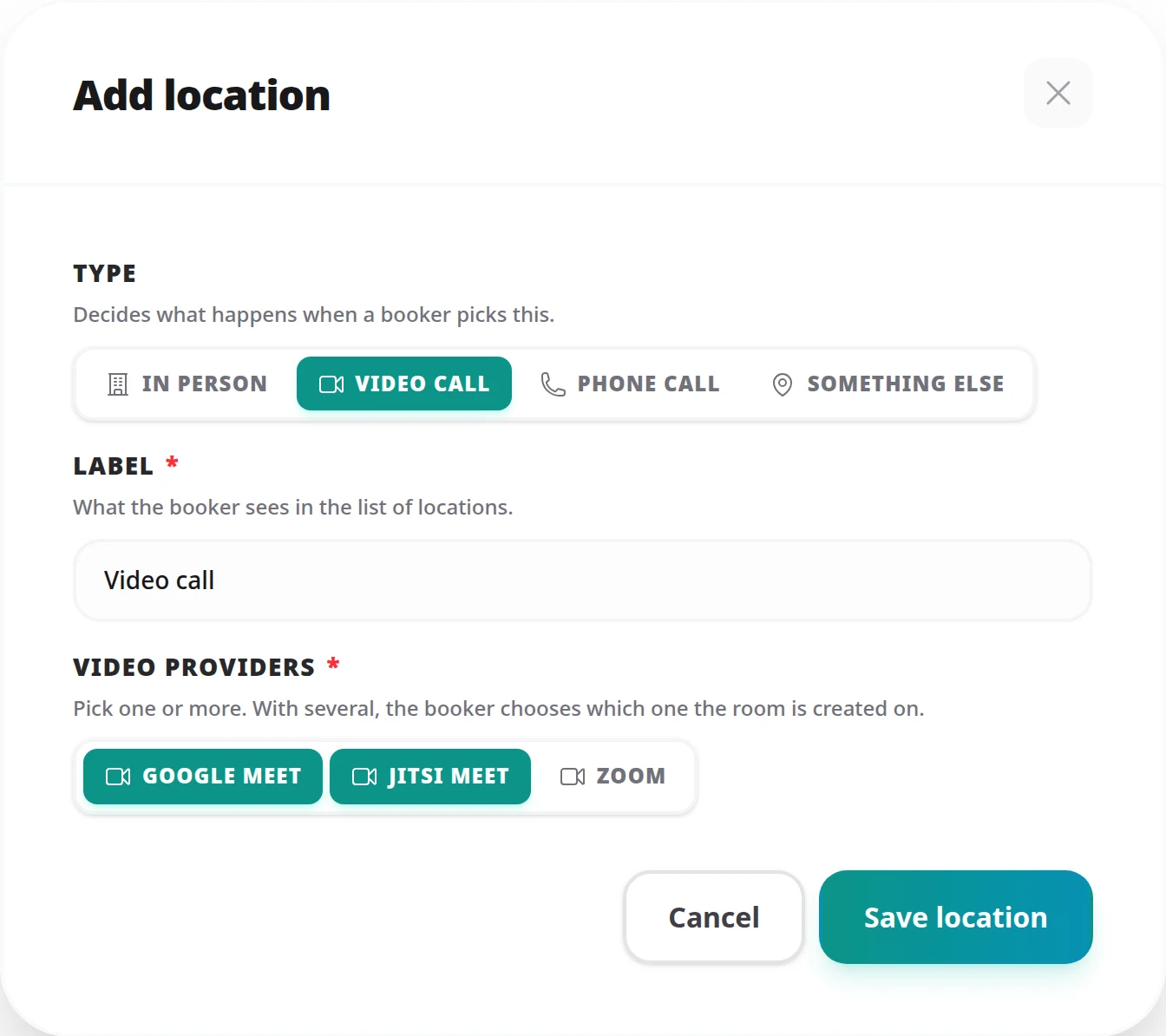
Expected result: the next booking that uses this location carries its own kMeet room link.
You can tick several providers on the same location, for example kMeet alongside Google Meet or Zoom. The person booking then chooses which one the room is created on. See Meeting Locations for everything a meeting type's locations can do.
No. Tymeslot always generates the name from the booking. The name is the only part of the link that identifies the meeting, so it has to be hard to guess.
A readable name such as anna-consultation is easy to guess, and a fixed name would put every booking in the same room, where one guest could walk into the previous meeting. A hash that differs for every booking avoids both problems.
No. Your guest opens the link from their confirmation email in a browser and joins the room. They do not need an Infomaniak account.
In practice they do not. The room name is 16 hexadecimal characters taken from a SHA-256 hash of the booking's unique identifier, which gives 2⁶⁴ possible names. Even across a few hundred million bookings, the chance that any two share a name stays below one per cent.
https://kmeet.infomaniak.com/
Scheduling, calendar and video integrations, payments, automation and embedding: everything Tymeslot does, on one page.
Auto-create Google Meet rooms for every confirmed booking via the Calendar API. Attendees receive the link by email and can join without a Google account.
Auto-create Microsoft Teams meetings for every confirmed booking. Covers the Graph permissions Tymeslot asks for, when a tenant admin has to consent, and what happens when an account cannot host meetings.
Auto-create Zoom meetings for every confirmed booking. Connects over OAuth. Use a paid plan (Pro, Business or Enterprise): Zoom applies its free-plan limits, including meeting length, to meetings created this way.