Back to Overview

Meeting Payments

Charge attendees through Stripe when they book a paid meeting type: setup, currencies, refunds, payouts and fees.

Luka Breitig, Software Engineer & AI Developer
Luka Breitig

Aggiornato il 17 luglio 2026

Get paid the moment someone books

Meeting payments let you charge attendees when they book a paid meeting type. The attendee pays before the slot is confirmed, so an unpaid booking never reaches your calendar, and the money goes straight into your Stripe account on your usual payout schedule. Tymeslot never holds your funds.

Requirements

On the managed cloud (tymeslot.app), meeting payments are part of the Pro plan. To take payments you need:

  • An active Tymeslot Pro subscription. A Pro trial counts.
  • A Stripe account in a supported country connected to Tymeslot through Stripe Connect (Standard). Personal and business accounts both work.
  • Identity verification completed on Stripe. Until Stripe enables charges on your account, attendees can't book paid meeting types.

Self-hosting?

Meeting payments also work when you self-host Core, but the setup is different: your instance acts as its own Stripe platform. See the Stripe Payments Setup guide for the operator walkthrough.

Setup walkthrough

Once your Stripe account is verified, setup takes four steps.
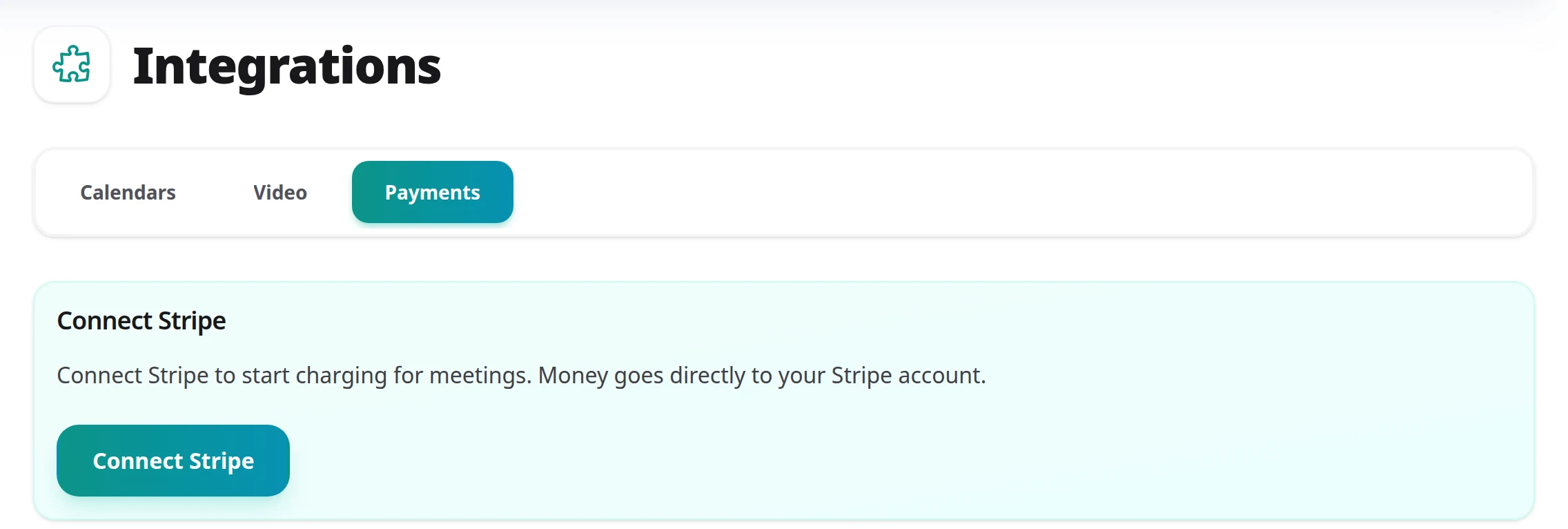
The Payments tab of Dashboard → Integrations showing the Connect Stripe button
Dashboard → Integrations → Payments before setup: one button starts Stripe Connect onboarding.
1

Open Dashboard → Integrations → Payments

Click Connect Stripe to start Stripe's onboarding in a new tab.

2

Complete Stripe onboarding

Sign in to an existing Stripe account or create one. Stripe collects your business and bank details itself; Tymeslot never sees them.

3

Pick your currency

Your currency starts as your Stripe account's default. Change it under Default currency on the Payments tab. Every paid meeting type uses this currency.

4

Turn on payment for a meeting type

Edit a meeting type, turn on Require payment for this meeting type and set a price. After you save, the next attendee pays through Stripe Checkout before the slot is confirmed. Group bookings can't take payment, so turn those off first.
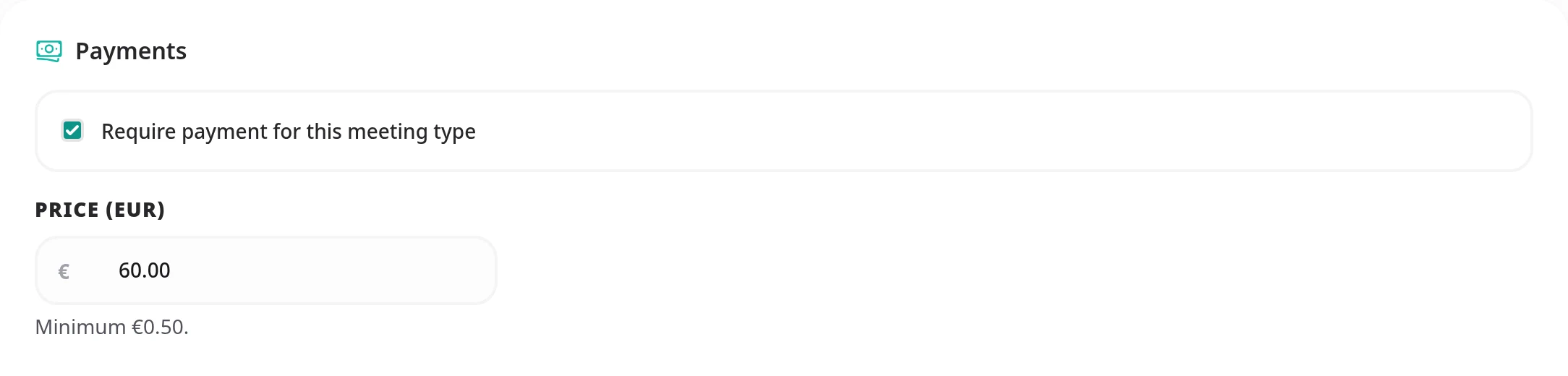
The Payments section of a meeting type's Booking Rules tab, with Require payment for this meeting type ticked and the Price (EUR) field set to 60.00, minimum €0.50
In the meeting type's Booking Rules tab, tick Require payment for this meeting type and enter the price in your currency.

Pricing and currencies

Each host uses one currency, and each meeting type has its own price (for example €25, £40 or $199.50).

  • 13 currencies supported: EUR, USD, GBP, CHF, SEK, NOK, DKK, PLN, CZK, HUF, CAD, AUD, NZD.
  • Minimum prices apply: Stripe sets a minimum charge per currency (for example €0.50, $0.50 or £0.30), and Tymeslot checks it when you save.
  • Changing currency resets prices: switching currency resets every paid meeting type to free, so no old price is charged in the new currency. Existing paid bookings keep the price they were charged.

Payouts

Money goes from the attendee straight to your Stripe account, without passing through Tymeslot.

  • Direct charges via Stripe Connect Standard. Stripe deducts the platform fee at charge time, and the rest goes to your balance.
  • Your existing Stripe payout schedule applies: daily, weekly or monthly to the bank account on your Stripe profile. You set it in your Stripe dashboard.
  • No payout from Tymeslot: we never hold your funds, so there is nothing for us to release.

Refunds

Issue a refund from the Payments tab: pick a payment, choose Full refund or Partial refund, and confirm.

  • Full or partial. Multiple partial refunds are allowed up to the total charged.
  • Attendee is notified by email showing the amount refunded.
  • 60-day window for in-app refunds. Within 60 days of the charge, a refund from Tymeslot also returns the platform fee. After that, the Payments tab shows Refund in Stripe, and you refund the attendee from your Stripe dashboard.

Refunds settle on Stripe's clock

Stripe sends the refund to the attendee's bank. Card refunds usually take 5–10 business days to arrive.

Cancellations and reschedules

Cancelling or rescheduling a paid booking keeps the payment record in step with the booking.

  • Cancel with refund. When you cancel a paid booking from the dashboard, you can refund the attendee in the same step.
  • Cancel without refund. The booking is cancelled; the payment is retained. The attendee is notified by email.
  • Free reschedules. When an attendee reschedules a paid booking, the existing payment moves to the new slot without a second charge.
  • Attendee abandons checkout. If the attendee leaves Stripe Checkout without paying, the slot is held for up to 30 minutes and then released automatically.

Disputes and chargebacks

Sooner or later a cardholder may dispute a payment. Tymeslot tells you about the dispute, but you resolve it with Stripe.

  • Disputes appear on the Payments tab as soon as Stripe notifies us, and we email you as well.
  • Respond directly in Stripe. Use your Stripe dashboard to upload evidence; the deadlines and outcome are managed there.
  • Lost disputes deduct funds from your balance. Tymeslot does not refund or rebate the platform fee on lost disputes.

Excessive disputes

Stripe can restrict charges on accounts with persistently high dispute rates. If Stripe restricts your account, we email you so you can act on it.

Fees

Two fees apply to every paid booking on the managed cloud:

  • Stripe processing fees, charged by Stripe directly. Typical rates are 1.5%–2.9% plus a fixed amount per transaction, depending on country and card.
  • Tymeslot platform fee: 0.5% (50 basis points) of the booking amount. Rounded up to the nearest cent, with a 1-cent floor.
  • No fees on free bookings. The 0.5% applies only when payment is collected.
  • Refunded application fees when you refund from Tymeslot within 60 days of the original charge.

Self-host notes

Core ships with the platform fee set to 0 basis points. Self-hosters can register their instance as a Stripe platform and set their own fee via the MEETING_PAYMENTS_APPLICATION_FEE_BP environment variable. See the Stripe Payments Setup guide for details.

Frequently Asked Questions

Can I use my existing Stripe account?

Yes. Stripe Connect adds Tymeslot as a connected platform to your existing account. You keep your branding, customer data and balance, and you can still take payments outside Tymeslot.

Does Tymeslot hold any of my money?

No. Stripe Connect Standard uses direct charges, so funds flow from the attendee's card straight into your Stripe balance. Tymeslot only takes a 0.5% application fee that Stripe routes to the platform at charge time.

Which payment methods do attendees see?

Whatever you have enabled on your Stripe account. Card, Apple Pay, Google Pay, and Link are on by default for most regions; SEPA, iDEAL, Bancontact, and others can be enabled in Stripe.

What happens if a host loses Pro mid-month?

Your Stripe account stays connected, but paid meeting types stop taking payments, so nobody can complete a booking on one until Pro is active again. Bookings already paid for are unaffected, and you can still cancel them from the dashboard. While Pro is inactive, you can't change payment settings or make more meeting types paid.

Can I disconnect Stripe?

Yes. Open Dashboard → Integrations → Payments and click Disconnect Stripe. Checkouts still in progress are cancelled, and paid meeting types can't be booked until you reconnect. Their prices are kept, so reconnecting restores them, and your payment history stays visible.

How are refunds taxed?

A Stripe refund returns the full amount to the attendee, including any tax you collected. Ask your accountant how that affects VAT or GST where you are; Tymeslot does not give tax advice.

Why is there a minimum price?

Stripe charges a fixed fee per transaction, so below the minimum your Stripe fees would exceed the booking amount. The minimums match Stripe's published thresholds for each currency.

Related Articles

Read Stripe Payments Setup

Stripe Payments Setup

Run meeting payments on your own Stripe Connect platform. Covers platform registration, the Connect webhook endpoint with its events and API version, and the environment variables.