Payments
Take payment with Stripe when clients book. Funds go straight to your own Stripe account; we never touch the money. 13 currencies and one-click refunds.
Charge attendees through Stripe when they book a paid meeting type: setup, currencies, refunds, payouts and fees.

Оновлено 17 липня 2026
Meeting payments let you charge attendees when they book a paid meeting type. The attendee pays before the slot is confirmed, so an unpaid booking never reaches your calendar, and the money goes straight into your Stripe account on your usual payout schedule. Tymeslot never holds your funds.
On the managed cloud (tymeslot.app), meeting payments are part of the Pro plan. To take payments you need:
Once your Stripe account is verified, setup takes four steps.
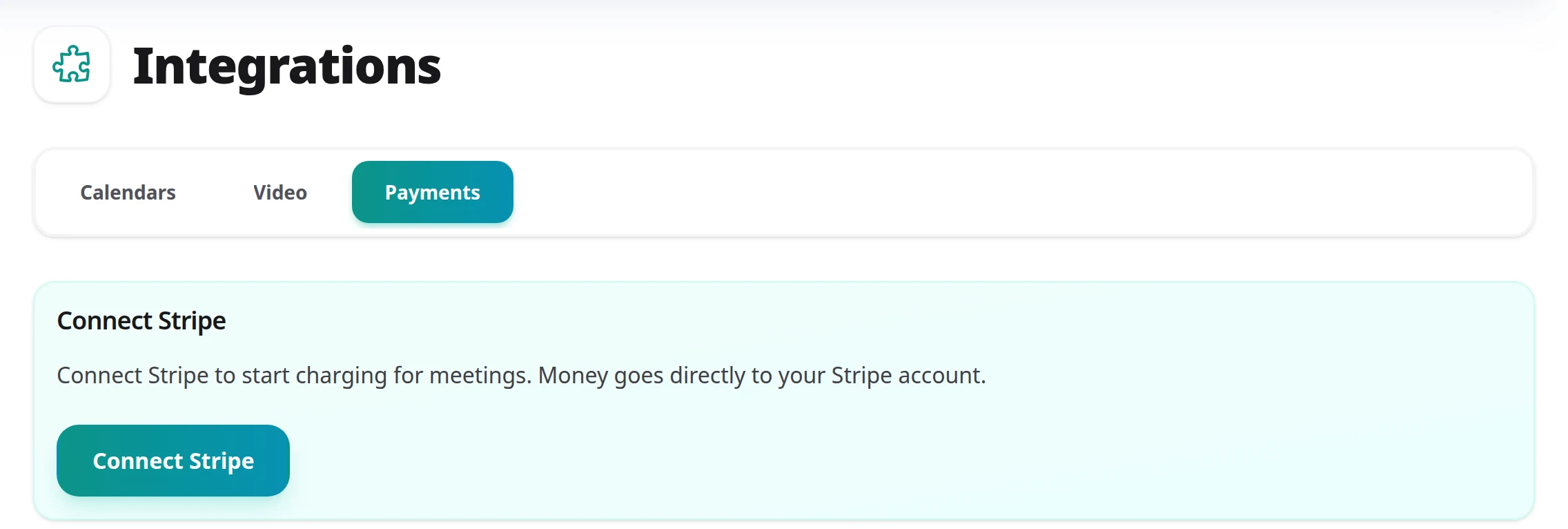
Open Dashboard → Integrations → Payments
Click Connect Stripe to start Stripe's onboarding in a new tab.
Complete Stripe onboarding
Sign in to an existing Stripe account or create one. Stripe collects your business and bank details itself; Tymeslot never sees them.
Pick your currency
Your currency starts as your Stripe account's default. Change it under Default currency on the Payments tab. Every paid meeting type uses this currency.
Turn on payment for a meeting type
Edit a meeting type, turn on Require payment for this meeting type and set a price. After you save, the next attendee pays through Stripe Checkout before the slot is confirmed. Group bookings can't take payment, so turn those off first.
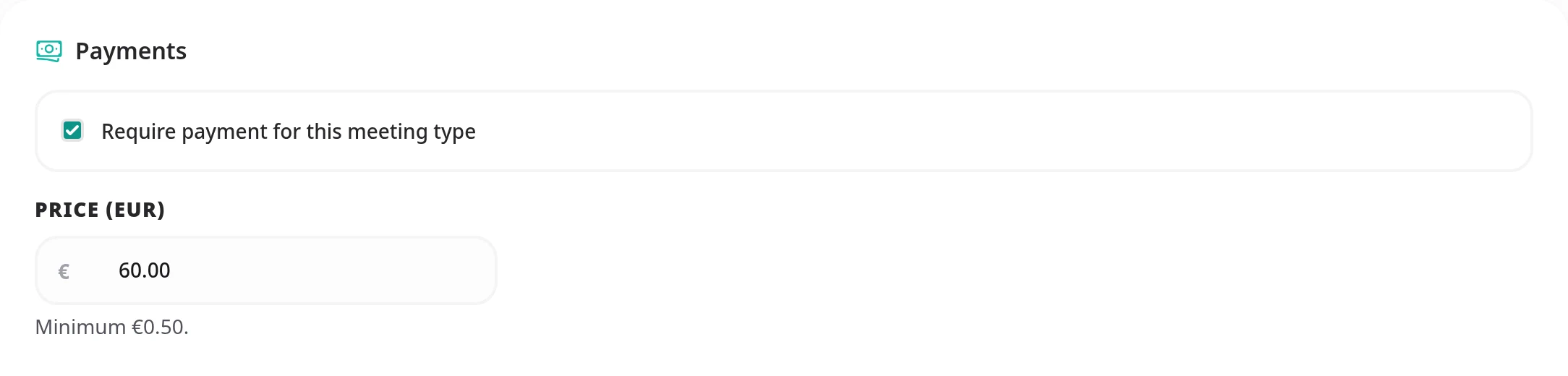
Each host uses one currency, and each meeting type has its own price (for example €25, £40 or $199.50).
Money goes from the attendee straight to your Stripe account, without passing through Tymeslot.
Issue a refund from the Payments tab: pick a payment, choose Full refund or Partial refund, and confirm.
Cancelling or rescheduling a paid booking keeps the payment record in step with the booking.
Sooner or later a cardholder may dispute a payment. Tymeslot tells you about the dispute, but you resolve it with Stripe.
Two fees apply to every paid booking on the managed cloud:
MEETING_PAYMENTS_APPLICATION_FEE_BP
environment variable. See the
Stripe Payments Setup guide
for details.
Yes. Stripe Connect adds Tymeslot as a connected platform to your existing account. You keep your branding, customer data and balance, and you can still take payments outside Tymeslot.
No. Stripe Connect Standard uses direct charges, so funds flow from the attendee's card straight into your Stripe balance. Tymeslot only takes a 0.5% application fee that Stripe routes to the platform at charge time.
Whatever you have enabled on your Stripe account. Card, Apple Pay, Google Pay, and Link are on by default for most regions; SEPA, iDEAL, Bancontact, and others can be enabled in Stripe.
Your Stripe account stays connected, but paid meeting types stop taking payments, so nobody can complete a booking on one until Pro is active again. Bookings already paid for are unaffected, and you can still cancel them from the dashboard. While Pro is inactive, you can't change payment settings or make more meeting types paid.
Yes. Open Dashboard → Integrations → Payments and click Disconnect Stripe. Checkouts still in progress are cancelled, and paid meeting types can't be booked until you reconnect. Their prices are kept, so reconnecting restores them, and your payment history stays visible.
A Stripe refund returns the full amount to the attendee, including any tax you collected. Ask your accountant how that affects VAT or GST where you are; Tymeslot does not give tax advice.
Stripe charges a fixed fee per transaction, so below the minimum your Stripe fees would exceed the booking amount. The minimums match Stripe's published thresholds for each currency.
Take payment with Stripe when clients book. Funds go straight to your own Stripe account; we never touch the money. 13 currencies and one-click refunds.
Run meeting payments on your own Stripe Connect platform. Covers platform registration, the Connect webhook endpoint with its events and API version, and the environment variables.