Calendar Sync
Two-way calendar sync that stops double-bookings. Connect Google Calendar, Outlook, Apple iCloud or any CalDAV server, such as Nextcloud or mailbox.org.
Connect Tymeslot to Zimbra Collaboration Server over CalDAV: the server address, user@domain login, and what to ask your Zimbra administrator.

Actualizado el 19 de agosto de 2026
Zimbra Collaboration Server has a built-in CalDAV endpoint, and every account's calendars are available through it. Your administrator does not need to set anything up per user.
Zimbra's DAV path uses your full email address where servers such as Nextcloud use a short username. Tymeslot connects the way any CalDAV client does: the standard DAV endpoint and your account login.
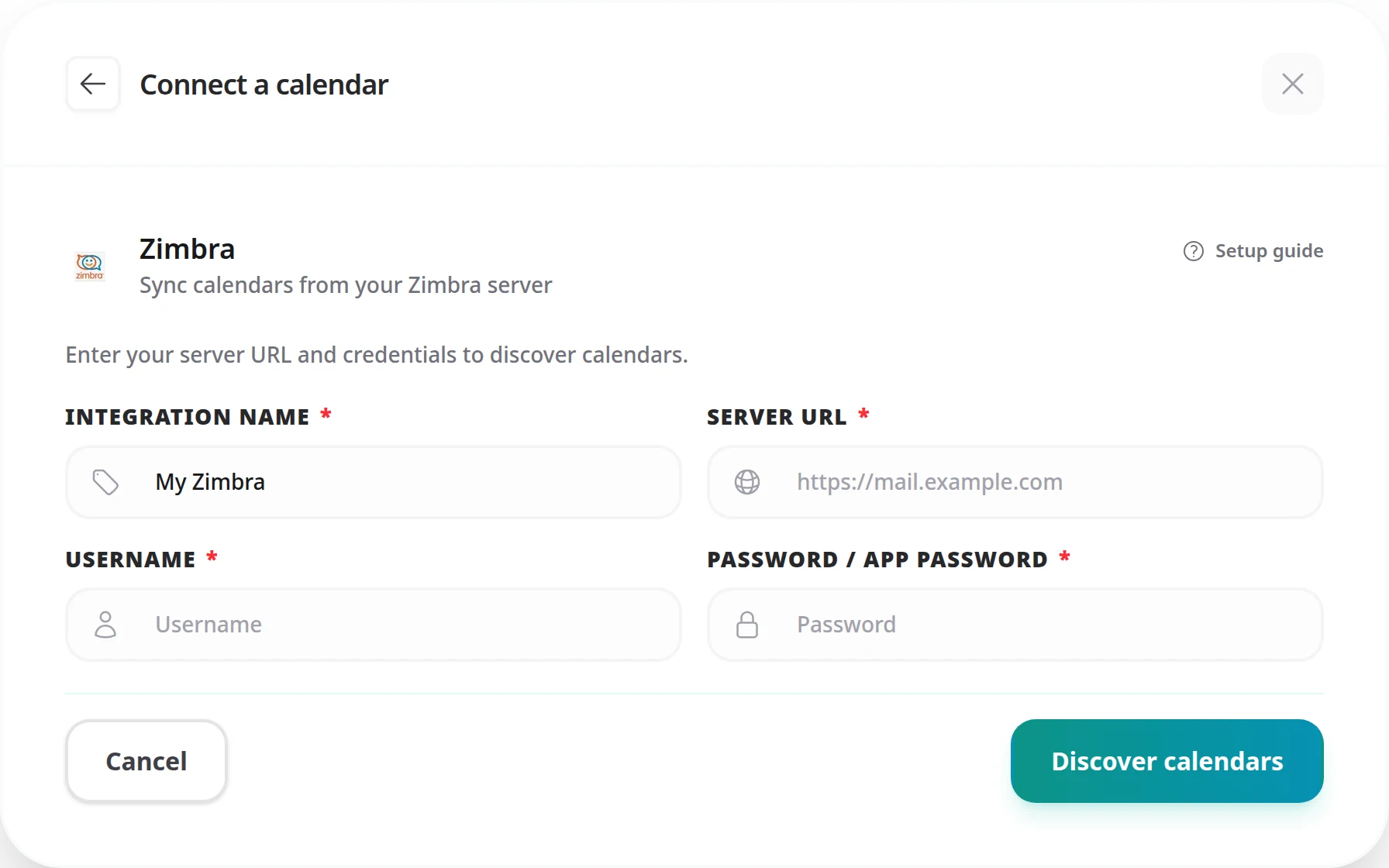
Enter the address of your Zimbra server, the one you use for the web client:
https://mail.example.com/dav/USER@DOMAIN/
itself.
A full DAV address from another CalDAV client also works:
https://mail.example.com/dav/USER@DOMAIN/Zimbra has no app passwords. Use your full Zimbra email address as the username, with your account password.
Username format
Enter your email address in full, for example alice@company.com.
Zimbra may reject a short username without the domain, and Tymeslot also uses the username to build the calendar path.
If your organisation connects Zimbra to Active Directory or LDAP, use the login you use for the Zimbra web client.
"Authentication failed"
Check that the username is your full email address, including the domain ("alice@company.com", not "alice"), and that the password is the one you use for the Zimbra web client.
"Resource not found" or "No calendars were discovered"
Tymeslot reached the server but found no calendars under /dav/USER@DOMAIN/. Check that the server URL is the Zimbra host with nothing after it, and that the username is your full email address.
Administrator-blocked external CalDAV access
Some Zimbra administrators turn off CalDAV for users or allow it only from certain IP ranges. If the connection is refused although your login is correct, ask your administrator whether CalDAV is allowed for your account.
CalDAV has been supported in Zimbra Collaboration Server since version 5. Both
Zimbra Open Source Edition and Zimbra Network Edition include CalDAV. The DAV
endpoint is /dav/ on the standard Zimbra HTTPS port (443).
Only if Zimbra exposes it under your own account, in which case it appears in the list after [Discover calendars]. A shared calendar you can only read still blocks your time, but it cannot take bookings, so do not choose it as a meeting type's Booking Destination. Zimbra enforces whatever access the owner granted you.
Usually not: CalDAV is on by default for standard accounts. If your organisation's Zimbra policy restricts it, ask your administrator to allow CalDAV for your account from the server Tymeslot runs on.
Two-way calendar sync that stops double-bookings. Connect Google Calendar, Outlook, Apple iCloud or any CalDAV server, such as Nextcloud or mailbox.org.
Sync Tymeslot with CalDAV calendars: Nextcloud, Radicale, Baikal, Zimbra, mailbox.org, iCloud and Fastmail. Conflict checks and new bookings work without a Google or Microsoft account.
Connect Tymeslot to Google Calendar. Busy, Tentative and Out of Office events all block bookings, so you are never double-booked, and every booking is added to your calendar.
Sync Tymeslot with Outlook Calendar via Microsoft Graph. Your Outlook events block conflicting bookings and every booking is added to your calendar. Works with Outlook.com and Microsoft 365.