Outlook Calendar Integration
Sync Tymeslot with Outlook Calendar via Microsoft Graph. Your Outlook events block conflicting bookings and every booking is added to your calendar. Works with Outlook.com and Microsoft 365.
Sync Tymeslot with Google Calendar, so busy times block your booking page and confirmed bookings appear in your calendar.

Updated 21 July 2026
If you self-host Tymeslot, complete these steps first; the connection fails without them. On tymeslot.app they are already done, so go straight to step 1.
GOOGLE_CLIENT_ID
and
GOOGLE_CLIENT_SECRET
set in your environment (see the
Google OAuth App Setup
guide if you haven't done this yet)
Outcome
By the end of this guide, Tymeslot will check your Google Calendar for conflicts before offering a time, and create a calendar event for every confirmed booking.
Tymeslot requests the
https://www.googleapis.com/auth/calendar
scope, which covers both reading your calendars and writing booking events. Here is what Tymeslot does with that access.
Checking availability
When someone opens your booking page, Tymeslot reads the events in your selected calendars to work out which times are taken. Events shown as Busy, including out-of-office events, block time; events shown as Free, and invitations you have declined, do not.
Creating booking events
When a booking is confirmed, Tymeslot creates an event in the meeting type's booking calendar. The event includes the invitee's name, the meeting link and the meeting type's title.
WEBHOOK_BASE_URL
environment variable (see the
Environment Variables
reference). Existing connections switch to push when you reconnect them.
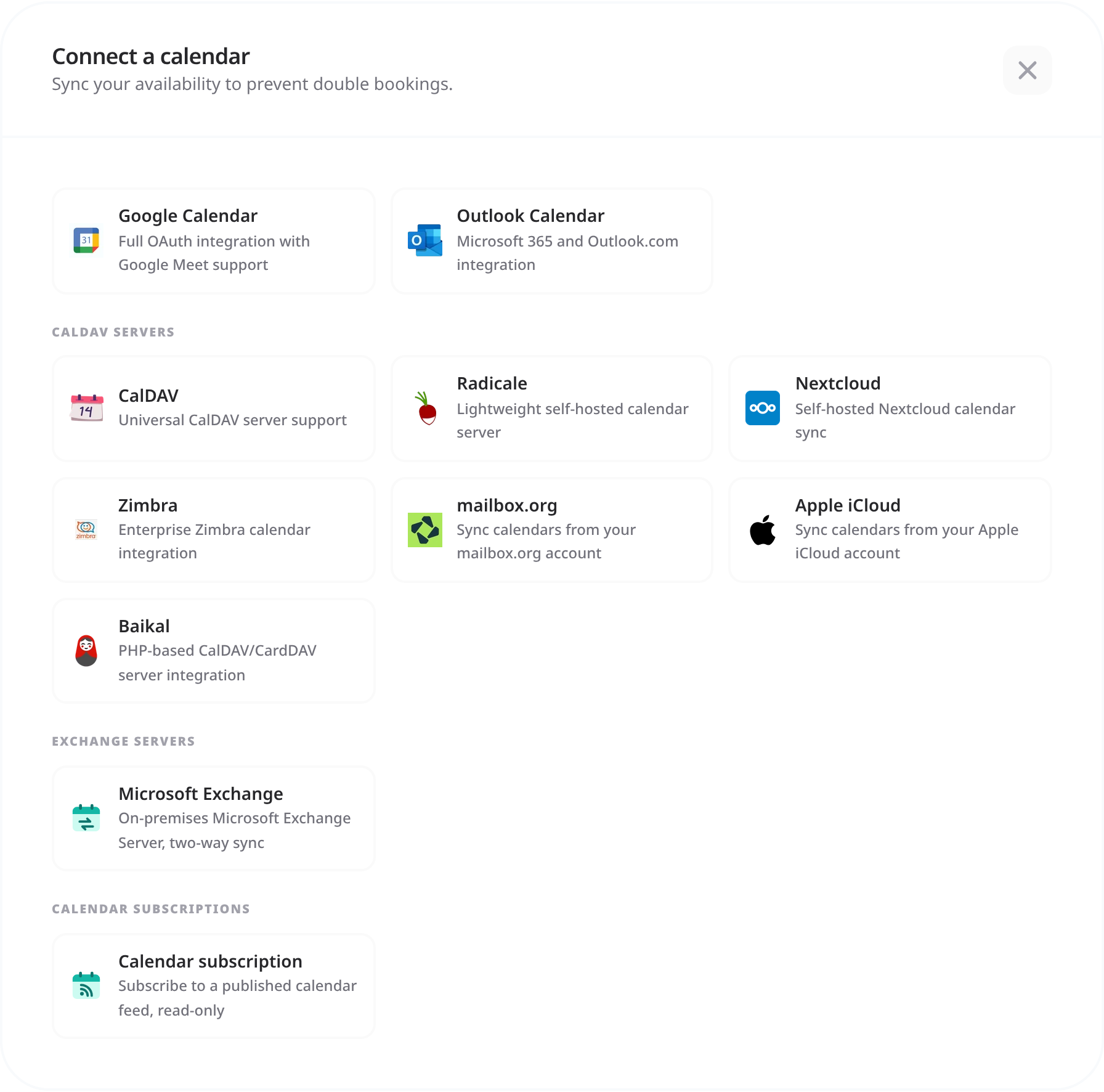
Tymeslot finds every calendar on your Google account. Two separate settings decide how they are used:
Calendars checked for conflicts
Click [Manage calendars] on the Google connection and tick every calendar that should block your availability. When an event in a ticked calendar is shown as Busy, that time disappears from your booking page. Only your primary calendar is ticked at first, so tick your work calendar too if it is a separate one.
Where bookings are written
Each meeting type writes its bookings to one calendar, its Booking Destination. Open the meeting type, choose the Google account under 1. Select Calendar Account, then the calendar under 2. Select Specific Calendar. Until you choose, bookings go to your primary calendar.
If a calendar doesn't appear after connecting: click [Refresh All] on the Integrations page to fetch the calendar list again. If it still doesn't appear on a self-hosted instance, the Google Calendar API may not be enabled in your Google Cloud project; check under APIs & Services → Library.
Not every Google Calendar event blocks your availability. It depends mainly on the event's Show as setting in Google Calendar.
| Event | Blocks availability? |
|---|---|
| Busy | Yes, the slot is unavailable |
| Free | No, the slot stays open |
| Invitation answered Maybe | Yes, the slot is unavailable |
| Out of office | Yes, the slot is unavailable |
Bookings still going through when you're busy? Check that the right calendar is ticked under [Manage calendars] on the Google connection. Conflicts are only detected when the calendar is ticked there and its events are shown as Busy.
Google access tokens expire regularly, and Tymeslot renews them in the background. Google can also revoke access, for example if you change your Google account password, remove Tymeslot from your connected apps, or the Google Cloud app's status changes.
If calendar sync stops working, navigate to [Dashboard] → [Integrations] → [Calendars] and click [Reconnect] on the Google connection. This signs you in to Google again and replaces the revoked access. If a connection shows an [Upgrade] button instead, it was made with read-only access: click it and grant calendar access so Tymeslot can write bookings.
A 403 usually means the Google Calendar API is not enabled for your Google Cloud project. Go to APIs & Services → Library in Google Cloud Console, search for "Google Calendar API", and click Enable. If the API is already enabled, check that the OAuth credentials belong to the same project as the enabled API.
Open [Dashboard] → [Integrations] → [Calendars] and click [Manage calendars] on the Google connection. Tymeslot only checks the calendars ticked there; connecting the account is not enough on its own. Also make sure the events in that calendar are shown as Busy (not Free).
Yes. Connect your Google Workspace account the same way you would a personal Google account. If your Workspace administrator has restricted third-party app access, they may need to allow Tymeslot in the Google Admin console under Security → Access and data control → API controls → Manage Third-Party App Access.
No. Both Google Calendar sync and Google Meet link generation use the same
GOOGLE_CLIENT_ID
and GOOGLE_CLIENT_SECRET, so one Google OAuth app is enough. Each user connects them separately, though: Google Meet is added under [Integrations] → [Video], and that sign-in asks Google for the extra Meet permission.
Duplicates usually mean the same Google account is connected twice. Go to [Dashboard] → [Integrations] → [Calendars], delete every Google Calendar connection, then connect the account once. If the duplicates continue, check whether another scheduling tool is writing to the same calendar.
Yes. The warning appears when your Google Cloud OAuth consent screen is in Testing mode and has not been through Google's verification process. It is expected for self-hosted instances. Click Advanced → Go to [your app name] (unsafe) to proceed. To remove the warning for good, publish the OAuth consent screen in your Google Cloud project, which means submitting the app for Google's review.
Run through this checklist to confirm everything is set up correctly:
Calendar sync is especially useful for professionals managing multiple clients. See how Consultants use Google Calendar with Tymeslot.
Sync Tymeslot with Outlook Calendar via Microsoft Graph. Your Outlook events block conflicting bookings and every booking is added to your calendar. Works with Outlook.com and Microsoft 365.
Sync Tymeslot with CalDAV calendars: Nextcloud, Radicale, Baikal, Zimbra, mailbox.org, iCloud and Fastmail. Conflict checks and new bookings work without a Google or Microsoft account.
Connect Tymeslot to an on-premises Microsoft Exchange Server over EWS. Covers the endpoint URL, domain logins versus mailbox addresses, self-signed certificates, and the read-only limits.