Nextcloud CalDAV Integration
Connect Tymeslot to your Nextcloud calendar. Step-by-step guide for finding the per-calendar CalDAV URL, generating an app password, and verifying the sync.
Connect any CalDAV calendar server to Tymeslot: Nextcloud, Radicale, Zimbra, mailbox.org, Apple iCloud, Baikal and others.

Updated 19 August 2026
If your provider has its own guide, start there. Each one covers the server address to enter, which password to use, and the problems specific to that server.
Have these three things ready before you start.
Outcome
By the end of this guide, Tymeslot will block the times your CalDAV calendars show you as busy, and write confirmed bookings into the calendar you choose.
CalDAV (Calendar Distributed Authoring and Versioning) is an open standard for accessing calendar data over HTTPS. You may also see it called "WebDAV Calendar". Most self-hosted and privacy-friendly calendar servers speak CalDAV, which makes it the usual choice when you want to keep your calendar off Google and Microsoft.
Unlike the Google and Outlook integrations, CalDAV needs no OAuth app or API registration: a server URL, a username and a password are enough. Tymeslot contacts your server to read your busy times and to write confirmed bookings.
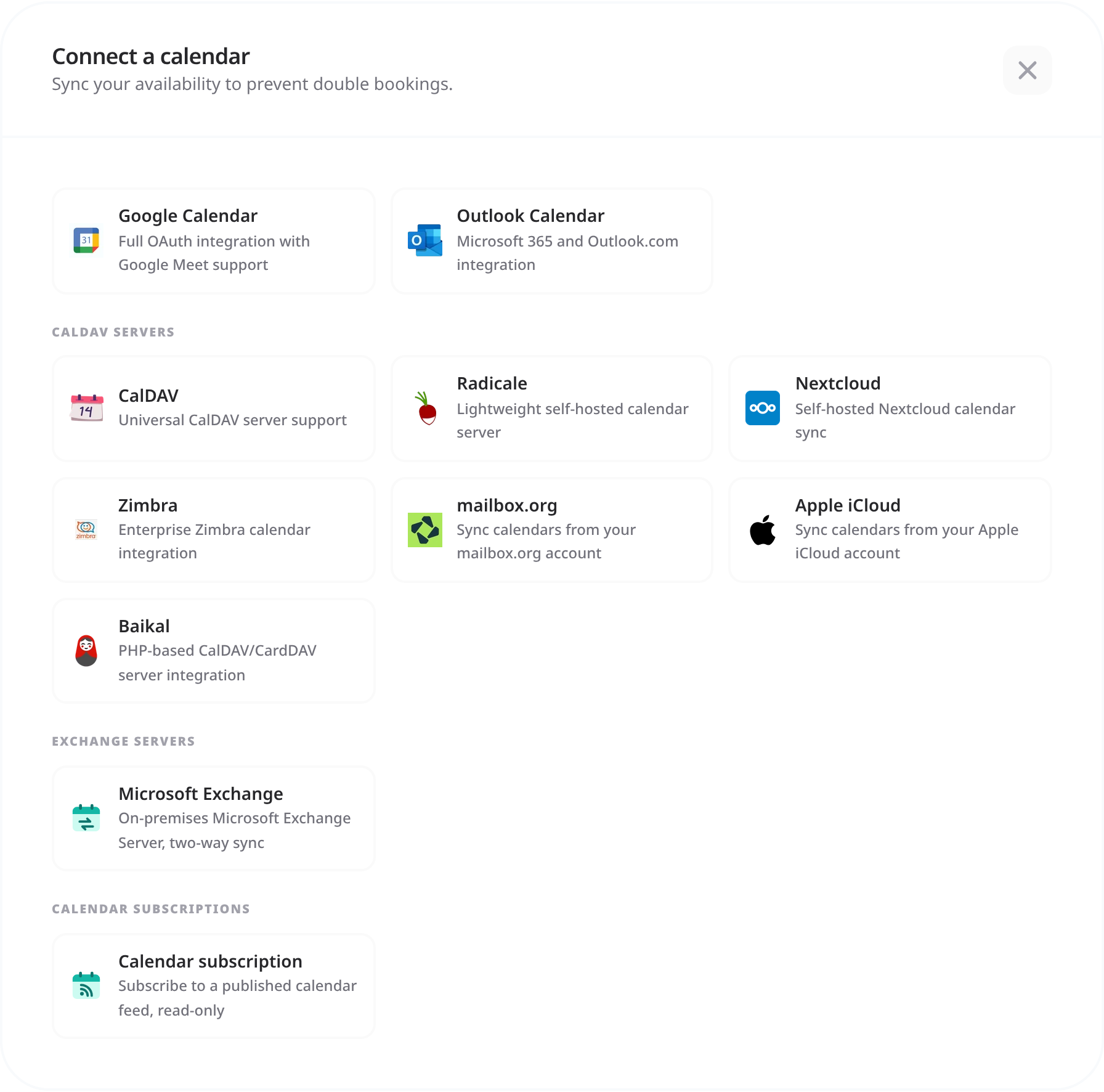
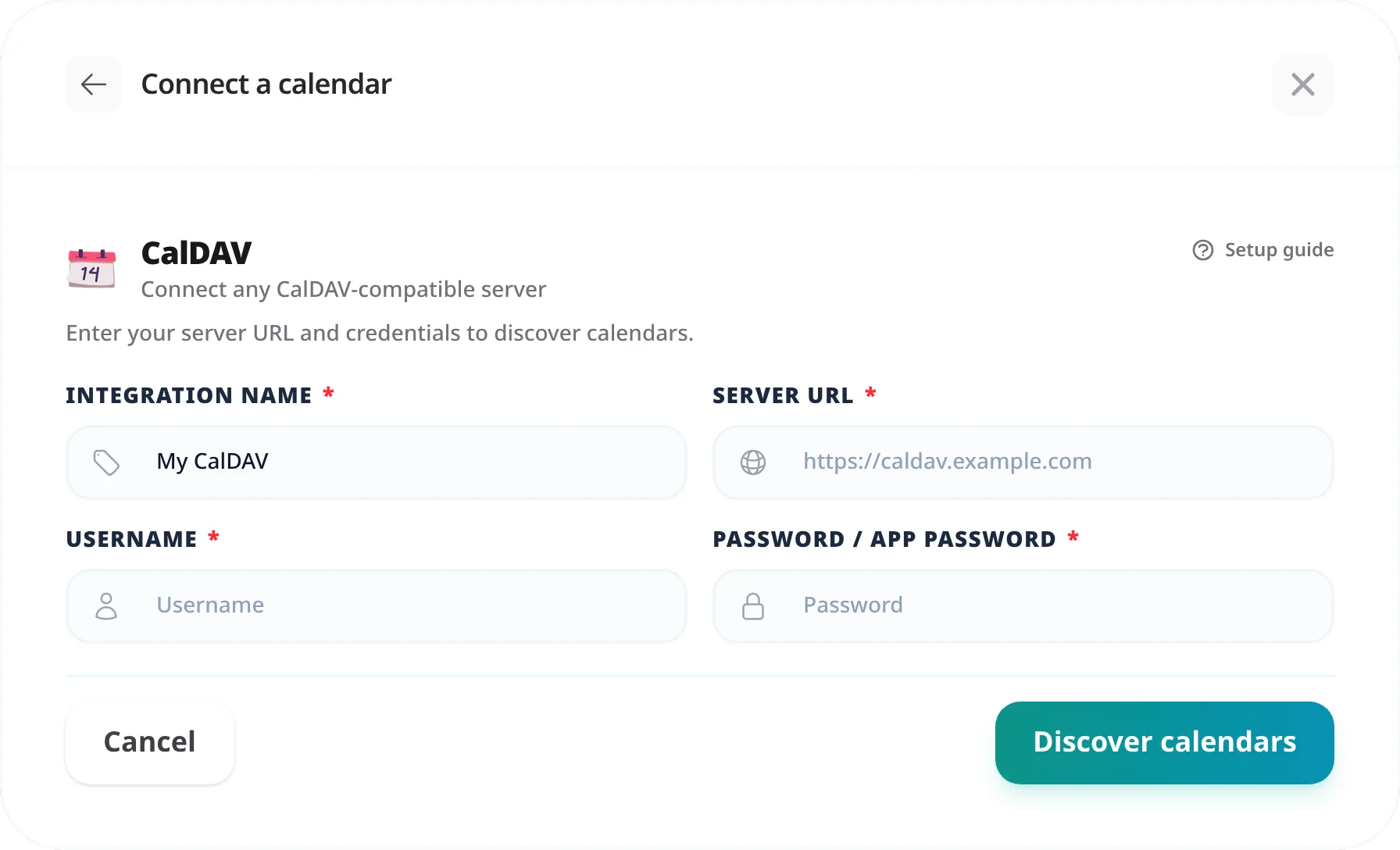
For most servers, the server's own address is enough: Tymeslot finds your calendars from there. Find your provider below and swap in your own host name. If another calendar app already gave you a CalDAV address, such as one ending in /calendars/USERNAME/, that works too.
| Provider | Server URL pattern | Password type |
|---|---|---|
| Nextcloud | https://cloud.example.com | App password |
| Radicale | https://radicale.example.com:5232 | Account password |
| Zimbra | https://mail.example.com | Account password |
| mailbox.org | https://dav.mailbox.org (filled in for you) | App password (if 2FA enabled) |
Many providers block third-party apps from using your main account password and require an app-specific password instead. An app password is a randomly generated token that can be revoked independently without affecting your account or other apps.
Nextcloud and mailbox.org need one once two-factor authentication is on, and Apple iCloud always does (see the Apple iCloud guide). Even where it is optional, an app password is worth using, because you can revoke it on its own. Here is how to create one:
Nextcloud
Click your avatar → [Personal settings] → [Security] → scroll to App passwords → enter a name such as "Tymeslot" → click [Create new app password]. Copy the password straight away: Nextcloud shows it only once.
mailbox.org
Log into the mailbox.org web client → [Settings] → [Security] → Application-specific passwords → click [New password] → enter a name such as "Tymeslot" and copy the generated password. You need this only when two-factor authentication is on.
CalDAV is a pull protocol: Tymeslot reaches out to your server, not the other way around. Your CalDAV server must therefore be reachable over HTTPS from wherever Tymeslot runs: the public internet on the managed service, or your own network if you self-host.
192.168.x.x) without a public URL will not work
Self-hosting Tymeslot on that same network is the exception.
A host that resolves to a private address is refused by default, as protection against
server-side request forgery. Set
ALLOW_PRIVATE_IPS_FOR_CALENDAR=true
on your Tymeslot deployment to permit a CalDAV server on an internal network. This applies to
self-hosted installs only. On the managed service at tymeslot.app our servers have no route
to your network, so a private address cannot work there whatever you configure.
"Authentication failed"
Your regular account password may be blocked for third-party access. Generate an app password using the instructions above and use that instead. Double-check that the username is exactly as your server expects it (some servers require an email address, others a short username).
"Resource not found" or "No calendars were discovered"
Tymeslot reached the server but found no calendars at that address. Compare your URL with the provider table above, and include any sub-path your server runs under. Then check the username: Tymeslot uses it to build the calendar path (for example /calendars/USERNAME/), so an email address where your server expects a short login name, or the other way round, points at the wrong place.
"Unable to connect to the calendar service"
Tymeslot cannot reach your CalDAV server. Check that the server is accessible over HTTPS from the public internet, that port 443 is open, and that your DNS record is resolving correctly. If the server sits on a private network and you self-host Tymeslot there too, set ALLOW_PRIVATE_IPS_FOR_CALENDAR=true.
Calendar added but availability is not being blocked
Your booking page reads your calendars live but keeps the result for up to two minutes, so a new event can take that long to block a slot. If the slot is still open after that, make sure the calendar holding the event is ticked under [Manage calendars], then check the connection's status in [Integrations]: Healthy means the last sync worked, while Connection issues or Reconnect means it did not.
Click [Manage calendars] on the connection and check that the calendar holding those events is ticked: Tymeslot only checks the calendars you select. Then look at the events themselves. An event marked as free (transparent) and an invitation you have declined do not block time, by design.
Nextcloud, Radicale, Zimbra, mailbox.org, Apple iCloud and Baikal each have their own card. Any other server that implements the CalDAV standard (RFC 4791), such as DAViCal or another SabreDAV-based server, should work through the generic CalDAV card, because every compliant server is reached the same way.
If two-factor authentication (2FA) is on for your Nextcloud account, yes: Nextcloud refuses your login password for CalDAV. Click your avatar → [Personal settings] → [Security] → scroll to App passwords → enter a name such as "Tymeslot" → click [Create new app password]. Copy it straight away, as Nextcloud shows it only once. Without 2FA it is optional but still recommended, because you can revoke an app password on its own.
First, check which calendar the meeting type books into: open the meeting type and look under Booking Destination. That calendar must be one you have write access to. Read-only shared calendars and subscribed calendars can be read, so they connect and block time, but they reject new events; on Nextcloud, check the sharing settings in the Calendar app. Finally, check the connection's status in [Integrations]: anything other than Healthy means Tymeslot could not reach the calendar.
Yes. One connection covers every calendar on that account: tick the ones you want after [Discover calendars], or later under [Manage calendars]. Every ticked calendar blocks your availability. To add calendars from another account or server, go to [Dashboard] → [Integrations] → [Calendars] and connect it as well. Each meeting type then has its own Booking Destination, the calendar its bookings are written to.
Connect Tymeslot to your Nextcloud calendar. Step-by-step guide for finding the per-calendar CalDAV URL, generating an app password, and verifying the sync.
Connect Tymeslot to a self-hosted Radicale server. Covers the collection URL format, account password authentication, case-sensitive paths, and network requirements.
Connect Tymeslot to Zimbra Collaboration Server via CalDAV. Covers the DAV URL format, user@domain authentication, named calendars, and admin-managed account considerations.