All Tymeslot features
Scheduling, calendar and video integrations, payments, automation and embedding: everything Tymeslot does, on one page.
Use any video platform that opens a meeting from a URL. One template variable gives every booking its own room.

Оновлено 23 вересня 2026
By the end of this guide, Tymeslot will attach a meeting link on your chosen video platform to every booking, with a separate room for each meeting.
Put
{{meeting_id}}
where the room name belongs in your URL. When someone books, Tymeslot replaces it with a 16-character hash derived from that booking:
https://video.example.com/{{meeting_id}}
→ https://video.example.com/3f9a1c07b2d84e65
Each booking produces a different hash, so each meeting gets its own room. The variable is case-sensitive: write it exactly as shown, in lower case with double curly brackets.
{{meeting_id}}
is sent unchanged with every booking, so all of your meetings happen in the same room. If one meeting overruns, or the next guest joins early, that guest walks into the previous meeting and hears a conversation that was never meant for them. Use a fixed URL only when the platform itself controls who gets in, for example with a waiting room you admit people from.
{{meeting_id}}
for a room per booking. The preview below the field shows the URL a booking would get.
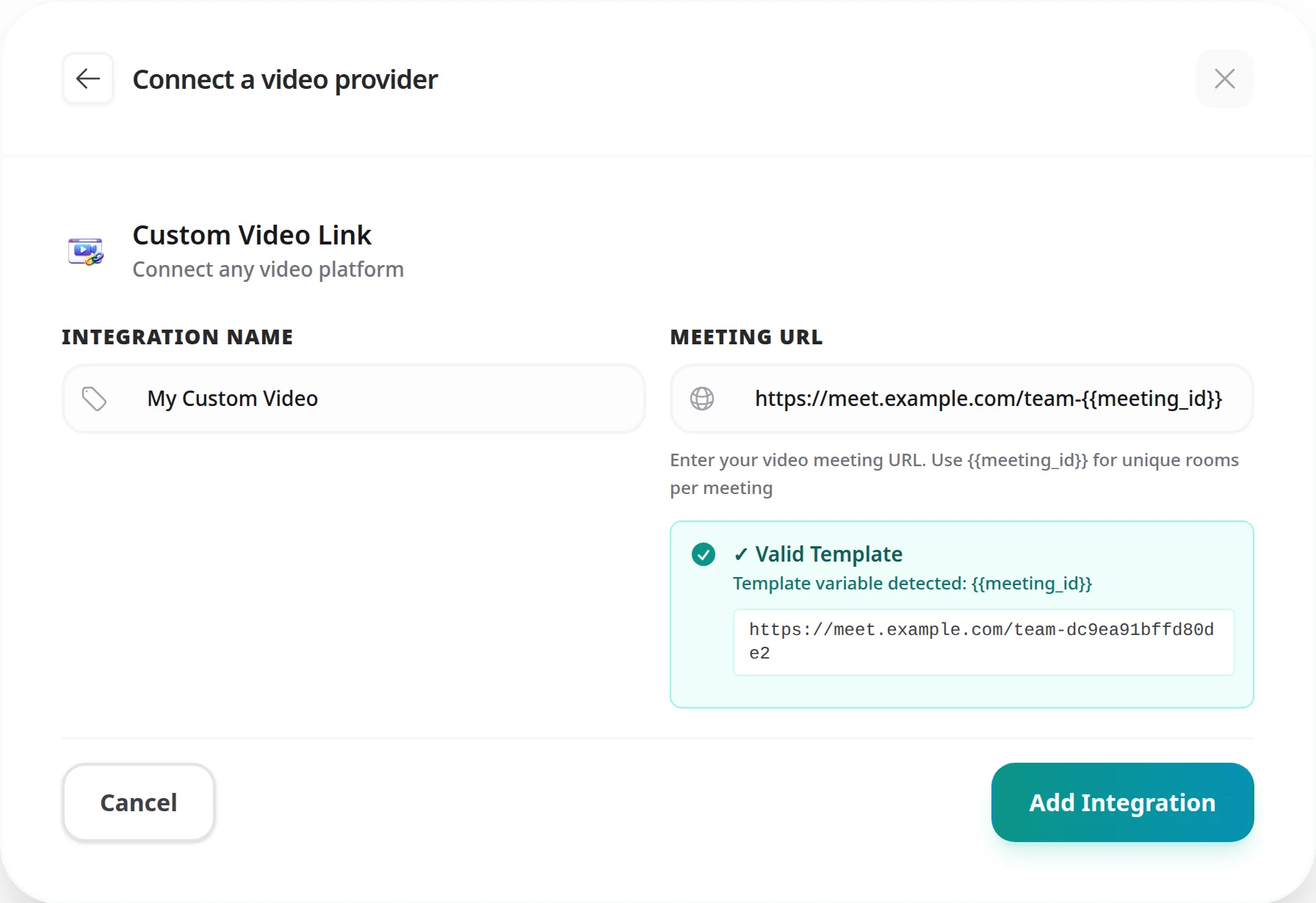
Expected result: your custom link appears in your list of video integrations.
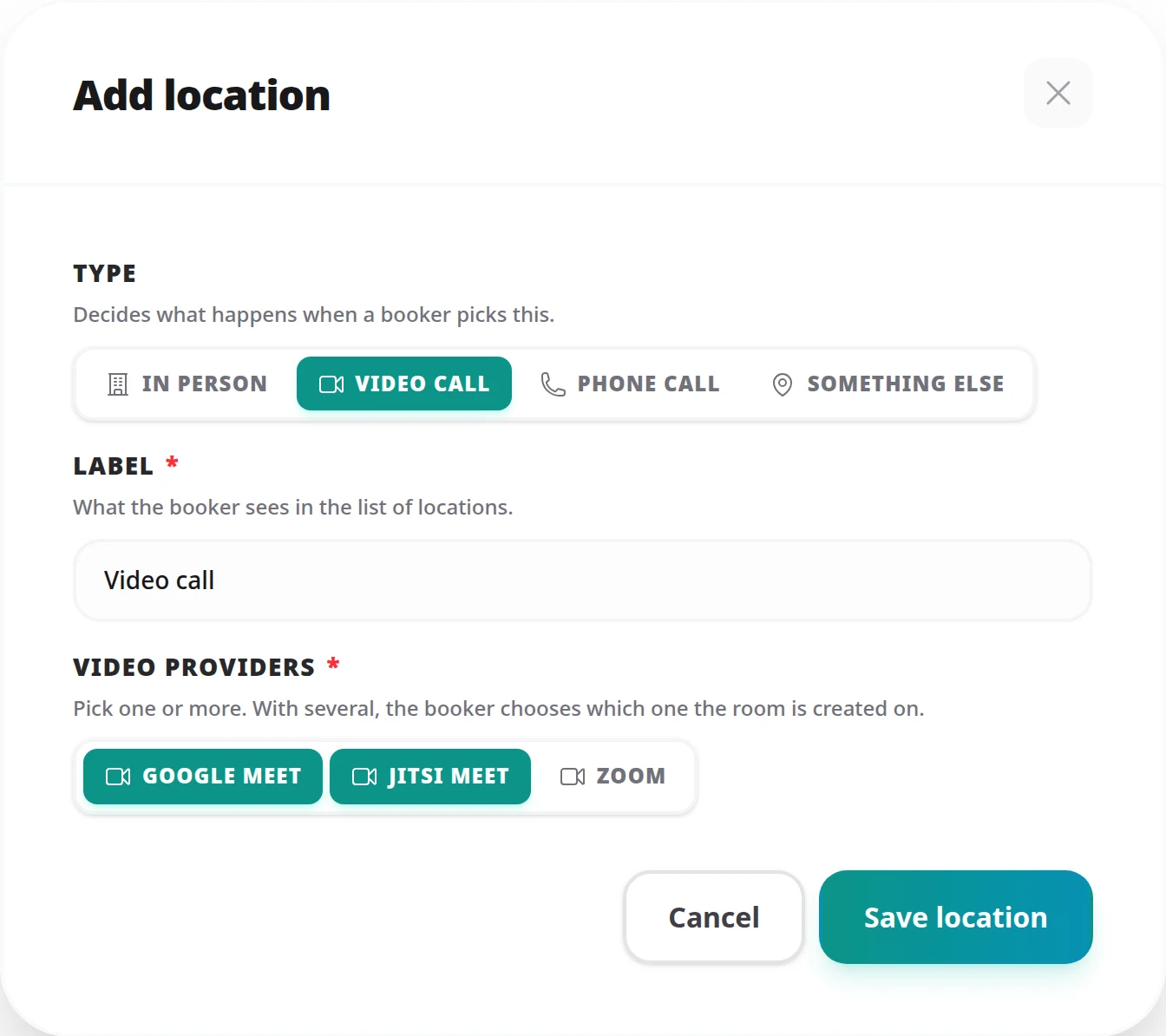
You can tick several providers on the same location, for example your custom link alongside Google Meet or Zoom. The person booking then chooses which service the meeting runs on. See Meeting Locations for everything a meeting type's locations can do.
https://
or http://.
#. Browsers never send the part after
#
to the server, so the platform would open the same room for every booking. Tymeslot refuses a URL with the variable in that position.
The variable is replaced with a hash of the booking's identifier rather than the identifier itself. The hash keeps internal IDs out of links that are shared by email, and it cannot be worked out without the booking's internal ID.
You can paste it as a fixed URL, but every booking then shares that one meeting (see the warning above). The Zoom and Microsoft Teams integrations create a separate meeting for each booking instead.
Scheduling, calendar and video integrations, payments, automation and embedding: everything Tymeslot does, on one page.
Auto-create Google Meet rooms for every confirmed booking via the Calendar API. Attendees receive the link by email and can join without a Google account.
Auto-create Microsoft Teams meetings for every confirmed booking. Covers the Graph permissions Tymeslot asks for, when a tenant admin has to consent, and what happens when an account cannot host meetings.
Auto-create Zoom meetings for every confirmed booking. Connects over OAuth. Use a paid plan (Pro, Business or Enterprise): Zoom applies its free-plan limits, including meeting length, to meetings created this way.