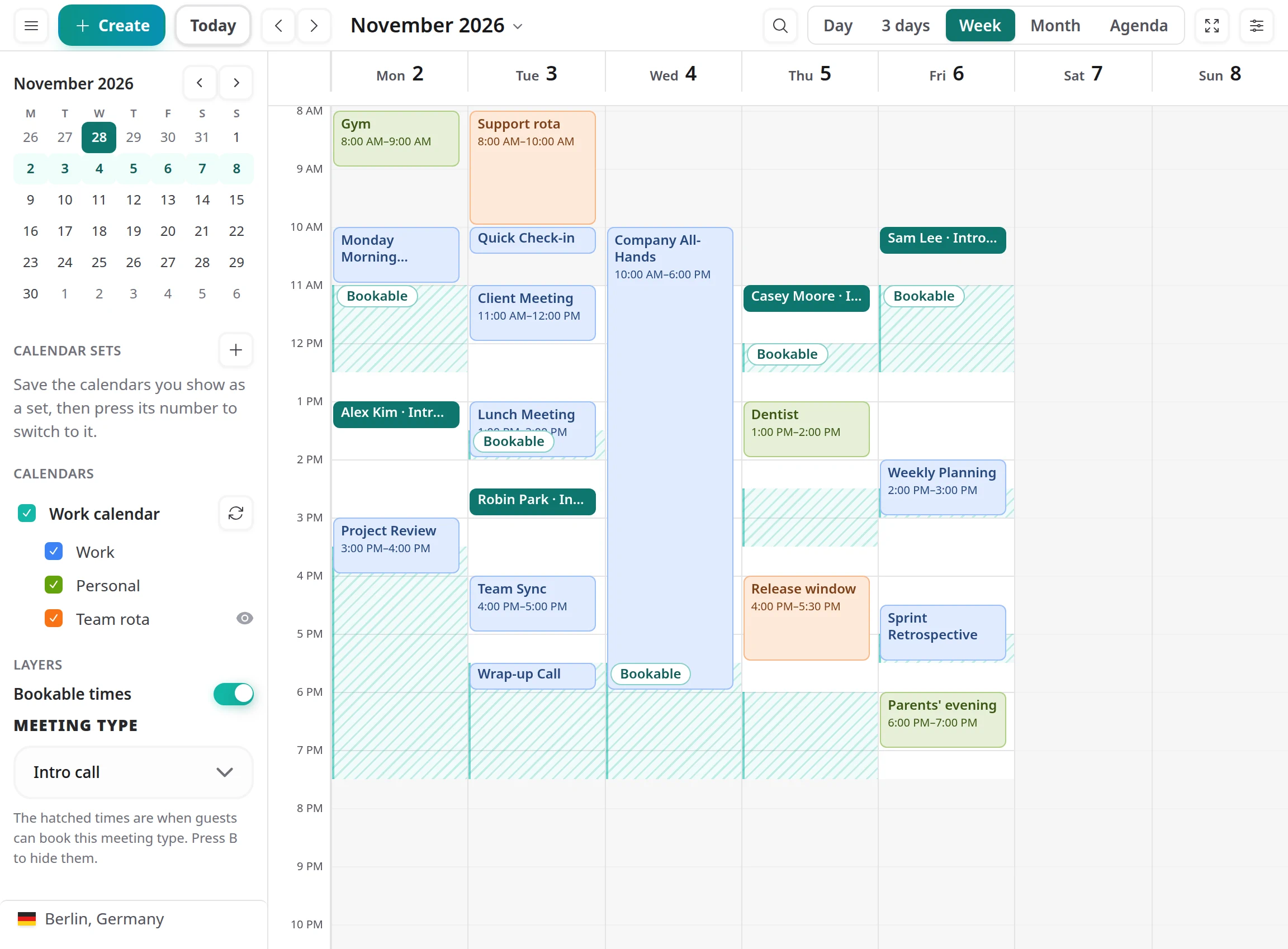
The dashboard calendar shows every event from every connected account (Google Calendar, Outlook, Exchange, Nextcloud and other CalDAV servers) next to the bookings people make on your booking pages.
You can create and move events, answer booking requests and open extra bookable times without leaving it, and nearly everything has a keyboard shortcut.
A week in the calendar, with the rail on the left and bookable times shaded for the Intro call.
Views and navigation
Choose Day, 3 days, Week,
Month
or Agenda
in the toolbar, or press D, X, W, M or A. Agenda lists what is coming day by day and loads further weeks as you scroll.
Move through time:
the arrows beside the date, or J and K, step a period forward or back; Today (or T) comes back to now. Click the period's name to pick a date, or use the small month in the rail.
Your last view comes back:
on a computer, the calendar opens in the view you last used (Day, Week, Month or Agenda).
Zoom the hours:
hold Ctrl (Cmd on a Mac) and scroll, or pinch on a trackpad or touch screen, to make the hours taller or shorter.
Your time zone:
the calendar shows times in the time zone set on your profile, not your browser's, and names it at the foot of the rail so you always know which clock you are reading. Click it to change the zone in your profile settings. With the rail folded away the zone is not shown; on a phone or a narrow screen it sits in the Calendars sheet.
Early hours fold away:
the hours from midnight to 07:00 are folded into a thin strip until you click it, so the day fills the screen. You can turn this off in display options.
Creating events
Click an empty slot, or drag over the time you want, and a small quick create box opens on the spot. Press C, or the toolbar's Create, to open it at your next free time.
Type it the way you would say it:
"Lunch with Maya tomorrow 12:30" or "Dentist fri 16:00 for 45m" sets the title, the day, the time and the length as you type. Dates are read day first (17/10 is 17 October).
Save with Enter:
the event goes onto the calendar shown in the box. Add a guest by typing @ and their address (@maya@example.com); the button then reads Save and invite, because saving emails them.
Meetings with guests:
in the side panel's New event form, add a guest and tick Send as a Tymeslot meeting. The first guest is the person the meeting is with. Tymeslot books it as it books from your booking page: the guests get the usual booking emails, and the meeting appears among your bookings. Like any new event, it goes onto a calendar Tymeslot can write to.
More options:
opens the side panel's New event form with what you typed, where you can also choose the calendar, show the time as Busy or Free, and add a place, a video call, guests and notes. A repeat and reminders are set with Edit once the event exists.
Changing events
Preview:
click an event to see its time, calendar, guests and join link, with Edit and Delete.
Side panel:
Edit opens every detail: title, time, repeat, calendar, location, notes, guests, video, reminders and whether it shows as Busy or Free. Each change is saved as you make it. From the panel you can also move the event to another calendar or duplicate it to the next day.
Drag to move or resize:
drag an event to another time or day, or drag its top or bottom edge to change its length. The change is written back to its calendar straight away.
Undo:
the message after a change offers Undo, and Ctrl Z (Cmd Z on a Mac) takes back the last change. A delete nobody is told about goes without a question and can be undone for a short while; deleting an event whose guests would be told asks first.
Guest replies:
guests in an event's preview and in the side panel carry a badge: Going, Declined, Maybe or Awaiting reply. Answers to invitations Tymeslot sent appear as soon as the guest replies; replies a connected calendar records appear after its next sync.
Repeating events:
a change to one occurrence asks whether it applies to this event, the following ones or all of them; deleting one asks whether to remove this event or all of them.
Bookings and bookable times
Bookings appear among your events. A request waiting for your answer stands out, and its preview offers
Accept
and Decline; a booking's preview offers
Reschedule
and Cancel booking, which work exactly as they do on the Meetings page and tell the guest the same way.
See when people can book you:
press B, or switch on Bookable times in the rail, to shade the times guests can book for the meeting type you pick there. Click the Bookable label on a shaded time for Copy free times, which copies the bookable times of the days on screen as text for an email, and Block this time, which takes that time out of your availability.
Open extra time:
in quick create, choose Open for booking, a meeting type and Just this once or Every week. The hours you open are added to your availability and the shading updates; Undo puts the old hours back.
Bookings are not dragged
A booking's time belongs to the guest who booked it, so it does not drag or resize on the grid. Use Reschedule in its preview to ask for a new time.
Calendars, layers and sets
The rail on the left lists your calendars by account, each in its own colour. Tick a calendar to show or hide it; a lock marks one Tymeslot can only read. A spinner shows while an account syncs, a warning when it needs attention, and the refresh button beside it fetches its latest events. The first button in the toolbar folds the rail away; while the rail is folded away and calendars are hidden, a chip in the toolbar says how many and shows them all again in one click.
Calendar sets:
save the calendars you are showing as a named set with New set, such as Work or Home. Press 1 to 9 to switch to a set and 0 to go back to your own choice. While a set is active the chip names it.
Rename or delete a set:
use the pencil beside it in the rail.
Calendars that don't block:
a calendar set to Show only (see Manage calendars below) carries an eye icon in the rail, labelled "Doesn't block", and the words in full in the Calendars sheet, so you can tell at a glance which calendars can stop people booking you.
Hiding is only for your view:
a hidden calendar, or one outside the active set, still blocks your availability if it is set to block.
Search and the command bar
Press Ctrl K (Cmd K on a Mac) or /, or the search button in the toolbar, to open the command bar.
Search:
type at least two letters to find events by title, notes or place, and bookings by title, guest or meeting type, nearest first. Hidden calendars, and those outside the active set, are left out. A repeating event appears once. Choose a result and the calendar moves to it and opens it, even when it was folded into a "+N".
Go to a date:
type a date such as "17 oct" and choose Go to.
Add by typing:
type an event the way quick create reads it ("tomorrow 10:00 Dentist") and choose Add; quick create opens filled in, and Enter saves it.
Run any command:
change the view, switch a set, turn on focus mode, change the clock or the week start, show week numbers or import a file, all without the mouse.
Focus mode
Press F, or the focus button in the toolbar, to hide the dashboard menu and the strips above the calendar so it fills the window. Press F again to bring them back. Focus mode is remembered for your next visit and works on screens at least 1024 pixels wide.
Display options
The sliders button at the end of the toolbar opens display options. Every choice is saved to your account and applies at once.
Density: Comfortable or Compact rows.
Fold early hours:
fold the hours from midnight to 07:00 into a thin strip. On at first.
Include weekends:
show or hide Saturday and Sunday in the week view.
Show week numbers:
ISO week numbers beside the time grid and the month.
Week starts on: Monday or Sunday.
Clock: 24-hour or 12-hour times.
Desktop notifications and focus mode:
see their own sections. The foot of the panel imports an .ics file and shows the keyboard shortcuts.
Importing an .ics file
Drop an .ics file anywhere on the calendar, or choose
Import an .ics file
in display options. Tymeslot reads it, asks which of your calendars to copy the events into and shows its progress; you can close the window and the import carries on.
Files exported from Google Calendar, Outlook, Apple Calendar and other calendar apps work, including repeating events.
One file can hold up to 1,000 events and be up to 5 MB.
You need a connected calendar Tymeslot can write to.
Desktop notifications
Switch on Desktop notifications
in display options and allow them when your browser asks. While the calendar is open, Tymeslot shows a notification before each event that has a reminder, following the calendars you are showing.
On a phone
Built for one hand:
tabs at the bottom switch between Agenda, Day, 3 days and Month, and the + button above them opens quick create. A week shows as three days.
Header:
arrows, the period (tap it to pick a date), search, Today and Calendars, which opens your calendars, sets, bookable times and display options as a sheet.
Gestures:
swipe sideways for the next or previous period, press and hold an event to move it, and pinch to zoom the hours. Previews and quick create open as sheets from the bottom of the screen.
Keyboard shortcuts
Press ? in the calendar to see these at any time. Single keys work whenever you are not typing in a field or a dialog.
Keys
What it does
Navigate
T
Go to today
J
Next period
K
Previous period
D
Day view
X
3 days view
W
Week view
M
Month view
A
Agenda view
Arrow keys
Move between events
Create and change
C
New event at the next free time
Enter
Open the focused event
E
Edit the focused event
M
Move the focused event
Arrow keys
While moving: shift the event
Shift
+
Arrow keys
While moving: change its length
Enter
While moving: confirm
Esc
While moving: cancel
Delete
Delete the focused event
Ctrl
+
Z
Undo (Cmd Z on a Mac)
Calendars
1 to 9
Apply calendar set 1 to 9
0
Leave the calendar set
B
Show or hide bookable times
Anywhere
Ctrl
+
K
Search and commands (Cmd K on a Mac)
/
Search and commands
F
Focus mode, on a wide screen
?
Keyboard shortcuts
Esc
Close
Frequently Asked Questions
Where did the old calendar settings go?
Everything they held is in display options (the sliders button in the toolbar),
together with density, folded hours, desktop notifications and focus mode. There
is no default view to set any more: the calendar opens in the view you last used.
Why can't I drag a booking?
A booking's time belongs to the guest who booked it. Open it and choose
Reschedule to ask them for a new time, or Cancel booking; both keep the booking
and its calendar event in step.
Does hiding a calendar affect availability?
No. Hiding a calendar, or switching to a set without it, only changes what you
see. To change whether a calendar blocks your availability, open
Dashboard → Integrations, click Manage calendars on its connection and
choose Off (not used at all), Show only (its events appear here but never
block) or Show and block. The calendar your bookings are written to always
blocks.
Why don't I see events from a calendar I just connected?
A new connection syncs straight away, which usually takes a few seconds; a
calendar with years of history may take a minute. If its events have not
appeared, click the refresh button beside the account in the rail.
Can I create events on any connected calendar?
On any calendar Tymeslot can write to. Quick create and the side panel let you
choose which one; calendars shown with a lock are read-only.
Two-way calendar sync that stops double-bookings. Connect Google Calendar, Outlook, Apple iCloud or any CalDAV server, such as Nextcloud or mailbox.org.
Connect Tymeslot to Google Calendar. Busy, Tentative and Out of Office events all block bookings, so you are never double-booked, and every booking is added to your calendar.
Sync Tymeslot with Outlook Calendar via Microsoft Graph. Your Outlook events block conflicting bookings and every booking is added to your calendar. Works with Outlook.com and Microsoft 365.
Sync Tymeslot with CalDAV calendars: Nextcloud, Radicale, Baikal, Zimbra, mailbox.org, iCloud and Fastmail. Conflict checks and new bookings work without a Google or Microsoft account.