All Tymeslot features
Scheduling, calendar and video integrations, payments, automation and embedding: everything Tymeslot does, on one page.
Propose a handful of times, invite the people who need to agree, let everyone say which times work, then turn the winner into a meeting you manage.

Aktualizováno 23. října 2026
A booking link works when one person picks a time from your calendar. When five people have to agree, you need a poll. You propose the candidate times and invite people by email or share one link. Everyone marks each time Yes, If need be, or No, and the grid shows you where the overlap is. Pick the winning time and Tymeslot books it as a meeting on your calendar, with everyone on the poll invited as a guest. The meeting is yours to manage: only you can move or cancel it.
Go to Dashboard → Polls and select New poll. A poll needs a title, a duration and at least one candidate time; everything else is optional.
Grace Hopper <grace@example.com>. Each of them is emailed a personal voting link as soon as the poll is created.
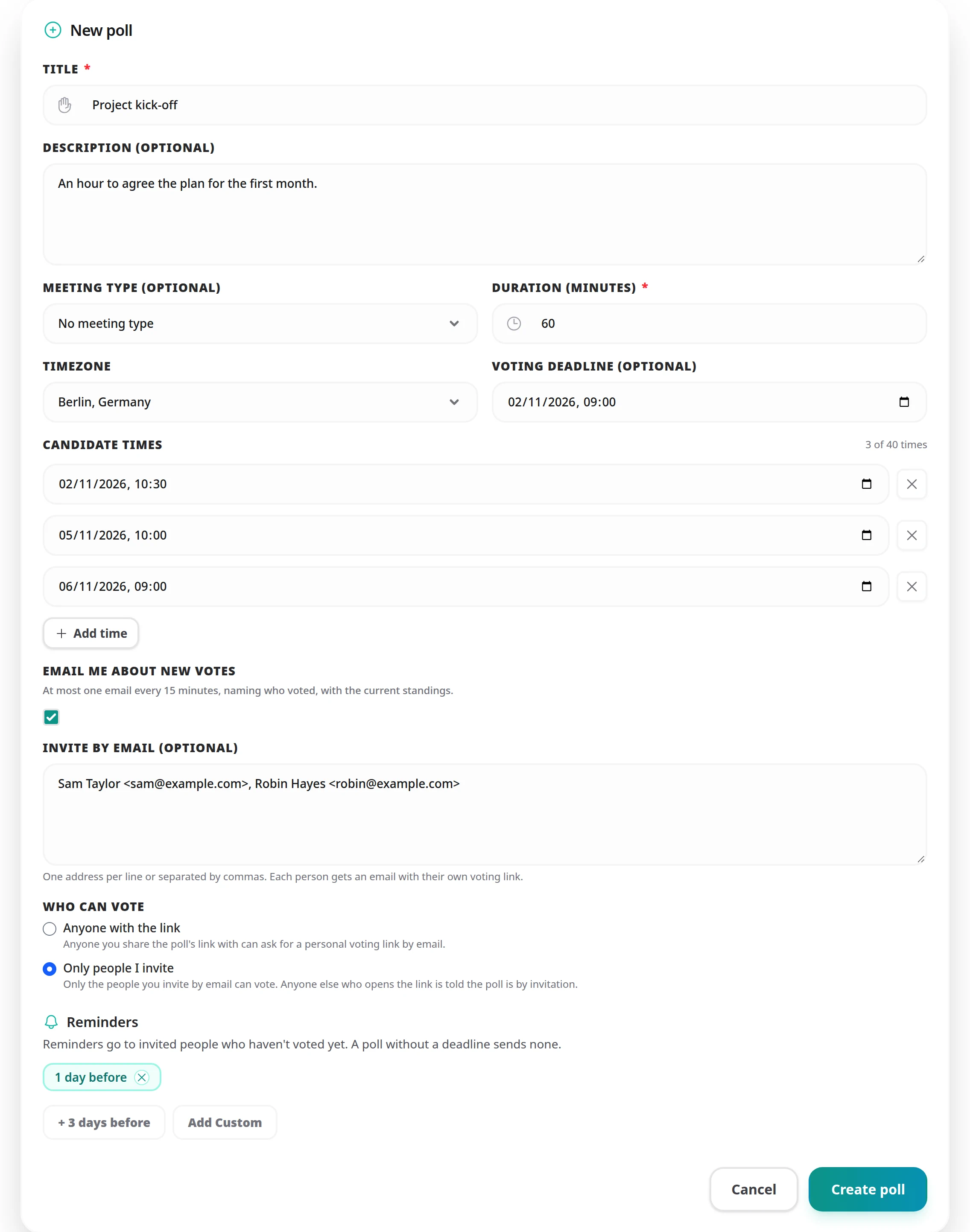
Every poll has one shareable link, copied from the poll row in the dashboard. Who can vote decides what that link does on its own.
Invite people when you create the poll, or later from its results panel with Send invitations. Once the deadline has passed the form is replaced by a note to move the deadline in Edit poll first. Guests do not need a Tymeslot account.
:poll_email_limits
in the build configuration.
A vote counts only once it is cast through the voter's personal link. That link is emailed to them, so a vote always comes from someone who can read that inbox, and nobody can vote under another person's address.
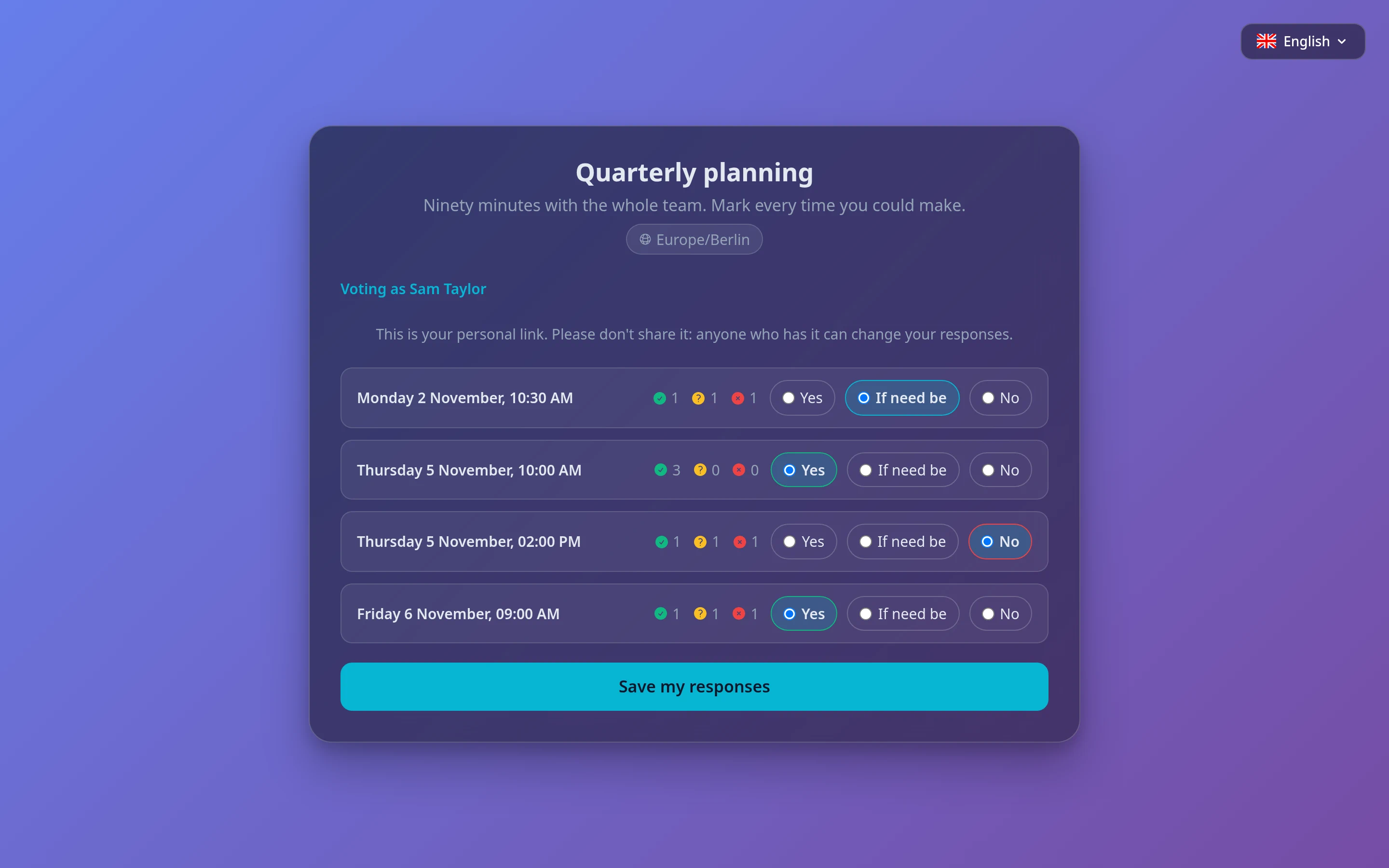
Each candidate time takes one of three answers. The middle one makes a poll resolvable: without it, a time that everyone could just about manage looks the same as one nobody can.
Yes
This time works.
If need be
Not ideal, but I will make it work if it is the only time everyone can do.
No
I cannot make this one.
You do not have to keep opening the dashboard to see how a poll is going.
Open the poll's results from the dashboard and select Edit poll. While the poll is open you can change:
In the poll's results, select Confirm this time on the row you want. The time with the most votes is marked Most votes, but nothing is confirmed automatically: the tallies inform the decision, and you make it.
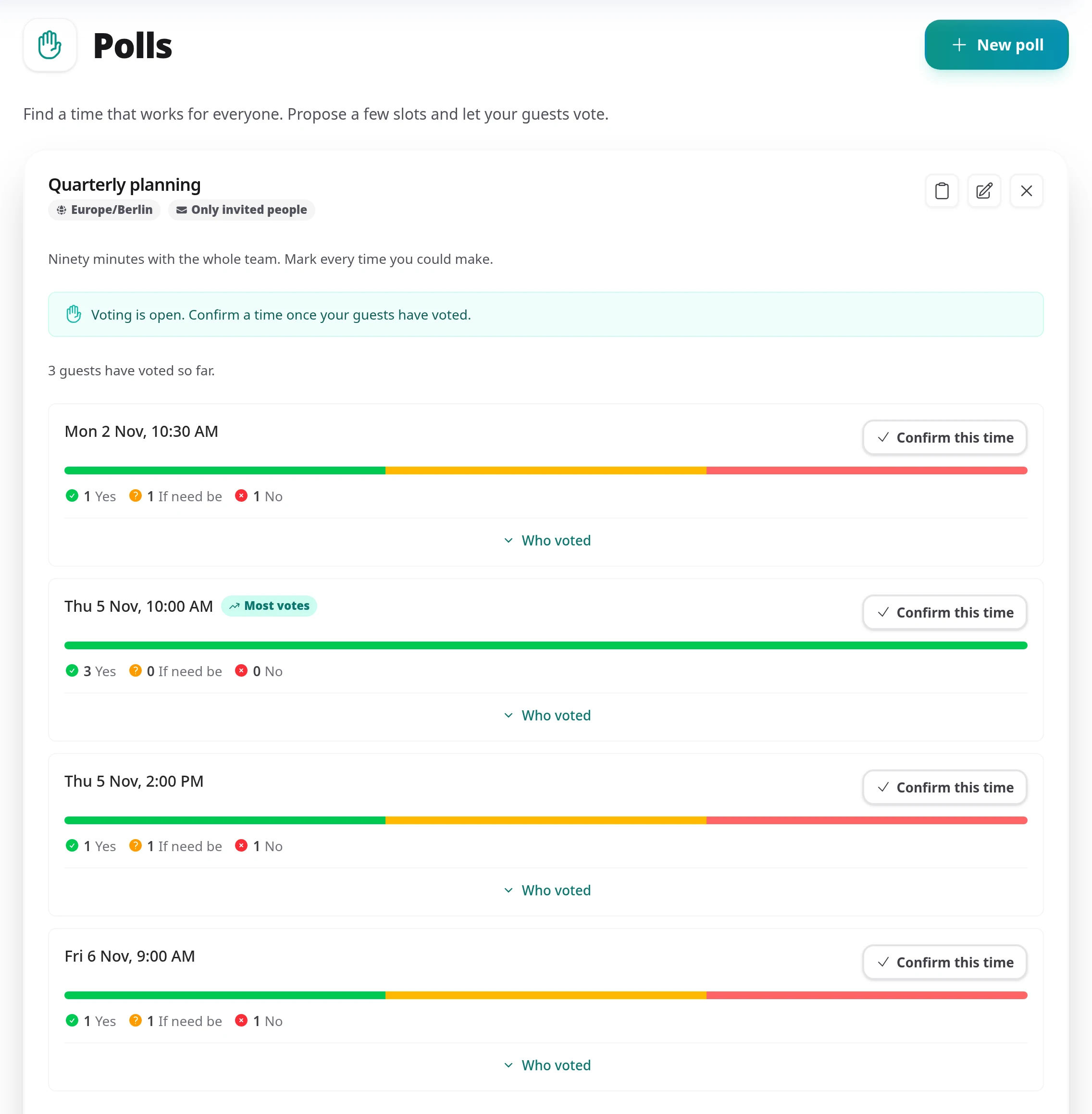
Nobody booked a meeting that came from a poll: you chose the time. So nobody but you can change it.
A poll with a deadline chases people for you, so you are not the one sending "any thoughts on those times?" messages.
Yes, from the results panel, with Cancel poll. Cancelling cannot be undone: everyone on the poll is emailed that it will not go ahead, everyone holding the link sees it as cancelled, and no time is confirmed. The answers stay visible to you in the results until you delete the poll. Tymeslot asks you to confirm first and tells you how many people have already voted.
Once it is over, confirmed or cancelled, select Delete poll to remove it from your list with its times and answers. A meeting the poll confirmed stays in your calendar. An open poll has to be cancelled first, so nothing people are still voting on disappears.
A vote counts only once it is saved through the voter's personal link. Someone who asked for a link on the shared page and has not opened the email yet is not counted, and the results panel shows how many people are in that position. Their link expires 48 hours after they first asked for it.
No. A name and an email address is all a guest gives, and it exists only so the poll can tell answers apart and invite everyone once a time is confirmed.
Yes. Select Edit poll, then Add times. Existing times cannot be changed or removed, so nobody's answers are invalidated; people who already voted are emailed the new times. If the voting deadline has passed, move it to a later time in the same edit.
It keeps working the way it did: the participant it was booked for keeps their reschedule and cancel links. Only meetings confirmed from now on are managed by you alone.
Yes. It uses your booking page's theme and colours, so it looks like the rest of your scheduling pages.
Scheduling, calendar and video integrations, payments, automation and embedding: everything Tymeslot does, on one page.
Keep several named sets of working hours (weekday office hours, evening consults, weekend intensives), each with its own breaks and booking rules, and give every meeting type the one it belongs to.
Hold a booking until you have agreed to it, and tell the person who booked exactly where they stand.
Let clients book a series of sessions in one go, at the same time each week or at times they choose.