Back to Overview

Meeting Polls

Propose a handful of times, let everyone say which ones work, then turn the winner into a real meeting.

Luka Breitig — Software Engineer & AI Developer
Luka Breitig

Software Engineer & AI Developer

For the meetings a booking link cannot schedule

A booking link works when one person picks a time from your calendar. It stops working the moment five people have to agree. A poll turns that around: you propose the candidate times, everyone marks each one Yes, If need be, or No, and the grid shows you where the overlap is. Pick the winning time and Tymeslot books it as an ordinary meeting, with invitations, calendar entries and reminders exactly as if it had been booked through a link.
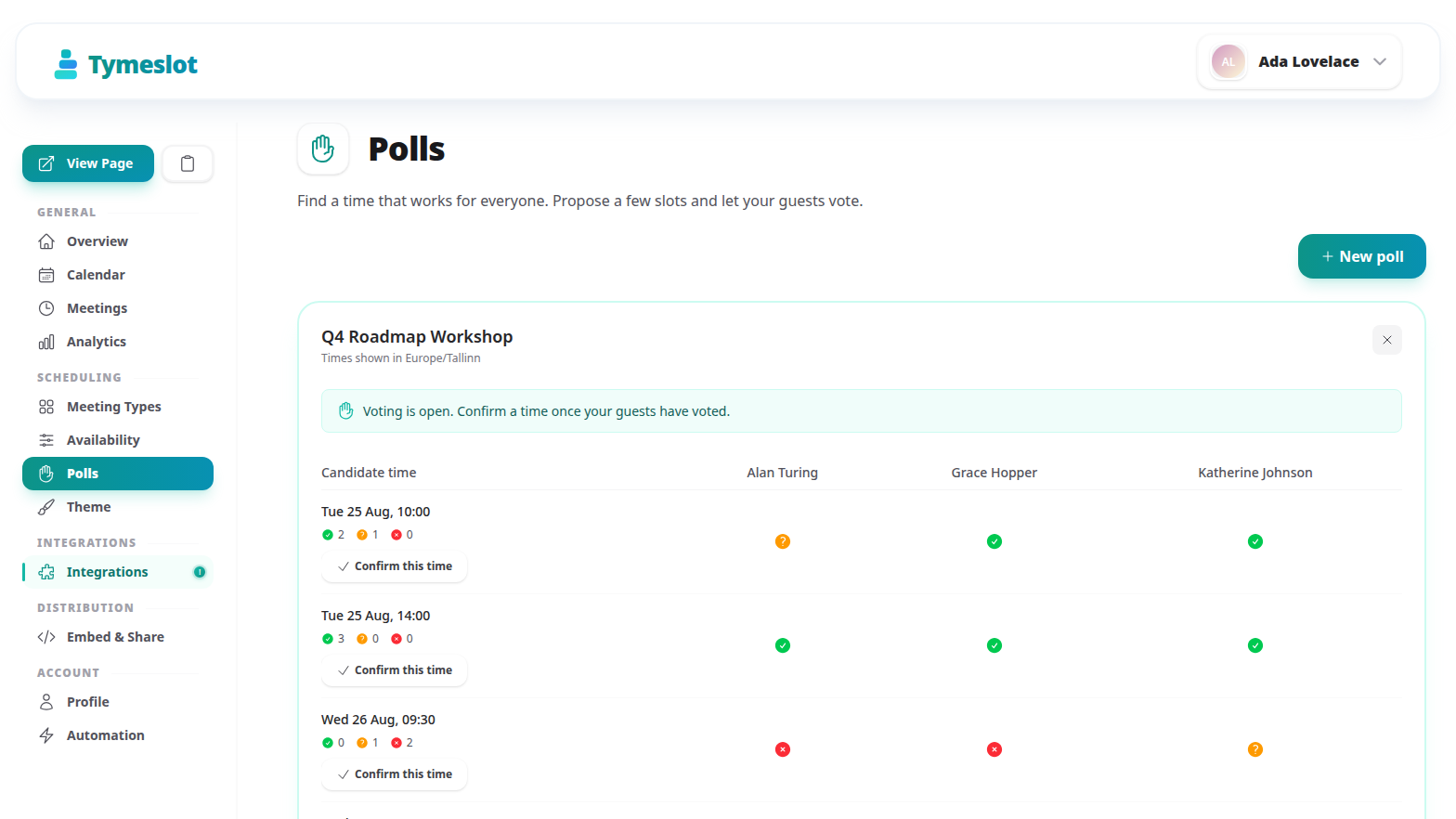
The poll results grid with four candidate times down the left and three guests across the top, each cell showing a tick, a question mark or a cross
Candidate times down the side, guests across the top, running tallies under each time. Confirm the one that wins.

Creating a poll

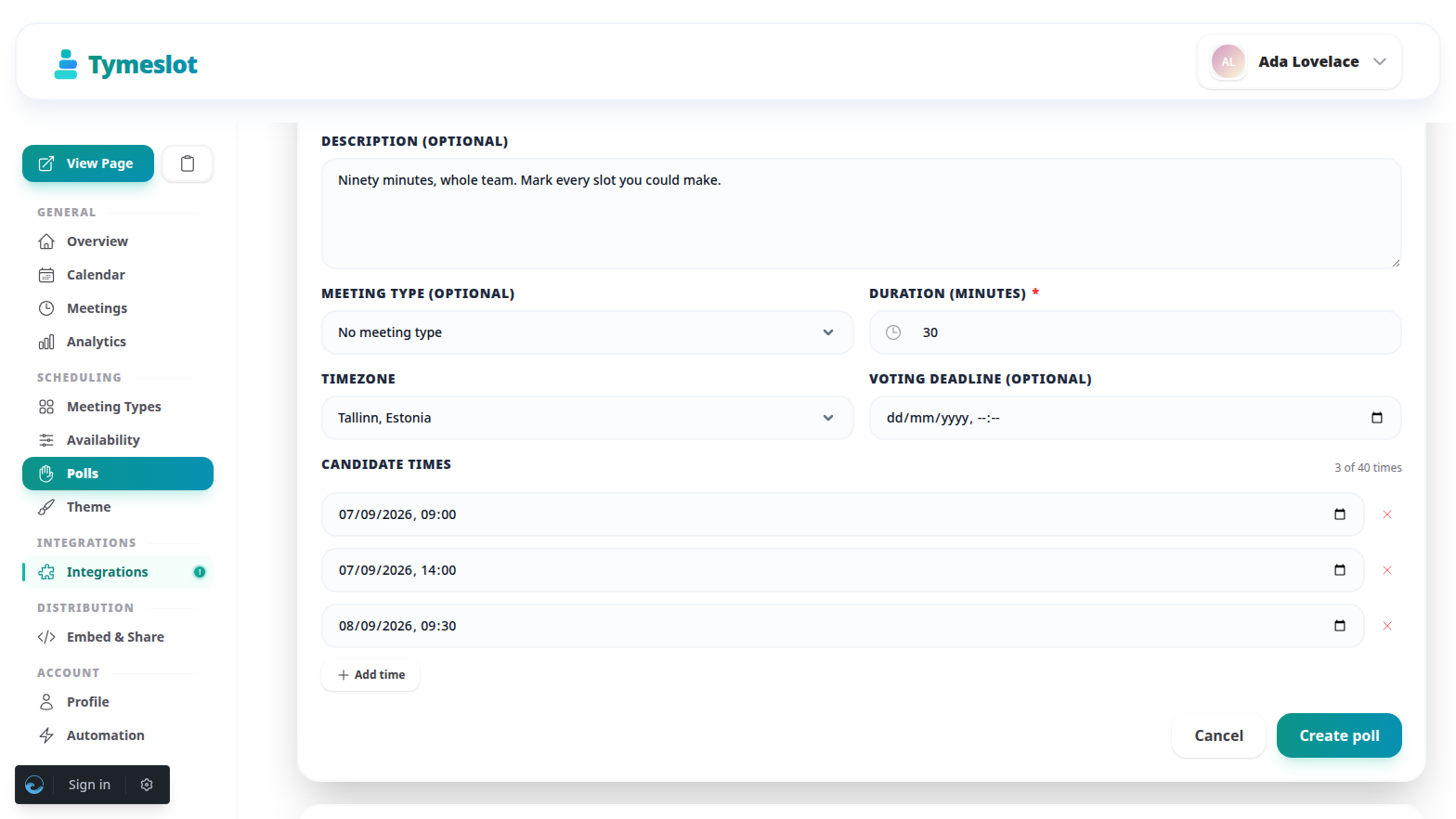
Go to Dashboard → Polls and select New poll. A poll needs a title, a duration and at least one candidate time; everything else is optional.
  • Attach a meeting type, or do not — attaching one takes its name and duration, so the meeting the poll eventually creates matches the type you already offer. Leave it off and set the duration yourself.
  • Add up to 40 candidate times — each one is a date and a time in the poll's timezone. Add a row for every option you want to put to the group.
  • Set a voting deadline if the decision has one — guests see it on the voting page, and it drives the reminders below. A poll without a deadline simply stays open until you confirm or cancel it.
  • The timezone belongs to the poll — every candidate time is stored against it, and each guest sees the times converted into their own.
The new poll form with a title, a duration and three candidate times filled in
A title, a duration and the times you want to offer. Everything else is optional.

🔗 Sharing the poll

Each poll has one shareable link, copied from the poll row in the dashboard. Send it to everyone — there is nothing to set up per person, and guests do not need a Tymeslot account.

  • Guests register with a name and email — that is all. The page then shows the candidate times with the running tallies.
  • Their own link is personal — after registering, the address gains a ?p=… code. That resumes their registration and their answers on a refresh or a bookmark, so it should not be passed on. The plain link is the one to share.
  • Answers can be changed until the poll closes — a guest reopening their link sees what they picked and can revise it.
  • Up to 40 people can vote — past that the poll stops accepting registrations.
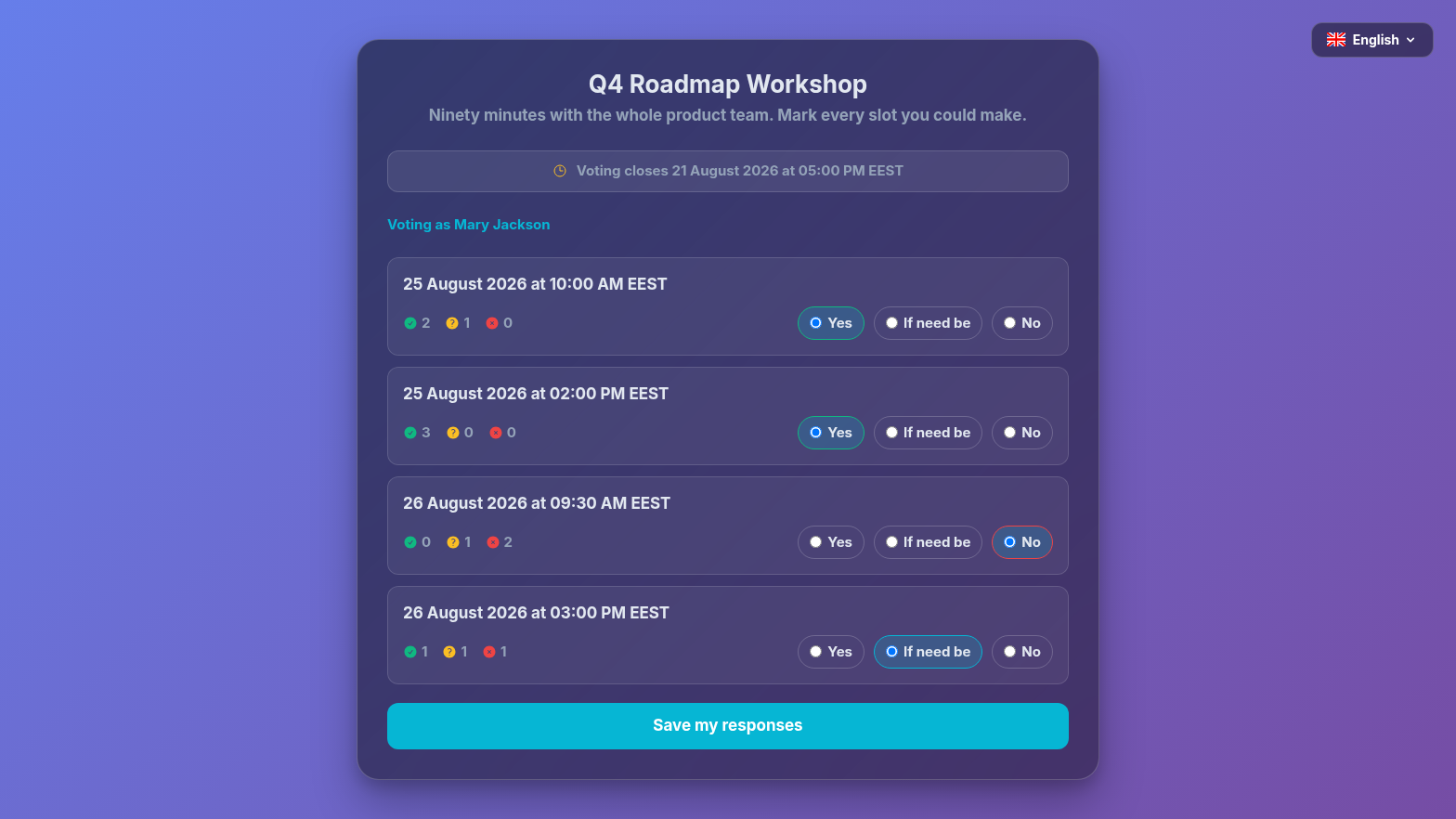
The public poll voting page with four candidate times, each showing tallies on the left and Yes, If need be and No buttons on the right
The voting page in your booking page's theme. Tallies update live as other people answer.

🗳️ Three answers, not two

Each candidate time takes one of three answers. The middle one is what makes a poll resolvable: without it, a time that everyone could just about manage looks identical to one nobody can.

Yes

This time works.

If need be

Not ideal, but I will make it work if it is the only time everyone can do.

No

I cannot make this one.

Confirming a time

Open the poll's results from the dashboard and select Confirm this time on the row you want. There is no automatic winner: the tallies inform the decision, you make it.

  • A real meeting is created — it appears under Meetings, lands on your connected calendar, and can be rescheduled or cancelled like any other booking.
  • Everyone who voted is invited — the first participant available for that time becomes the attendee and the rest ride along as guests, so one invitation covers the group.
  • The poll closes — it moves to Confirmed, the voting page tells anyone who opens it when the meeting is, and any pending poll reminders are dropped.
  • Calendar conflicts are flagged before you commit — candidate times that clash with something already on your calendar are marked in the grid. The check is advisory; the binding one runs when you confirm, and a slot taken in the meantime is refused rather than double-booked.

🔔 Chasing the stragglers

A poll with a deadline chases people for you, so you are not the one sending "any thoughts on those times?" messages.

  • 24 hours before the deadline — anyone who registered but has not voted gets a reminder. People who have already answered are left alone.
  • As soon as everyone has voted — you get a nudge saying the poll is ready to decide, rather than having to keep checking.
  • When the deadline passes — you get a second nudge, whether or not everyone answered.

A poll needs a connected calendar

The public voting page follows the same rule as your booking page: it is live only once you have connected a calendar. That is what lets Tymeslot flag candidate times you are already busy for, and book the winner without double-booking you.

Frequently Asked Questions

Can I cancel a poll?
Yes, from the results panel. It is irreversible — everyone holding the link sees the poll as cancelled and the answers are discarded — so Tymeslot asks you to confirm first, and tells you how many people have already voted.
Do guests need an account?
No. A name and an email address is the whole registration, and it exists only so the poll can tell answers apart and invite everyone once a time is confirmed.
What if two people vote from the same email address?
The second registration resumes the first one rather than creating a duplicate — an email address maps to one voter per poll.
Can I add candidate times after sending the link?
Not on a poll that is already open. Candidate times are fixed when the poll is created, so nobody's answers can be invalidated by the question changing underneath them. Cancel and recreate if the options were wrong.
Does the voting page use my theme?
Yes. It renders in whichever booking theme your page uses, including your colours, so it looks like the rest of your scheduling pages rather than a generic form.

🔗 Related Articles

Read Availability Schedules

Availability Schedules

Keep several named sets of working hours — weekday office hours, evening consults, weekend intensives — each with its own breaks and booking rules, and give every meeting type the one it belongs to.

Read Custom Booking Questions

Custom Booking Questions

Ask bookers anything you need before the meeting — short text, choices, yes/no, dates, acknowledgements, and more. Answers ride along to confirmations, emails, and your calendar.