Back to Overview

Meeting Polls

Propose a handful of times, invite the people who need to agree, let everyone say which times work, then turn the winner into a meeting you manage.

Luka Breitig, Software Engineer & AI Developer
Luka Breitig

Zaktualizowano: 23 października 2026

A booking link works when one person picks a time from your calendar. When five people have to agree, you need a poll. You propose the candidate times and invite people by email or share one link. Everyone marks each time Yes, If need be, or No, and the grid shows you where the overlap is. Pick the winning time and Tymeslot books it as a meeting on your calendar, with everyone on the poll invited as a guest. The meeting is yours to manage: only you can move or cancel it.

A poll from start to finish: propose times, invite people, let them answer, then select Confirm this time on the winner.

Creating a poll

Go to Dashboard → Polls and select New poll. A poll needs a title, a duration and at least one candidate time; everything else is optional.

  • Attach a meeting type, or do not: attaching one takes its name and duration, and the meeting the poll eventually creates uses that type's calendar and video settings. Leave it off and set the duration yourself. Paid meeting types cannot be attached.
  • Add up to 40 candidate times: each one is a date and a time in the poll's timezone. Add a row for every option you want to put to the group.
  • Invite people by email: type their addresses into Invite by email (optional), separated by commas or one per line, each optionally with a name, as in Grace Hopper <grace@example.com>. Each of them is emailed a personal voting link as soon as the poll is created.
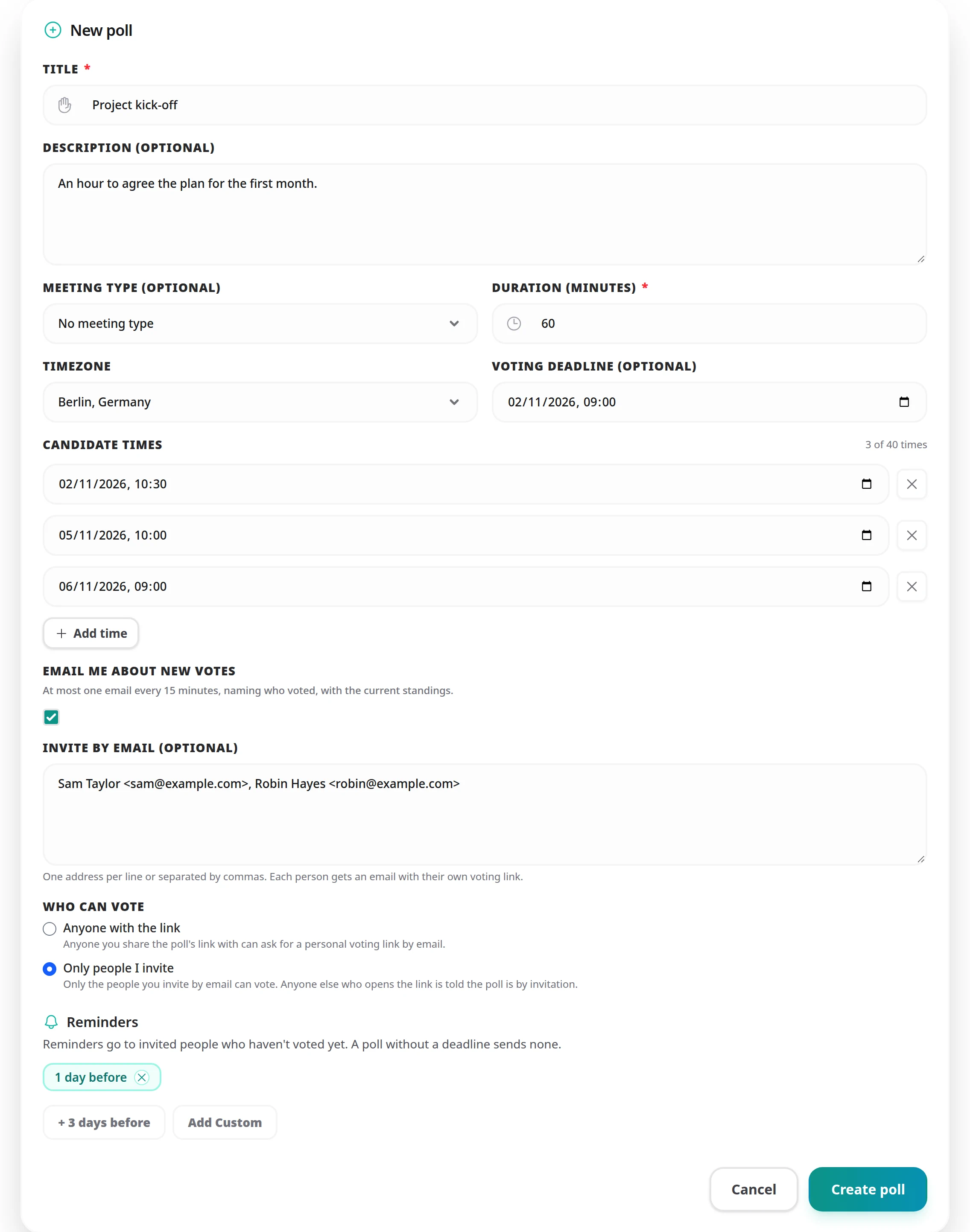
  • Choose who can vote: Anyone with the link or Only people I invite. A poll with invitations starts as invite-only; one without starts open to the link. See Who can vote below.
  • Set a voting deadline if the decision has one: guests see it on the voting page, voting closes when it passes, and it drives the reminders below. A poll without a deadline stays open until you confirm or cancel it.
  • Decide whether to hear about votes: tick Email me about new votes to get an update as people answer. It is on by default; untick it if you would rather not, and you can change it later.
  • The timezone belongs to the poll: every candidate time is stored against it, and the voting page shows the times in it, with the timezone named so nobody has to guess. Once you confirm a time, the meeting's emails show it in the timezone of the meeting's main participant (the first guest who said they could make it), or in the poll's when that guest's timezone is not known.
The New poll form filled in: a title, a description, a duration of 60 minutes, a voting deadline, three candidate times, two people invited by email, Who can vote set to Only people I invite, and a reminder 1 day before the deadline
A title, a duration and the times you want to offer, plus anyone you want to invite. Everything else is optional.

Who can vote

Every poll has one shareable link, copied from the poll row in the dashboard. Who can vote decides what that link does on its own.

  • Anyone with the link: whoever opens it can ask for a voting link with their name and email address, and votes once they use it. Use this when you are posting the link in a group chat or a newsletter and do not know every address in advance.
  • Only people I invite: only the people you invited by email can vote, each through their own link. Someone opening the shared link is told the poll is by invitation only and to use the personal link from their email; there is no form to fill in.
  • You can change it while the poll is open: in Edit poll. Switching an open poll to invite-only drops the requests from people who asked for a link but never used it; everyone who already voted stays on the poll.

Inviting people by email

Invite people when you create the poll, or later from its results panel with Send invitations. Once the deadline has passed the form is replaced by a note to move the deadline in Edit poll first. Guests do not need a Tymeslot account.

  • Each invitation carries a personal link: with your note from the poll's description, the candidate times in the invitee's timezone (the poll's until they have one), and the deadline.
  • Invited people count straight away: you vouched for the address, so they appear in the poll before they vote, and the results panel shows who you are still waiting for.
  • Someone already on the poll is skipped, so inviting the same list twice sends nobody a second invitation. If you type a name for someone who asked for a link themselves, your name for them wins.
  • Up to 40 people can be on a poll, invited or not.
  • Someone lost the email? Beside their name in the poll editor, select Resend invitation (or Resend voting link for someone who has already voted) to send them their personal link again. The same link goes out, a person can be sent it again only once every 10 minutes, and each resend counts against the sending limits below.
  • Sending is limited to protect inboxes: by default you can invite up to 100 addresses an hour and 300 a day, and no address receives more than 3 poll emails an hour or 10 a day, across all polls and whoever sends them. A list that would go over the limit is refused whole, and the message tells you how many more people you can invite. Requests for a voting link on a poll's shared link are capped at 30 an hour per poll. Self-hosters can change all of these with :poll_email_limits in the build configuration.

How voting works

A vote counts only once it is cast through the voter's personal link. That link is emailed to them, so a vote always comes from someone who can read that inbox, and nobody can vote under another person's address.
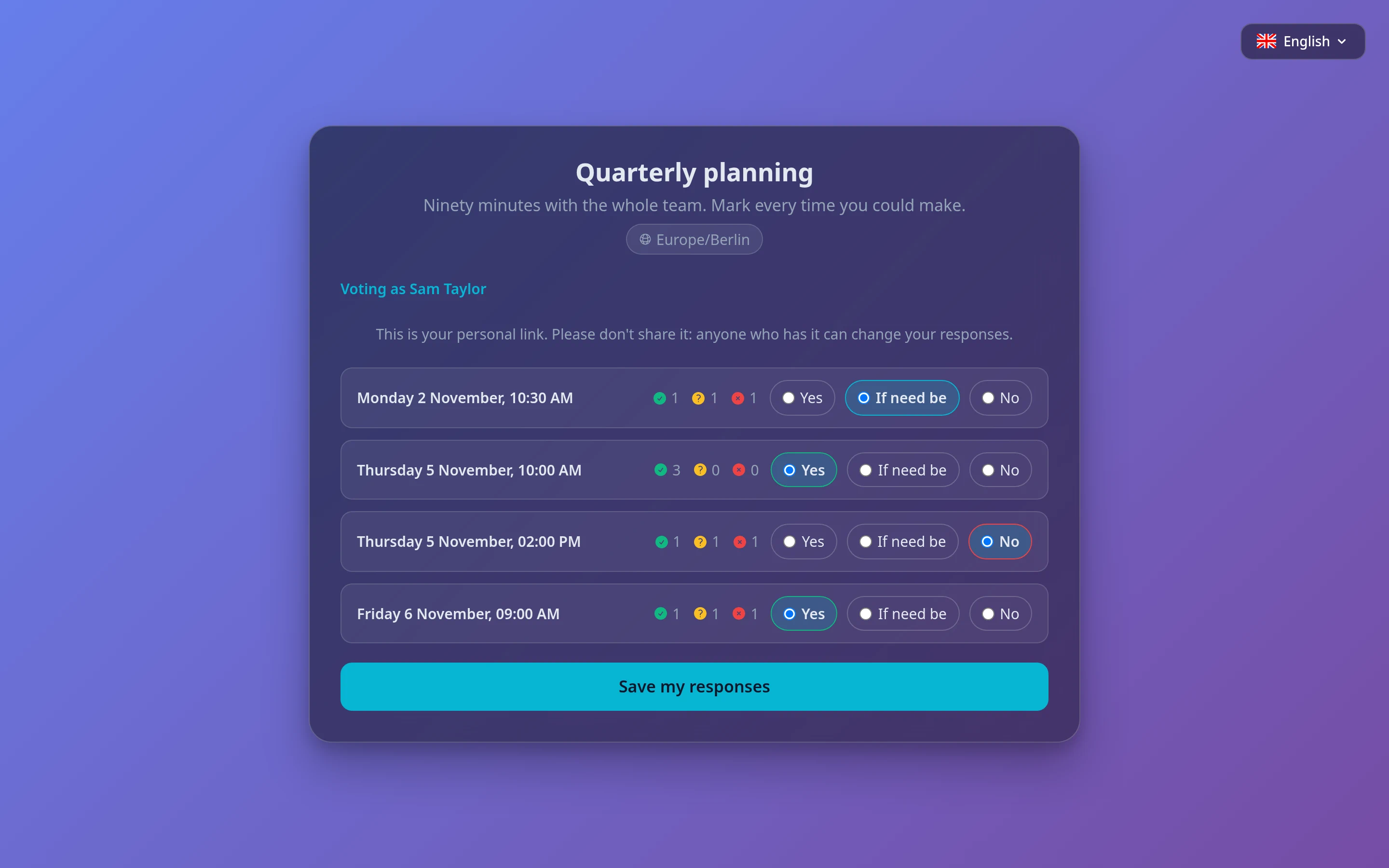
  • Invited people use the link in their invitation. They open it, mark each time, and select Save my responses.
  • On an open poll, everyone else asks for a link: they enter a name and an email address on the shared link and select Email me my voting link. A link that is not used within 48 hours of the first request expires, and asking again does not extend it.
  • An address already on the poll gets its link again, instead of a second registration, and the page says so. Each email address is one voter per poll.
  • Saving the first responses sends a receipt: it lists each time with the answer given and carries the personal link again. Answers can be changed through that link until voting closes.
  • The personal link should not be passed on: it opens that person's responses. The shared link is the one to post.
  • The voting page shows names, never email addresses. Someone you invited without a name is shown without one until they give it when they first vote.
The public voting page as one guest sees it: four candidate times, each with the running Yes, If need be and No tallies and three answer buttons, the guest's own answers selected, and Save my responses below
The voting page in your booking page's theme. Tallies update live as other people answer.

Three answers, not two

Each candidate time takes one of three answers. The middle one makes a poll resolvable: without it, a time that everyone could just about manage looks the same as one nobody can.

Yes

This time works.

If need be

Not ideal, but I will make it work if it is the only time everyone can do.

No

I cannot make this one.

Keeping track of the votes

You do not have to keep opening the dashboard to see how a poll is going.

  • Updates on new votes: with Email me about new votes on, you get an email naming who voted or changed their answers, bundled so that you get at most one every 15 minutes.
  • The standings travel with every email: each update, and each nudge described below, lists every candidate time with its Yes, If need be and No counts and marks the time leading, so you can often decide from your inbox.

Changing a poll after sending it

Open the poll's results from the dashboard and select Edit poll. While the poll is open you can change:

  • The title, description and who can vote.
  • The deadline: move it earlier or later, or set a new one after it has passed to reopen voting. The reminders follow the new deadline.
  • The reminders: chosen like a meeting type's reminders, as a time before the deadline. See Chasing the stragglers below.
  • The meeting type: it decides which calendar and video provider the confirmed meeting uses. The poll keeps its own title and times.
  • Extra candidate times: select Add times. Times already in the poll are never changed or removed, since people voted on them. New times are marked New on the voting page, and everyone who has already voted is emailed the new times so they can answer them too. Times can only be added while voting is open: once the deadline has passed, set a later one in the same edit.
  • Who is on the poll: select Remove from the poll beside someone to take them and their answers out, for a joke entry or someone who has dropped out. Tymeslot asks you to confirm first. They are not emailed.

Confirming a time

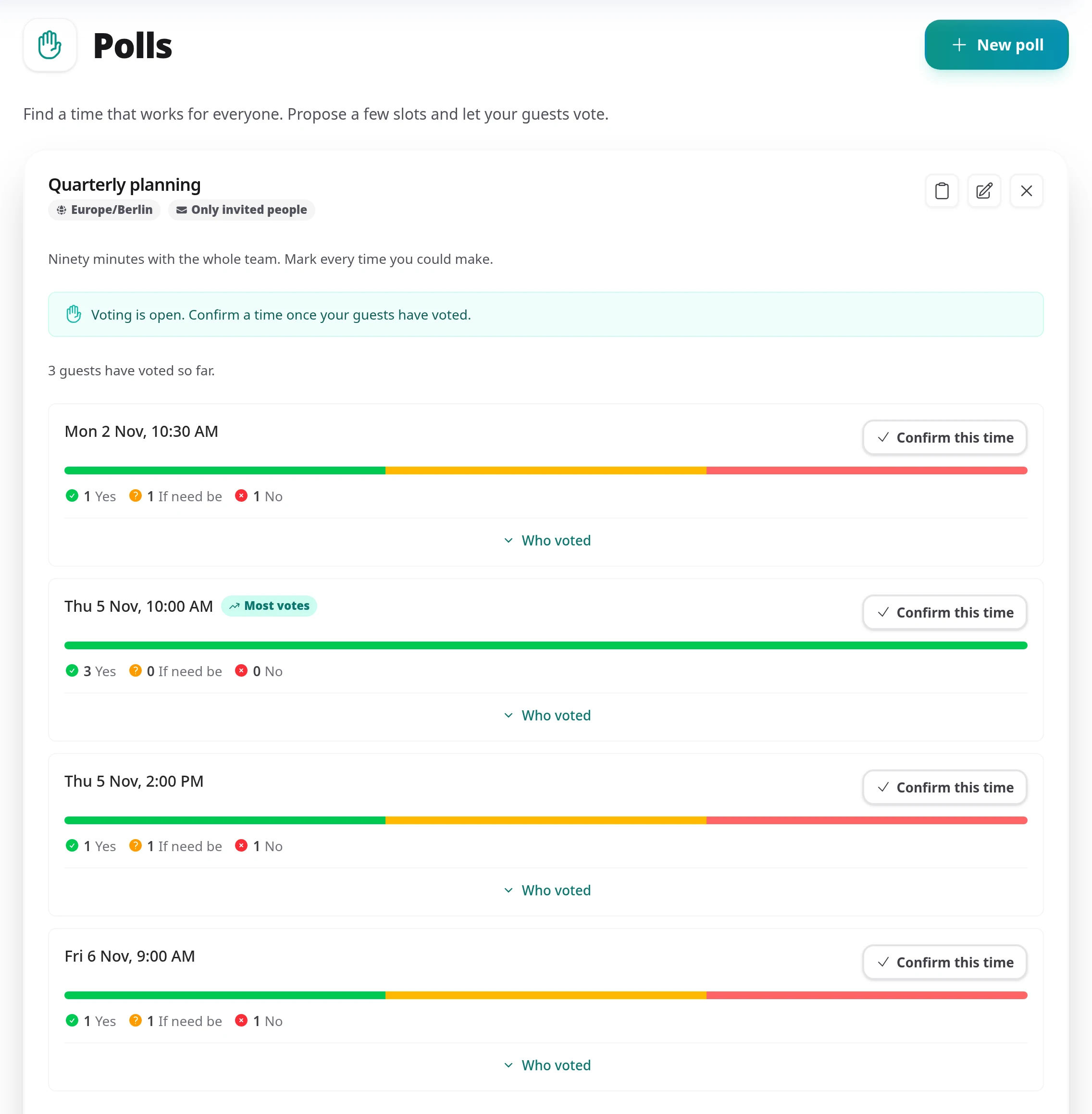
In the poll's results, select Confirm this time on the row you want. The time with the most votes is marked Most votes, but nothing is confirmed automatically: the tallies inform the decision, and you make it.
  • A real meeting is created: it appears under Meetings, titled after the poll, and lands on your connected calendar.
  • Everyone on the poll is invited as a guest: each gets the meeting confirmation with a calendar file, and says whether they are coming, like any other guest.
  • The poll closes: it moves to Confirmed, the voting page tells anyone who opens it when the meeting is, and any pending poll reminders are dropped.
  • Calendar conflicts are flagged before you commit: candidate times that clash with something already on your calendar are marked Calendar conflict in the grid, and the confirmation dialog warns you again. You can still confirm such a time, for when you mean to move the other event. What Tymeslot does refuse is a time another Tymeslot meeting of yours has taken in the meantime, so a poll never double-books you with a booking. Confirming is your choice of time, so it skips your buffers, but a time inside your time off is refused.
A poll's results: four candidate times, each with a bar and counts of Yes, If need be and No answers, a Who voted toggle and a Confirm this time button; the Thursday 10:00 time is marked Most votes
Each time shows how its answers split, and Who voted lists the names. Select Confirm this time on the one you choose.

The meeting is yours to manage

Nobody booked a meeting that came from a poll: you chose the time. So nobody but you can change it.

  • Moving it: select Reschedule on the meeting under Meetings. Instead of asking anyone for a new time, Tymeslot opens Move this meeting: pick the new start and select Move meeting. The calendar entry and any video room move with it, and every guest is emailed the new time and asked again whether they can come. You choose the time, so the move skips your buffers and booking limits; another meeting of yours at that time, or a time inside your time off, stops it.
  • Cancelling it: cancel it from Meetings as you would any other meeting; every guest is told.
  • Guests cannot move or cancel it: the reschedule and cancel pages tell them the meeting was arranged by a poll and only its host can change it. A guest who cannot come says so with Can't make it in their invitation, or replies to it.
  • Your own emails are about the meeting, not a booker: they say the poll is confirmed and list the guests.

Chasing the stragglers

A poll with a deadline chases people for you, so you are not the one sending "any thoughts on those times?" messages.

  • Reminders before the deadline: by default one, 24 hours before. Choose different ones when you create the poll (once you have entered invitees) or later in Edit poll. Reminders go to invited people who haven't voted yet; people who have answered are left alone. A poll without a deadline sends none, and neither does one nobody was invited to, since it cannot know who is still to vote.
  • As soon as everyone invited has voted: you get a nudge saying the poll is ready to decide, so you do not have to keep checking.
  • When the deadline passes: you get a second nudge, whether or not everyone answered.

A poll needs a connected calendar

The public voting page follows the same rule as your booking page: it is live only once you have connected a calendar. Until then you cannot create a poll or send invitations, so nobody receives a link that does not work yet. The calendar is also what lets Tymeslot flag candidate times you are already busy for, and put the winner on your calendar.

Frequently Asked Questions

Can I cancel a poll?

Yes, from the results panel, with Cancel poll. Cancelling cannot be undone: everyone on the poll is emailed that it will not go ahead, everyone holding the link sees it as cancelled, and no time is confirmed. The answers stay visible to you in the results until you delete the poll. Tymeslot asks you to confirm first and tells you how many people have already voted.

Can I delete a poll?

Once it is over, confirmed or cancelled, select Delete poll to remove it from your list with its times and answers. A meeting the poll confirmed stays in your calendar. An open poll has to be cancelled first, so nothing people are still voting on disappears.

Someone says they voted, but their vote is not in the results. Why?

A vote counts only once it is saved through the voter's personal link. Someone who asked for a link on the shared page and has not opened the email yet is not counted, and the results panel shows how many people are in that position. Their link expires 48 hours after they first asked for it.

Do guests need an account?

No. A name and an email address is all a guest gives, and it exists only so the poll can tell answers apart and invite everyone once a time is confirmed.

Can I add candidate times after sending the link?

Yes. Select Edit poll, then Add times. Existing times cannot be changed or removed, so nobody's answers are invalidated; people who already voted are emailed the new times. If the voting deadline has passed, move it to a later time in the same edit.

I confirmed a poll before this update. Who manages that meeting?

It keeps working the way it did: the participant it was booked for keeps their reschedule and cancel links. Only meetings confirmed from now on are managed by you alone.

Does the voting page use my theme?

Yes. It uses your booking page's theme and colours, so it looks like the rest of your scheduling pages.

Related Articles

Read Availability Schedules

Availability Schedules

Keep several named sets of working hours (weekday office hours, evening consults, weekend intensives), each with its own breaks and booking rules, and give every meeting type the one it belongs to.

Read Booking Approval

Booking Approval

Hold a booking until you have agreed to it, and tell the person who booked exactly where they stand.

Read Recurring Bookings

Recurring Bookings

Let clients book a series of sessions in one go, at the same time each week or at times they choose.