All Tymeslot features
Scheduling, calendar and video integrations, payments, automation and embedding: everything Tymeslot does, on one page.
Let clients book a series of sessions in one go, at the same time each week or at times they choose.

Actualizado el 16 de noviembre de 2026
A coaching programme, a course of lessons or a block of therapy sessions starts with the same question: when can we meet, again and again? With recurring bookings the client answers it once. They pick a first time, see every session the series would hold, and book them all in one go.
A series is a set of ordinary bookings made together. Each session behaves exactly like a single booking of the same meeting type:
A series is booked all at once or not at all. If one session cannot be booked, none of them is, so a client never ends up with half a programme. The client gets one confirmation email listing every session, with one calendar file holding an event for each.
Series are set per meeting type. Open Dashboard → Meeting Types, edit a type, go to the Booking Rules tab and switch on Let people book a series in the Series section. Then choose how the sessions are timed.
Same time, repeating
Every session at the same time, for example every Thursday at 17:00. Pick the rhythm under Repeats: every day up to every 4 days, every week up to every 4 weeks, or every month up to every 4 months. A monthly series keeps the same weekday of the month, such as the second Thursday; a series that starts on a fifth weekday uses the last one in months without a fifth.
Sessions at different times
The client picks each session from your available times, one after another. This suits clients whose weeks never look the same.
A repeating series keeps your local time: a weekly 17:00 stays at 17:00 when the clocks change. One-off and invitation-only meeting types cannot offer a series, and a type with fixed dates can offer only sessions at different times.
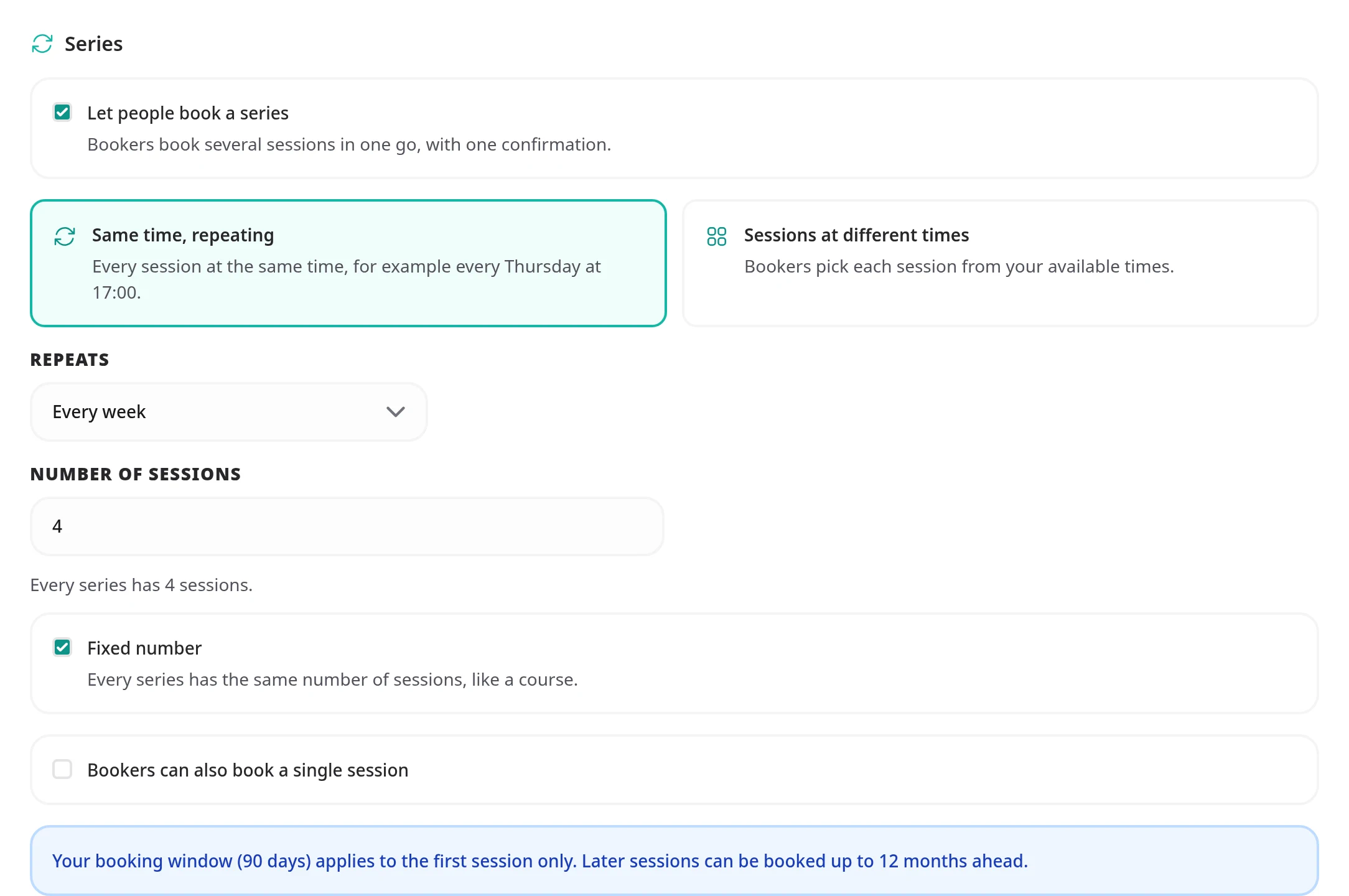
A series holds between 2 and 26 sessions. A slower rhythm holds fewer, since every session has to fall within a year of the first: at most 18 sessions every 3 weeks, 14 every 4 weeks, 12 every month, 6 every 2 months, 4 every 3 months and 3 every 4 months. You set the number in one of two ways:
By default a meeting type with a series books only series. Tick Bookers can also book a single session to let clients book just one session as well.
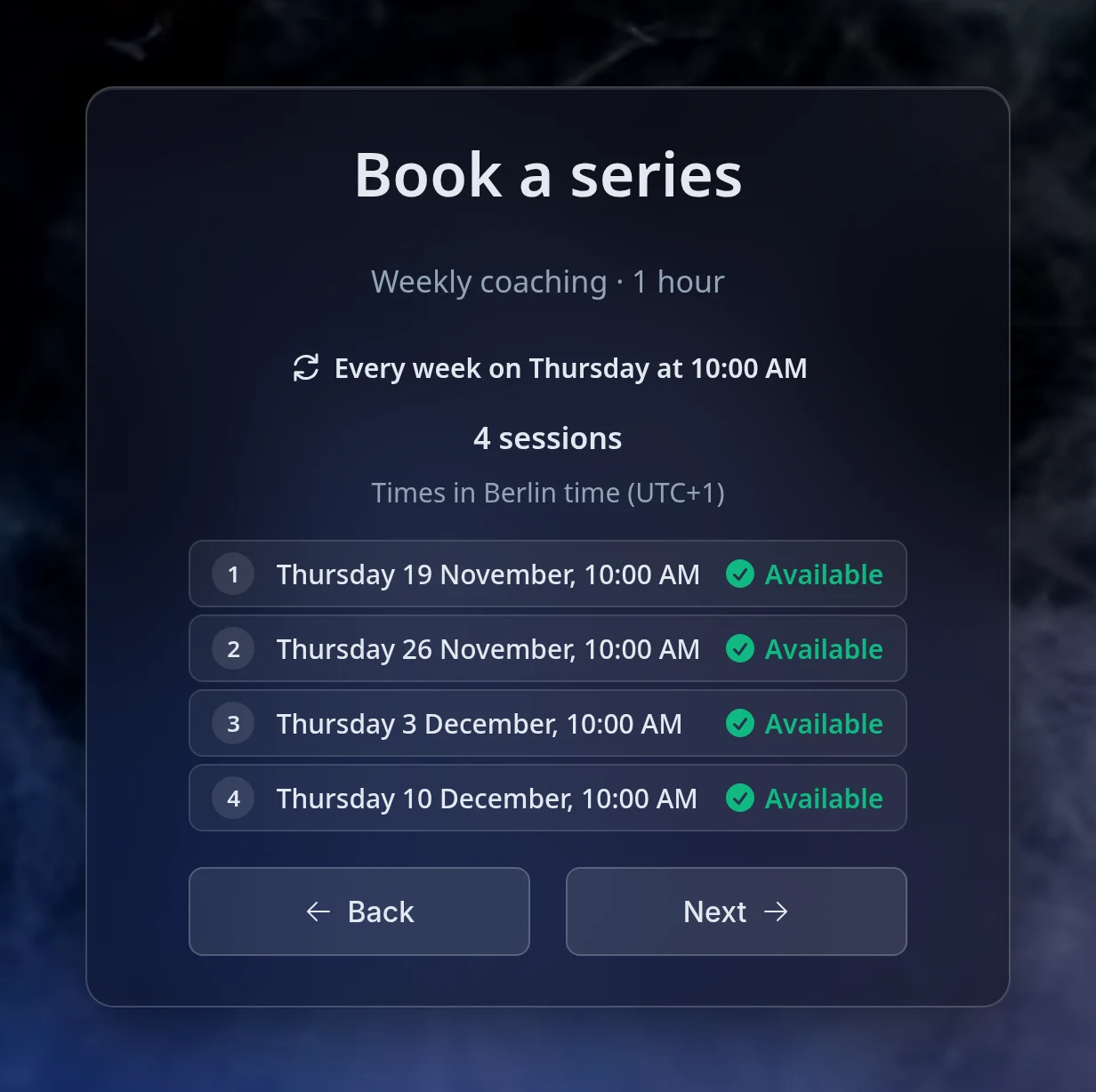
The client picks a time as for any booking; that time is the first session. The booking page then shows the series: for a repeating one, its rhythm and the list of dates it would hold, each marked as available or not. For sessions at different times, the client adds each further session from a week of your available times.
A date that cannot be booked is named, with the reason, such as not offered on that day or fully booked. The client can then pick another time for the first session, which moves the whole series, or book fewer sessions. They move on to their details only once every session in the list is available.
Your booking window applies to the first session only. Later sessions can be up to 12 months after the first, so a 30-day window still lets a client book a weekly series that runs for three months. Minimum notice applies to every session.
Booking limits count each session as one booking. A weekly limit of two refuses a series that would put a third session in the same week. When a limit is lower than the sessions one series can book in a week or a month, the editor warns you that some series won't fit. The warning never stops you saving.
On a meeting type that needs your approval, a series arrives as one request. You approve or decline the whole series, never a single session, and every session shares the deadline of the first. See Booking Approval for how requests work.
A confirmed series sends one meeting.series_created
event to your automations instead of one event for each session, and cancelling its remaining sessions together sends one meeting.series_cancelled. A series that needs your approval is likewise requested, declined or expired in one event: meeting.series_requested,
meeting.series_declined
or meeting.series_request_expired. The
Webhook Events Reference
describes every payload.
Recurring bookings are part of Pro on Tymeslot Cloud and included in self-hosted Tymeslot.
Yes. Every session has its own reschedule and cancel links, in the confirmation email and on the client's series page. Moving one session leaves the others where they are.
Nothing is booked until every session is free. The booking page names the dates that are not available and why, and the client either picks another time for the first session, which moves the whole series, or books fewer sessions.
No. A paid series is paid upfront, in one checkout, at the price of one session times the number of sessions. You can refund the share of sessions you cancel later.
No. Each session is its own event in your calendar, and the .ics file the client receives holds one event per session rather than a repeating event. You can move or cancel any one of them without touching the rest.
Scheduling, calendar and video integrations, payments, automation and embedding: everything Tymeslot does, on one page.
Keep several named sets of working hours (weekday office hours, evening consults, weekend intensives), each with its own breaks and booking rules, and give every meeting type the one it belongs to.
Hold a booking until you have agreed to it, and tell the person who booked exactly where they stand.
Propose candidate times, invite people by email or share one link, and let everyone mark each time Yes, If need be or No. Confirm the winner and Tymeslot books it as a meeting you manage, with everyone invited.