All Tymeslot features
Scheduling, calendar and video integrations, payments, automation and embedding: everything Tymeslot does, on one page.
Keep several sets of working hours side by side, and give each meeting type the one it belongs to.

Mis à jour le 13 octobre 2026
Most people do not have one working week. Client calls belong in the afternoon, first meetings with someone new belong in a quiet morning slot, and the occasional weekend intensive belongs nowhere near either. An availability schedule is a named set of working hours, breaks and booking rules. Keep up to five, and point each meeting type at the one it belongs to.
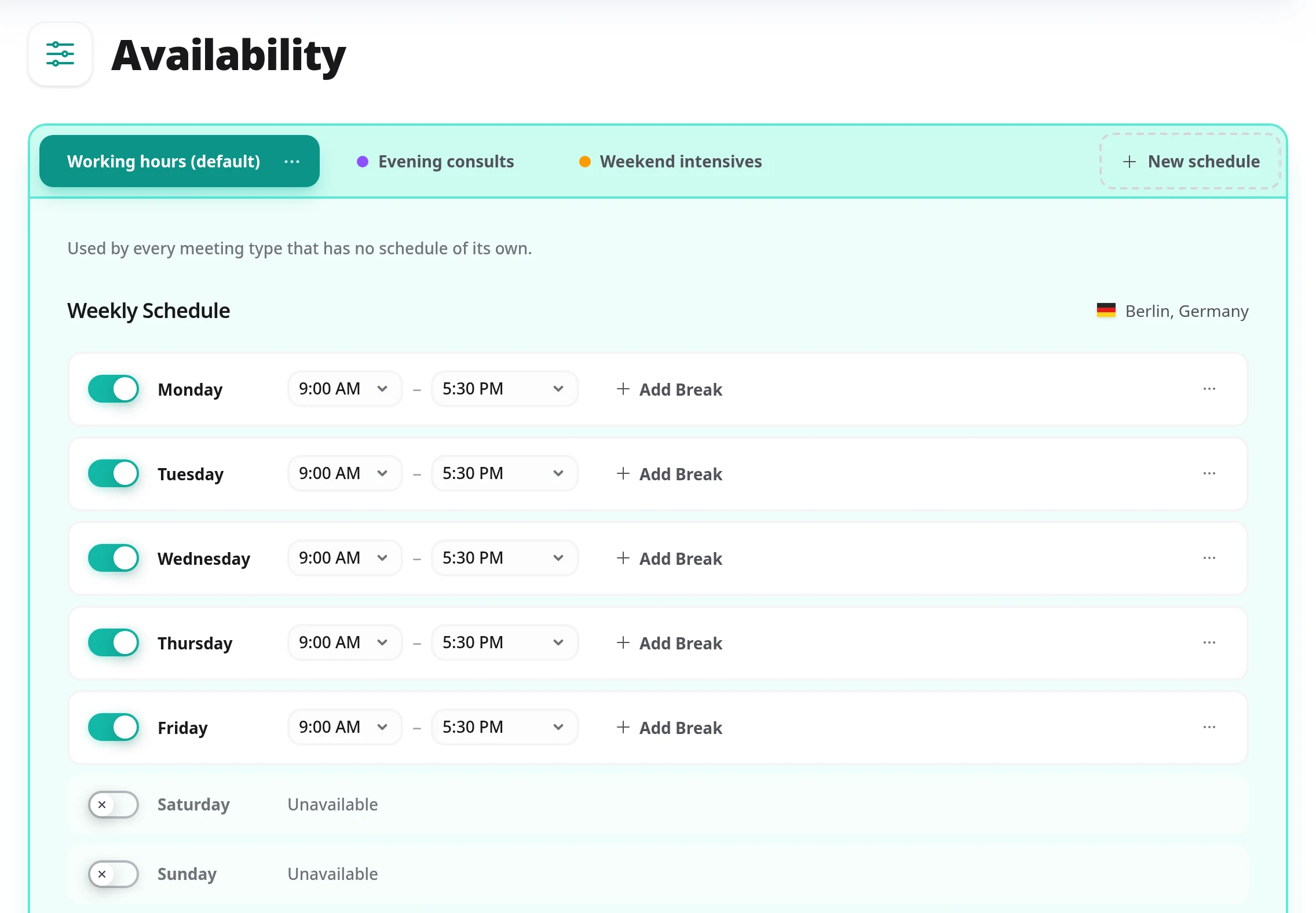
Every account starts with one schedule, marked default. It is the fallback: any meeting type that has not been given a schedule of its own is bookable against it.
Go to Dashboard → Availability and select New schedule. Name it after what it is for: in six months, "Evening consults" will tell you more than "Schedule 2".
Open Dashboard → Meeting Types, edit a saved type, and open the Booking Rules tab. Under Availability, pick a schedule, or leave it on Default (…), which names the current default, to keep following whichever schedule is the default at the time.
The choice saves as soon as you make it. Whatever you pick decides which hours that type's booking page offers, and which rules apply when someone confirms.

Working hours
Mon–Fri, 9:00–17:00, lunch blocked. The default, so anything new follows it automatically.
Evening consults
Mon and Wed, 18:00–20:30, 15 minutes before each call and 5 after, 30-day window. Used by one paid consultation type.
Weekend intensives
Saturdays only, 10:00–14:00, bookable three months ahead so people can plan around it.
Night shift
Mon–Fri, 22:00–06:00 (+1), with a break from 02:00 to 02:30. Friday's hours run into Saturday morning; Saturday itself stays off.
Five. The limit is a design choice: the schedules appear as a row of tabs, and past a handful they stop working as navigation. The New schedule button greys out once you reach it; delete one to make room.
It falls back to your default schedule and stays bookable. The confirmation dialog lists by name every meeting type that will move, so you can see the consequence before confirming.
Yes, as many as you like. Change a schedule's hours once and every meeting type that uses it follows.
Each schedule gets its own colour so you can tell at a glance which one you are editing. The same colour marks that schedule where a meeting type chooses one, so "the amber schedule" means the same thing on both screens.
Scheduling, calendar and video integrations, payments, automation and embedding: everything Tymeslot does, on one page.
Hold a booking until you have agreed to it, and tell the person who booked exactly where they stand.
Propose candidate times, invite people by email or share one link, and let everyone mark each time Yes, If need be or No. Confirm the winner and Tymeslot books it as a meeting you manage, with everyone invited.
Ask bookers what you need to know before the meeting: short text, choices, yes/no, dates, acknowledgements and more. The answers appear in confirmations, emails and your calendar.