Availability Schedules
Keep several named sets of working hours — weekday office hours, evening consults, weekend intensives — each with its own breaks and booking rules, and give every meeting type the one it belongs to.
Ask bookers anything you need to know before the meeting — ten question types, per-meeting-type configuration, and answers piped straight into your confirmations, emails, and calendar events.

Updated June 24, 2026
A discovery call needs different context than a delivery slot or a coaching session. Custom questions let you collect exactly what each meeting type requires — a phone number, an order ID, a single yes/no — without bolting on a separate form tool. Answers travel with the booking through to your confirmation page, to both attendees' emails, into the calendar event description, and onto the host dashboard.
Custom questions are configured per meeting type — a 15-minute intro call can ask one set of questions while a 60-minute strategy session asks another.
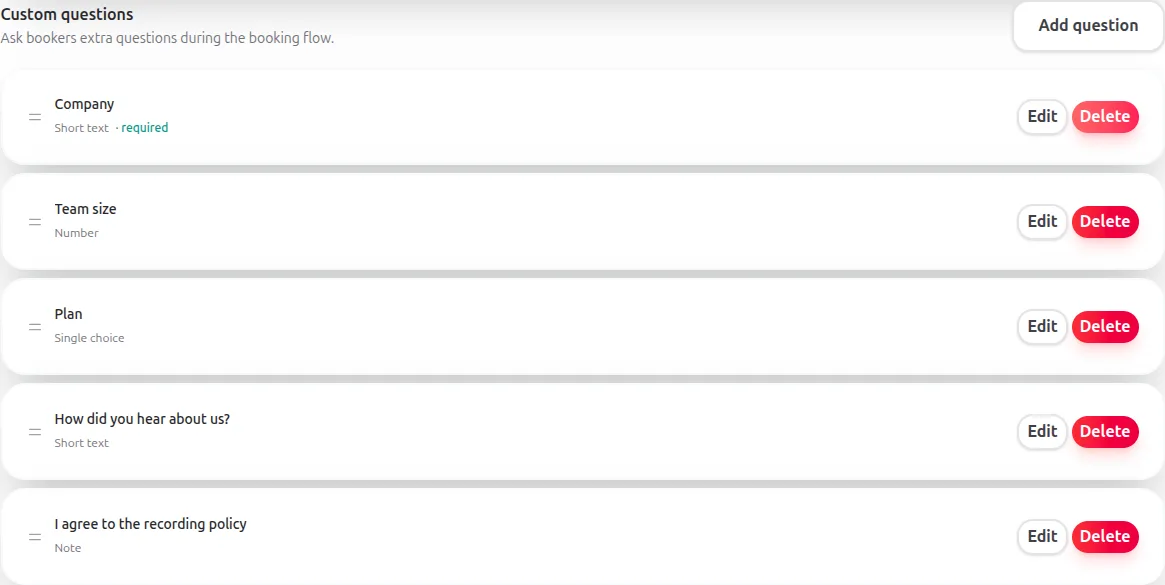
Each question has a type that controls how the input is rendered, what it accepts, and how the answer is validated and displayed.
Short text
A single-line free-text answer. Good for names, order numbers, or short context.
Number
A numeric answer. Optionally constrain it to a minimum and maximum — useful for headcount, budgets, or ratings.
Single choice
Pick exactly one option from a list. Define two to fifty choices in the editor.
Multiple choice
Pick any number of options from a list. Stores an ordered list of the selected keys.
Yes / No
A binary answer rendered as a pair of branded tiles. Both Yes and No are valid answers when the question is required.
Phone
A free-text phone number. Validated for shape — useful when you also want to follow up by phone.
URL
A web address. Validated against a basic URL shape. Good for portfolio links, LinkedIn profiles, or a deck to review.
Date
A calendar date picker. Optionally bound the allowed range with a minimum and maximum.
Time
A time-of-day picker. Pairs nicely with a date question when you need a separate user-supplied moment.
Note for acknowledgement
A block of text the booker must explicitly tick to acknowledge — e.g. a cancellation policy or a pre-meeting instruction. The acknowledgement timestamp is captured with the answer.
The question editor exposes a consistent set of controls regardless of type, plus the type-specific extras described above.
Custom questions slot into the booking flow between time selection and the contact details step. Each question gets its own page so the booker focuses on one answer at a time, with branded back and continue buttons matching the active theme.
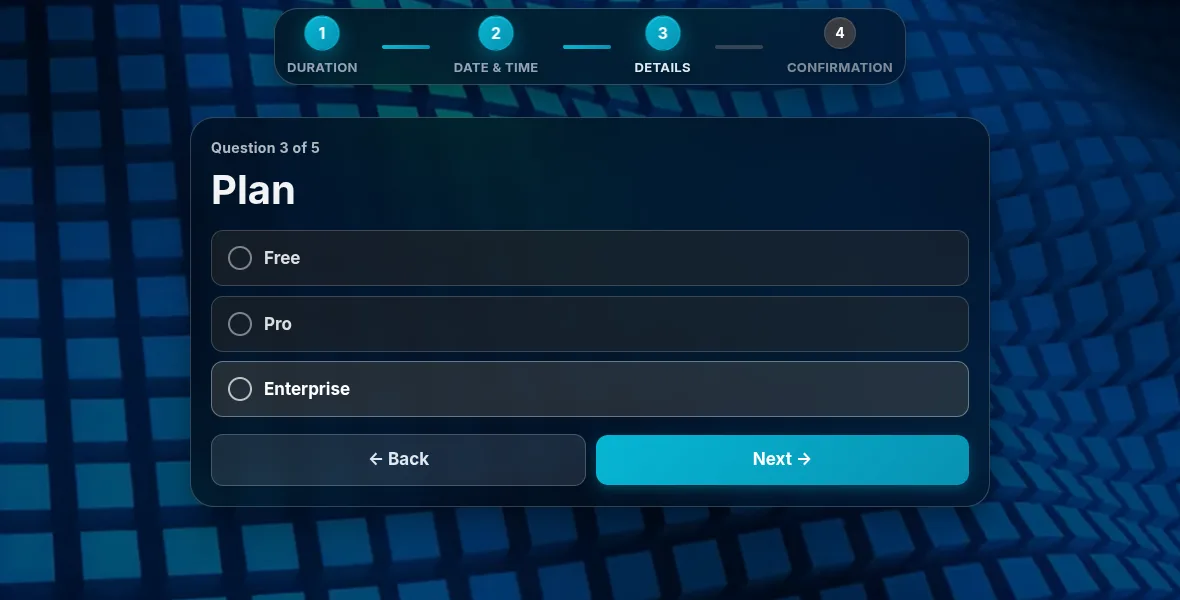
Once a booking is confirmed, the answers are part of the meeting record and surface in every place the meeting itself surfaces.
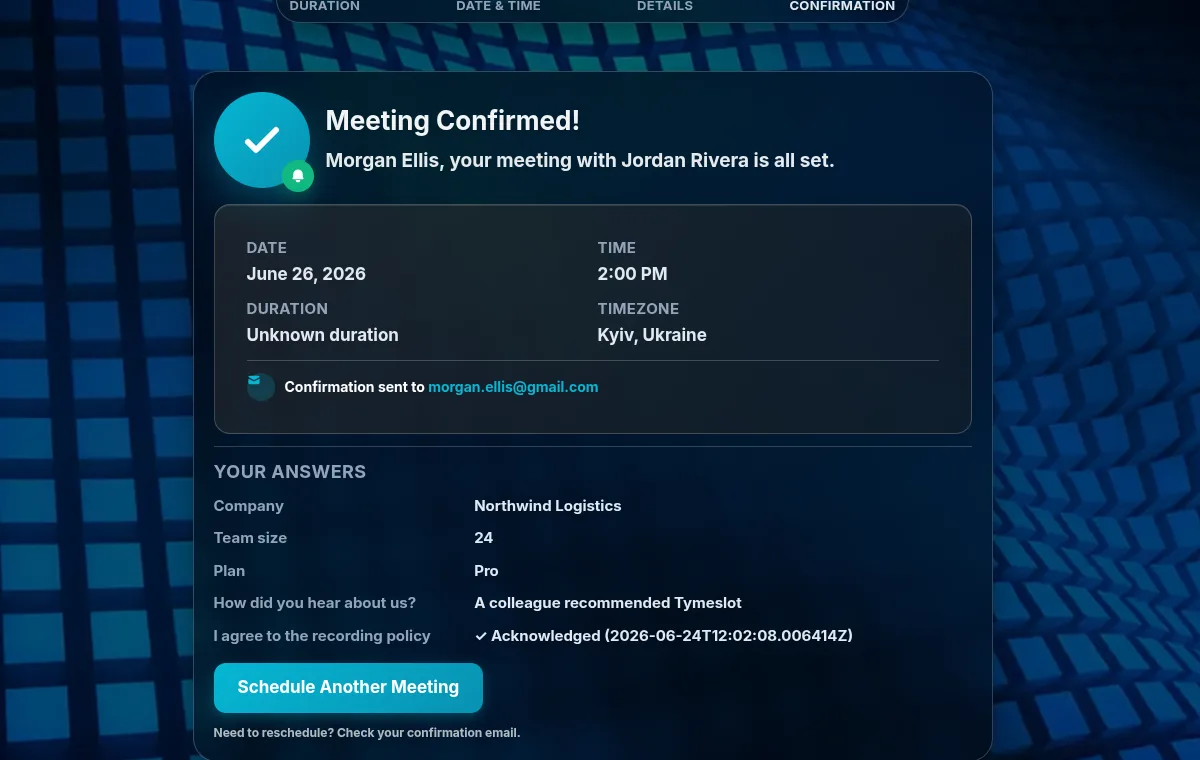
When a booking is created, the question definitions are snapshotted onto that booking — label, type, options, and required-flag included. If you later rename a question, swap its type, or remove it from the meeting type, existing bookings keep showing the original question text and the original answer exactly as the booker supplied it.
You can iterate on your questions freely without rewriting history.
custom_fields
block on the meeting object that mirrors the snapshot and the booker's answers — so n8n, Zapier, and any custom integration can route on them directly. See the
Webhook Events Reference
for the full payload schema.
Keep several named sets of working hours — weekday office hours, evening consults, weekend intensives — each with its own breaks and booking rules, and give every meeting type the one it belongs to.
Hold a booking until you have agreed to it, and tell the person who booked exactly where they stand.
Propose several candidate times, let every guest mark each one Yes, If need be or No, then confirm the winner and Tymeslot books it as a real meeting with everyone invited.