Calendar Sync
Two-way calendar sync that stops double-bookings. Connect Google Calendar, Outlook, Apple iCloud or any CalDAV server, such as Nextcloud or mailbox.org.
Connect Tymeslot to a Baikal CalDAV server: the /dav.php server address, your account login, and common self-hosted setups.

Zaktualizowano: 19 sierpnia 2026
Baikal is a lightweight, open-source CalDAV and CardDAV server written in PHP. Self-hosters choose it for a calendar server with a web admin interface, without running a full groupware suite such as Nextcloud or Zimbra.
Baikal exposes its CalDAV interface through a
/dav.php
endpoint, with each user's calendars under a predictable path. Tymeslot only needs the endpoint and your username to find them.
Enter your Baikal address with
/dav.php
on the end:
https://baikal.example.com/dav.php/calendars/USERNAME/
itself.
default
or a UUID, and you tick the ones to sync.
/dav.php/calendars/USERNAME/, also works. The plain
/dav.php
address is simpler and lets Tymeslot list all your calendars.
If Baikal is installed under a sub-path (for example, served at example.com/baikal/), include that prefix before /dav.php:
https://example.com/baikal/dav.phpTymeslot signs in with your Baikal username and password, the same ones you use to connect any CalDAV client. It answers both Basic and Digest authentication, so it works whichever one your Baikal is set to.
Baikal has no app-specific passwords, so use the account password.
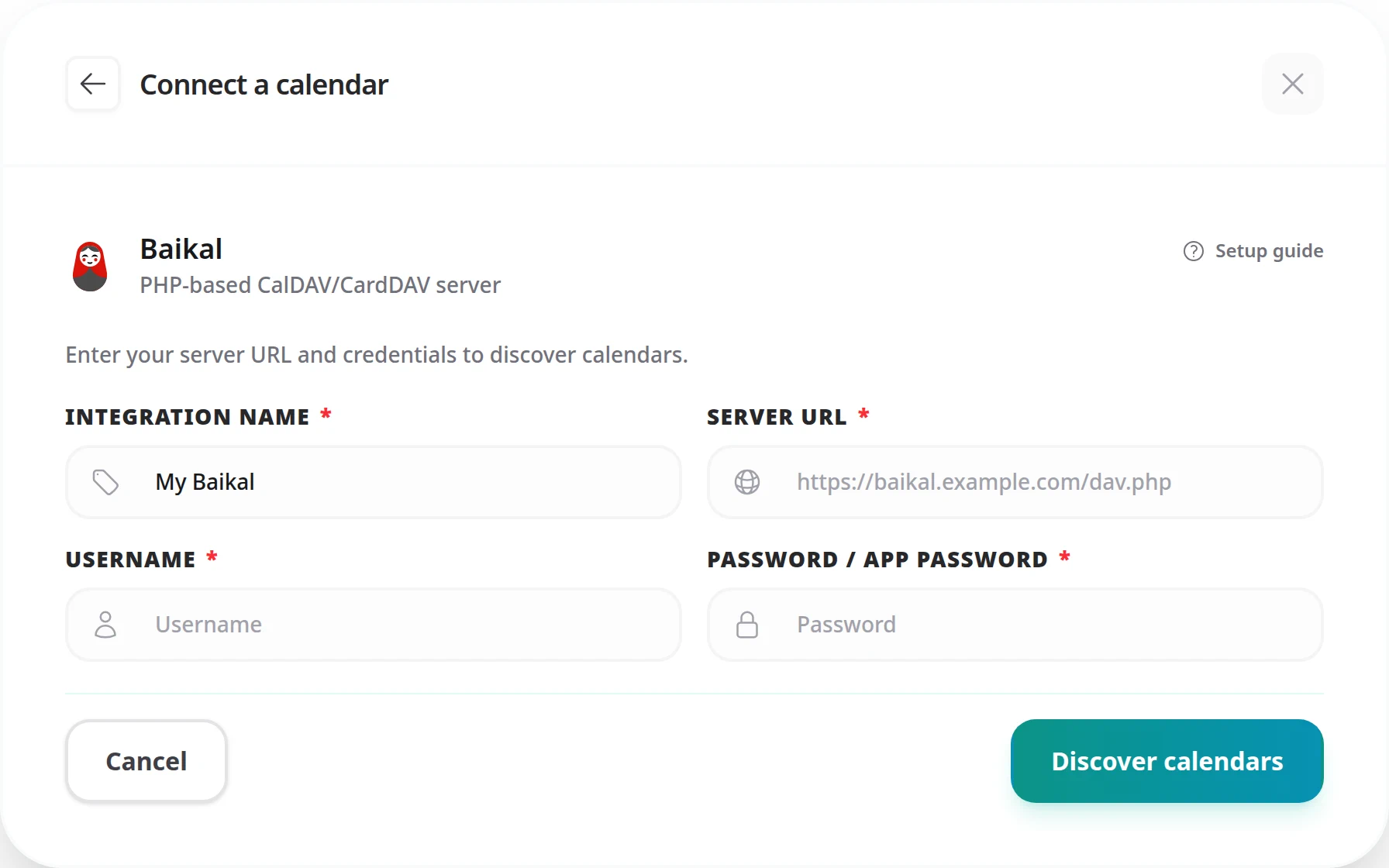
/dav.php), your Baikal Username, and your password.
"Resource not found" or "No calendars were discovered"
The usual causes are a server URL without /dav.php, a missing sub-path, or a username whose casing differs from the one in Baikal's admin interface.
"Authentication failed" or 401 Unauthorized
Check that the username and password match your Baikal account; both are case-sensitive. If you recently changed the password in Baikal's admin interface, enter the new one with [Reconnect] on the connection in [Integrations].
"Unable to connect to the calendar service"
Baikal must be reachable from wherever Tymeslot runs. Check that HTTPS is configured and port 443 is open.
Self-hosting Tymeslot on that same network is the exception.
A host that resolves to a private address is refused by default, as protection against
server-side request forgery. Set
ALLOW_PRIVATE_IPS_FOR_CALENDAR=true
on your Tymeslot deployment to permit a CalDAV server on an internal network. This applies to
self-hosted installs only. On the managed service at tymeslot.app our servers have no route
to your network, so a private address cannot work there whatever you configure.
Baikal is served under a sub-path
If your web server proxies Baikal under a prefix such as /baikal/, include that prefix before /dav.php:
https://example.com/baikal/dav.php
No. The calendar URI is the internal identifier Baikal gives a calendar, often a UUID when a CalDAV client created it. Tymeslot lists your calendars by their display names after you click [Discover calendars], so you never have to type one.
Yes, and that is the recommended address. From /dav.php, Tymeslot looks under
/dav.php/calendars/USERNAME/ and lists every calendar it finds there.
On the managed service, no: it needs a publicly reachable server over HTTPS. Put Baikal behind a reverse proxy with a valid TLS certificate and a public DNS record; Caddy, or Nginx with Let's Encrypt, can issue the certificate for you.
If you self-host Tymeslot on the same network, yes. Set
ALLOW_PRIVATE_IPS_FOR_CALENDAR=true, and Tymeslot then accepts plain http://
for a private IP address or an internal host name, such as a Docker service name
or a name ending in .local, .lan or .internal.
With a standard Docker setup (e.g. ckulka/baikal), Baikal is available at
https://your-domain.com/dav.php when served at the root. Enter that address as
the Server URL.
Two-way calendar sync that stops double-bookings. Connect Google Calendar, Outlook, Apple iCloud or any CalDAV server, such as Nextcloud or mailbox.org.
Sync Tymeslot with CalDAV calendars: Nextcloud, Radicale, Baikal, Zimbra, mailbox.org, iCloud and Fastmail. Conflict checks and new bookings work without a Google or Microsoft account.
Connect Tymeslot to Google Calendar. Busy, Tentative and Out of Office events all block bookings, so you are never double-booked, and every booking is added to your calendar.
Sync Tymeslot with Outlook Calendar via Microsoft Graph. Your Outlook events block conflicting bookings and every booking is added to your calendar. Works with Outlook.com and Microsoft 365.