Calendar Sync
Two-way calendar sync that stops double-bookings. Connect Google Calendar, Outlook, Apple iCloud or any CalDAV server, such as Nextcloud or mailbox.org.
Connect Tymeslot to your mailbox.org calendars. With two-factor authentication on, create an application-specific password first; otherwise your account password works.

Mis à jour le 2 novembre 2026
App password required only with 2FA
Unlike Apple iCloud, mailbox.org asks for an application-specific password only when two-factor authentication is on. Without 2FA, your regular account password works for CalDAV.
mailbox.org is a privacy-focused email and office service based in Germany. Its CalDAV server is dav.mailbox.org, and Tymeslot fills that address in for you.
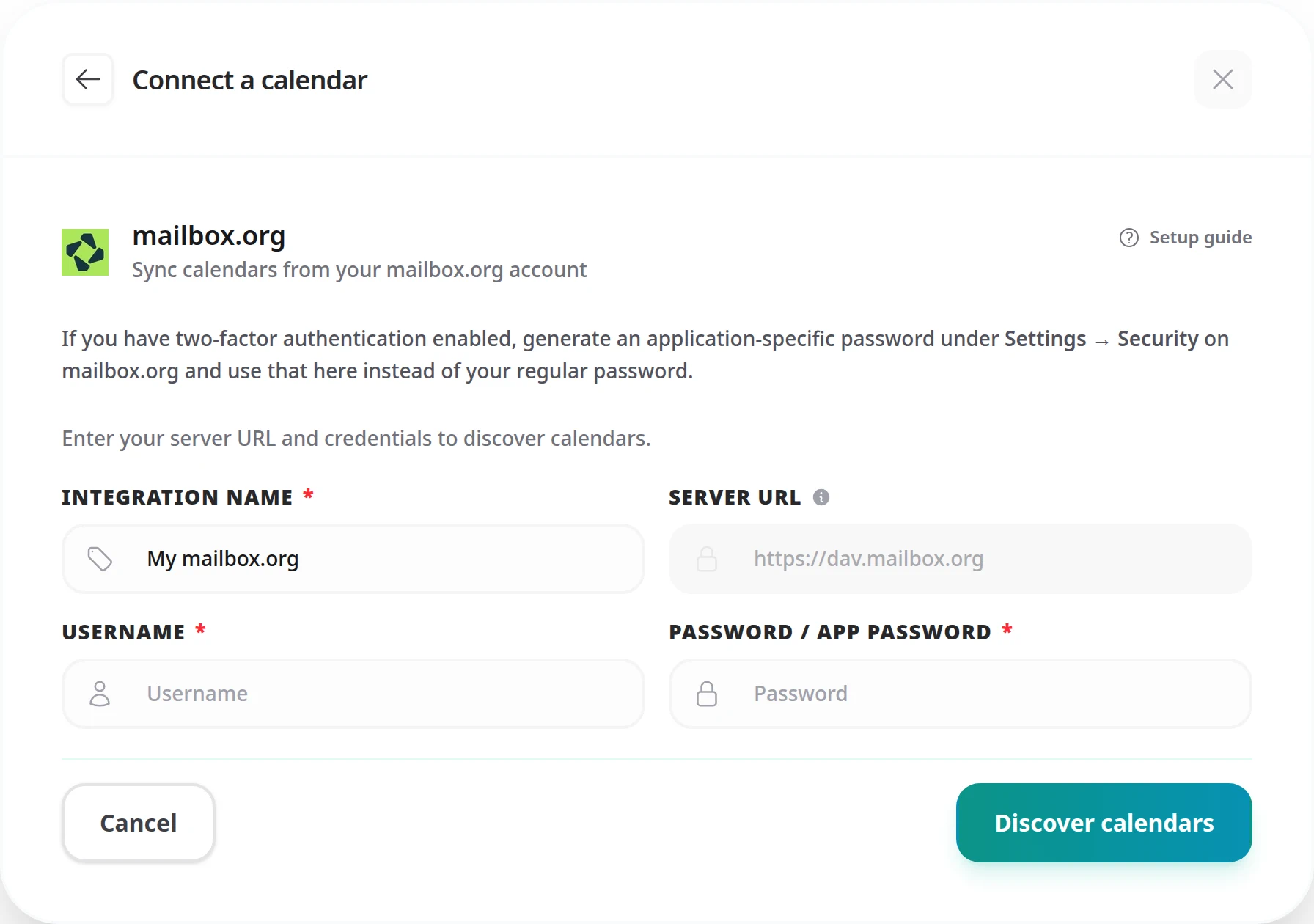
You enter only your email address and password. If 2FA is on, create an application-specific password first using the steps below.
Skip this step if 2FA is not enabled on your account. With two-factor authentication on, your main account password will not work for CalDAV, so you need an application-specific password.
mailbox.org uses one fixed CalDAV server, which Tymeslot fills in and locks:
| Field | Value |
|---|---|
| Server URL | https://dav.mailbox.org |
| Username | Your full mailbox.org email address (e.g. user@mailbox.org) |
| Password | Your account password (or application-specific password if 2FA is enabled) |
https://dav.mailbox.org. Enter your mailbox.org email as the
Username
and your password (or app password) as the Password.
"Authentication failed"
With 2FA on, mailbox.org rejects your main password for CalDAV. Generate an application-specific password under Settings → Security → Application-specific passwords and use that instead. If 2FA is off and sign-in still fails, check your email address and password for typos.
Application-specific password stopped working
mailbox.org's application-specific passwords do not expire, but they can be revoked. Check Settings → Security → Application-specific passwords to confirm the Tymeslot entry is still there. If it was removed, generate a new one and enter it with [Reconnect] on the connection in [Integrations].
Your main mailbox.org address appears in your own booking
Your Tymeslot account email is not one of your mailbox.org account's addresses, often because your domain reaches mailbox.org only through a catch-all. Add that exact address under Settings → E-mail aliases on mailbox.org. The people who book you are not affected: their invitation always shows your Tymeslot email. Bookings made before the change keep their current organiser.
Bookings not appearing in mailbox.org Calendar
Tymeslot adds the event in the background shortly after a booking is confirmed, and retries if mailbox.org does not accept it straight away. If it is still missing, check two things: the meeting type's Booking Destination names the calendar you are looking at, and the connection's status in [Integrations] is Healthy. Connection issues or Reconnect means Tymeslot could not reach mailbox.org.
Log in to the mailbox.org web client and go to Settings → Security. If two-factor authentication is listed as active, you need an application-specific password for CalDAV. If it is inactive or not set up, your regular password works.
It works with any plan that includes calendar sync over CalDAV. Plans and their features change, so check your plan's details at mailbox.org if you are unsure.
Yes. When you click [Discover calendars], Tymeslot lists every calendar in
your mailbox.org account from https://dav.mailbox.org, and you tick the ones to
sync. One connection covers them all, and you can change the selection later under
[Manage calendars].
Two-way calendar sync that stops double-bookings. Connect Google Calendar, Outlook, Apple iCloud or any CalDAV server, such as Nextcloud or mailbox.org.
Sync Tymeslot with CalDAV calendars: Nextcloud, Radicale, Baikal, Zimbra, mailbox.org, iCloud and Fastmail. Conflict checks and new bookings work without a Google or Microsoft account.
Connect Tymeslot to Google Calendar. Busy, Tentative and Out of Office events all block bookings, so you are never double-booked, and every booking is added to your calendar.
Sync Tymeslot with Outlook Calendar via Microsoft Graph. Your Outlook events block conflicting bookings and every booking is added to your calendar. Works with Outlook.com and Microsoft 365.