Calendar Sync
Two-way calendar sync that stops double-bookings. Connect Google Calendar, Outlook, Apple iCloud or any CalDAV server, such as Nextcloud or mailbox.org.
Connect Tymeslot to your Nextcloud calendars: which address to enter, how to create an app password, and how to check that sync works.

Atualizado em 19 de agosto de 2026
What you will have at the end
Tymeslot will read events from your Nextcloud calendar to block unavailable time slots, and write new bookings back to Nextcloud as events.
Nextcloud supports CalDAV out of the box: every calendar you create in the Calendar app is available over CalDAV with no plugins or extra configuration. Tymeslot uses it to read your events and to write your bookings.
Nextcloud also supports app passwords, so you can give Tymeslot its own credential and revoke it without touching your main password. We recommend one even if two-factor authentication is off.
Tymeslot needs only the address of your Nextcloud, the one you open in your browser. It finds the CalDAV path and your calendars itself.
/nextcloud).
The result looks like this:
https://cloud.example.com
Tymeslot adds the CalDAV path
/remote.php/dav/calendars/USERNAME/
itself, using the
USERNAME
you enter in the form, and then lists every calendar on your account.
/remote.php/dav
or /remote.php/dav/calendars/USERNAME/. Avoid a single calendar's private link: start from the account so Tymeslot can list all your calendars.
An app password lets Tymeslot sign in without your main password. With two-factor authentication on, it is required; without 2FA, it is still recommended. The Nextcloud form in Tymeslot asks for it by name.
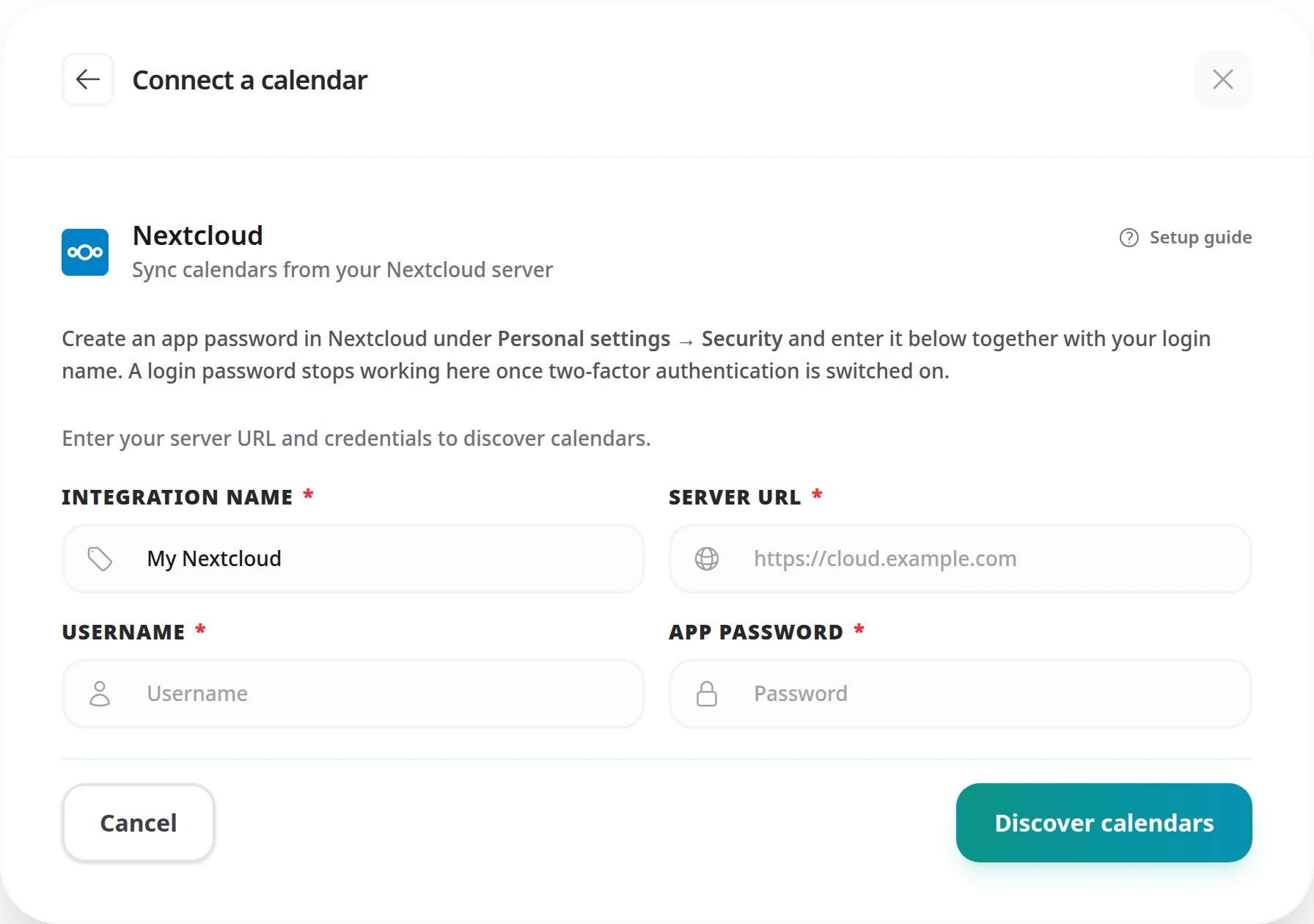
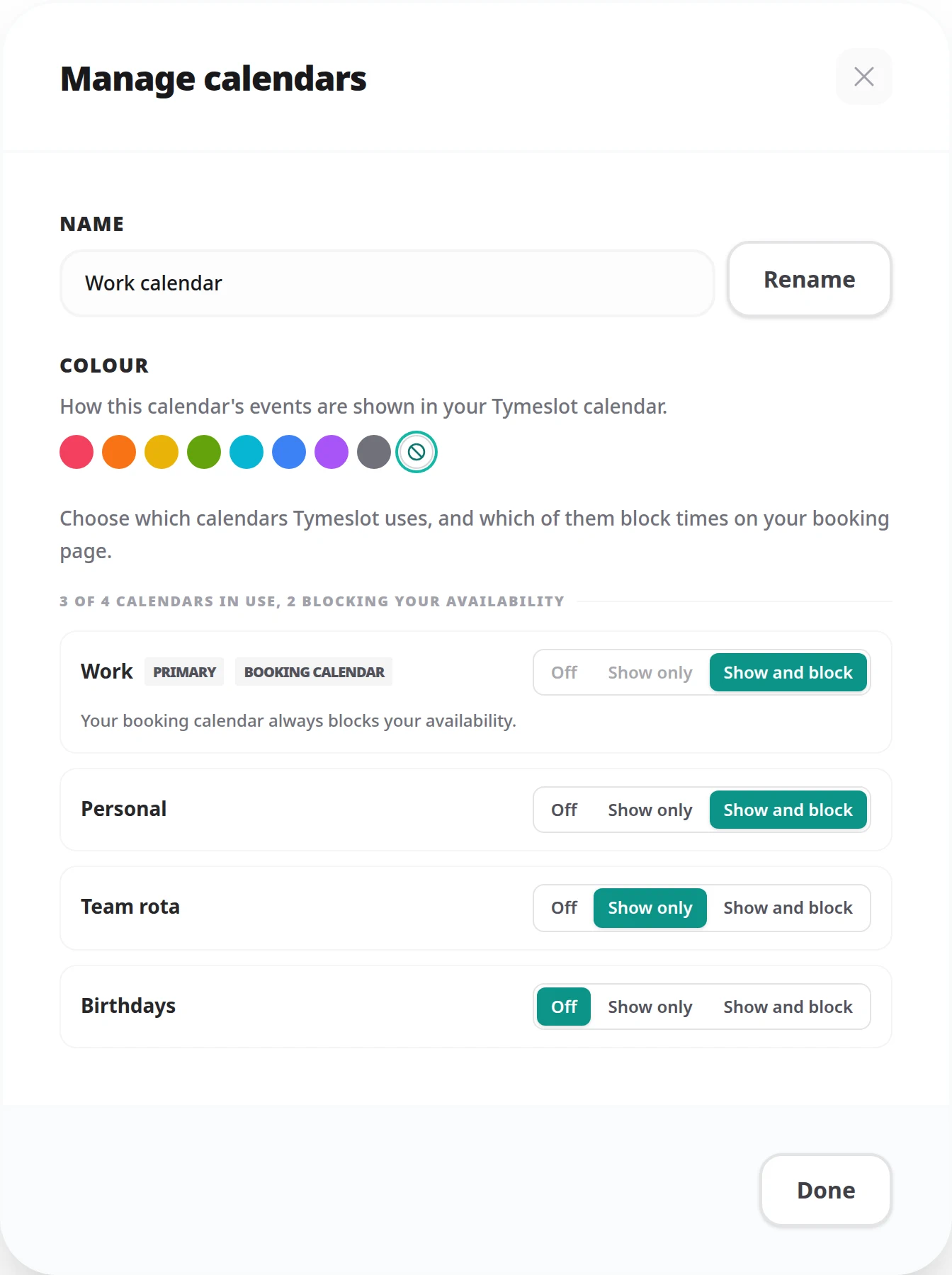
To change which Nextcloud calendars Tymeslot uses later, click [Manage calendars] on the connection.
"Authentication failed"
If two-factor authentication is on for your Nextcloud account, Nextcloud refuses your main password here, so use an app password from Personal settings → Security. Also confirm the username is your Nextcloud login name, not an email address (unless you sign in to Nextcloud with your email).
"Resource not found" or "No calendars were discovered"
Tymeslot reached a server but found no calendars there. Check that the Server URL is your Nextcloud address including any sub-path (such as /nextcloud),
with nothing after it like /apps/calendar. Then check the username: Tymeslot builds the calendar path from it, so it must be your login name exactly.
Connection succeeds but new bookings don't appear in Nextcloud
Check which calendar the meeting type books into, under Booking Destination in the meeting type settings. That calendar may be read-only, or shared with you without write access. Choose a calendar your own Nextcloud user owns, and make sure the app password was created under that same account.
Events aren't blocking availability after sync
Your booking page reads your calendars live but keeps the result for up to two minutes, so a new event can take that long to block a slot. If it still does not, check that the calendar is set to Show and block under [Manage calendars], and that the connection's status in [Integrations] is Healthy. Connection issues or Reconnect means the last sync failed.
No. Enter your Nextcloud address and Tymeslot lists every calendar on your
account, using their display names. You tick the ones to sync, so there is no need
to look up internal calendar names such as /personal/.
Yes. One Nextcloud connection covers every calendar on the account: tick the ones you want after discovery, and they start out blocking your availability. Later, under [Manage calendars], set each calendar to Off, Show only (its events appear on your Tymeslot calendar but do not block) or Show and block. Each meeting type writes its bookings to the calendar set as its Booking Destination.
No. You can create app passwords whether or not two-factor authentication is on. With 2FA on, they become required for CalDAV access from other apps. Without 2FA, a dedicated app password is still recommended, so you can revoke Tymeslot's access without changing your main password.
On the managed service, only if your Nextcloud is reachable from the public internet over HTTPS. Tymeslot connects to your server, not the other way round, so a server at a private IP (192.168.x.x) or behind a VPN without a public DNS record will not work. You need a public domain with a valid TLS certificate pointing at your Nextcloud.
Self-hosting Tymeslot on that same network is the exception. A host that
resolves to a private address is refused by default, as protection against
server-side request forgery. Set ALLOW_PRIVATE_IPS_FOR_CALENDAR=true on your
Tymeslot deployment to permit a CalDAV server on an internal network. This applies
to self-hosted installs only. On the managed service at tymeslot.app our servers
have no route to your network, so a private address cannot work there whatever you
configure.
Two-way calendar sync that stops double-bookings. Connect Google Calendar, Outlook, Apple iCloud or any CalDAV server, such as Nextcloud or mailbox.org.
Sync Tymeslot with CalDAV calendars: Nextcloud, Radicale, Baikal, Zimbra, mailbox.org, iCloud and Fastmail. Conflict checks and new bookings work without a Google or Microsoft account.
Connect Tymeslot to Google Calendar. Busy, Tentative and Out of Office events all block bookings, so you are never double-booked, and every booking is added to your calendar.
Sync Tymeslot with Outlook Calendar via Microsoft Graph. Your Outlook events block conflicting bookings and every booking is added to your calendar. Works with Outlook.com and Microsoft 365.