WordPress Plugin
Add your Tymeslot booking page to WordPress with the official plugin: a Gutenberg block, a shortcode or a floating button. No code needed, and it works with Tymeslot Cloud and self-hosted instances.
Add your booking page to any website in one of four ways: inline, popup, direct link or floating button. Step-by-step guides cover WordPress, Webflow, Wix, Squarespace, Shopify and plain HTML.

Atualizado em 11 de agosto de 2026
Your booking link goes live once you have a username and at least one connected calendar. Before you embed it, check that you have:
Sits in your page content and resizes to fit. Best for dedicated booking pages.
Opens in an overlay on top of your page. Best for call-to-action buttons and hero sections.
A plain link to your booking page, with no script. Easiest for emails and social media.
A round button in the bottom-right corner that stays visible as visitors scroll.
The inline embed places your booking widget directly into your page content. It needs the least setup.
<div id="tymeslot-booking" data-username="your-username"></div>
<script src="https://your-domain.com/embed.js"></script>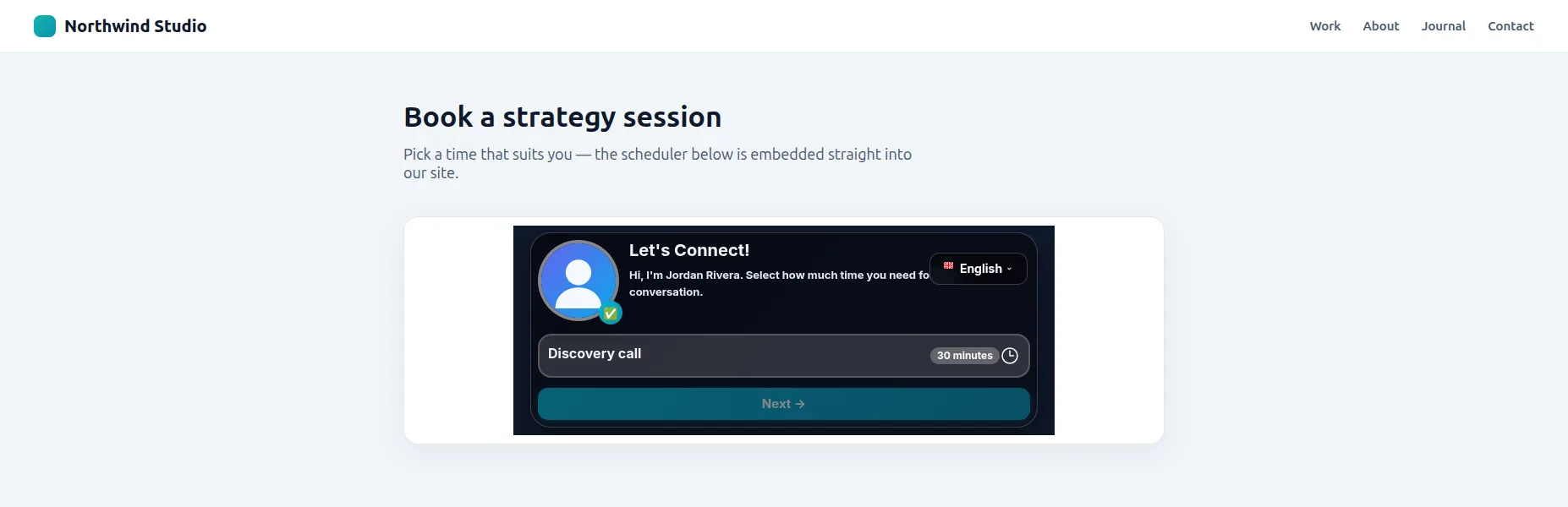
The popup modal opens your booking widget in an overlay on top of your page when a visitor clicks a button or link.
<button onclick="TymeslotBooking.open('your-username')">
  Book a Meeting
</button>
<script src="https://your-domain.com/embed.js"></script>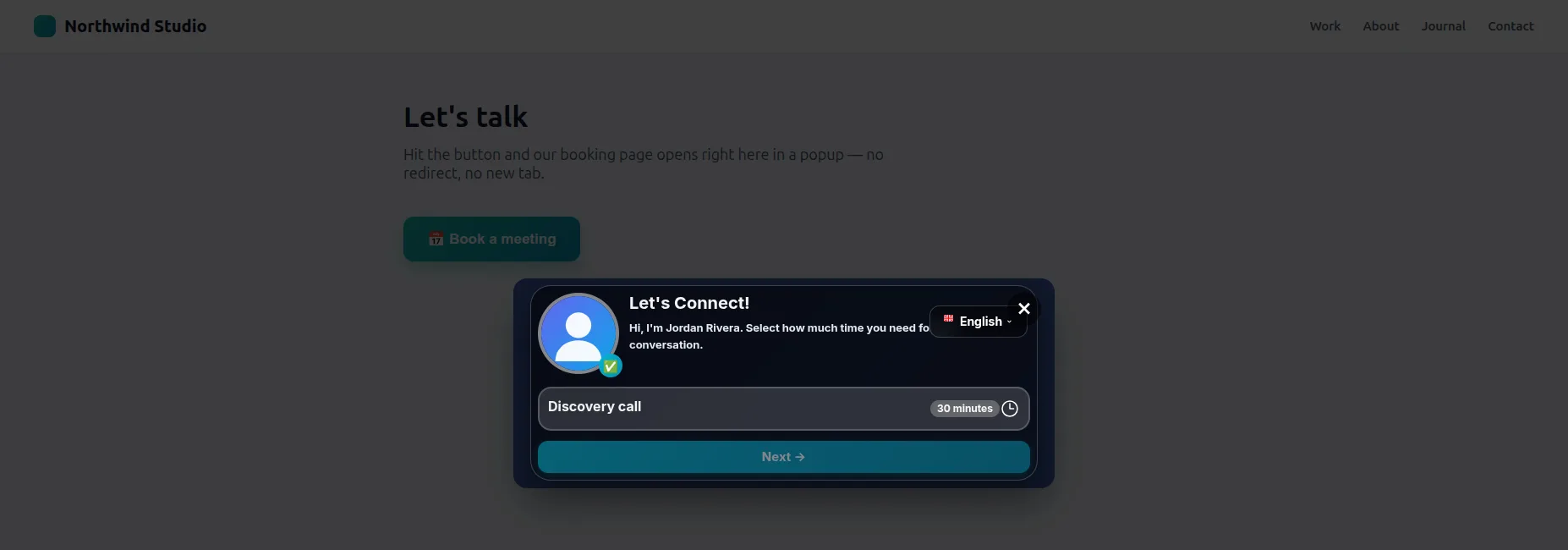
Any clickable element can open the popup, such as a link, an image or your own styled button:
<!-- From a link -->
<a href="#" onclick="TymeslotBooking.open('your-username'); return false;">
  Schedule a Call
</a>

<!-- From a styled button -->
<button class="my-custom-button" onclick="TymeslotBooking.open('your-username')">
  📅 Book Your Free Consultation
</button>The simplest option: a plain link to your booking page. It needs no script and no allowed domains, so it works anywhere you can post a URL.
<a href="https://your-domain.com/your-username">
  Schedule a meeting
</a>A round button fixed to the bottom-right corner that stays visible as visitors scroll, like a chat widget for booking. Clicking it opens the booking popup.
<script src="https://your-domain.com/embed.js"></script>
<script>
  TymeslotBooking.initFloating('your-username');
</script>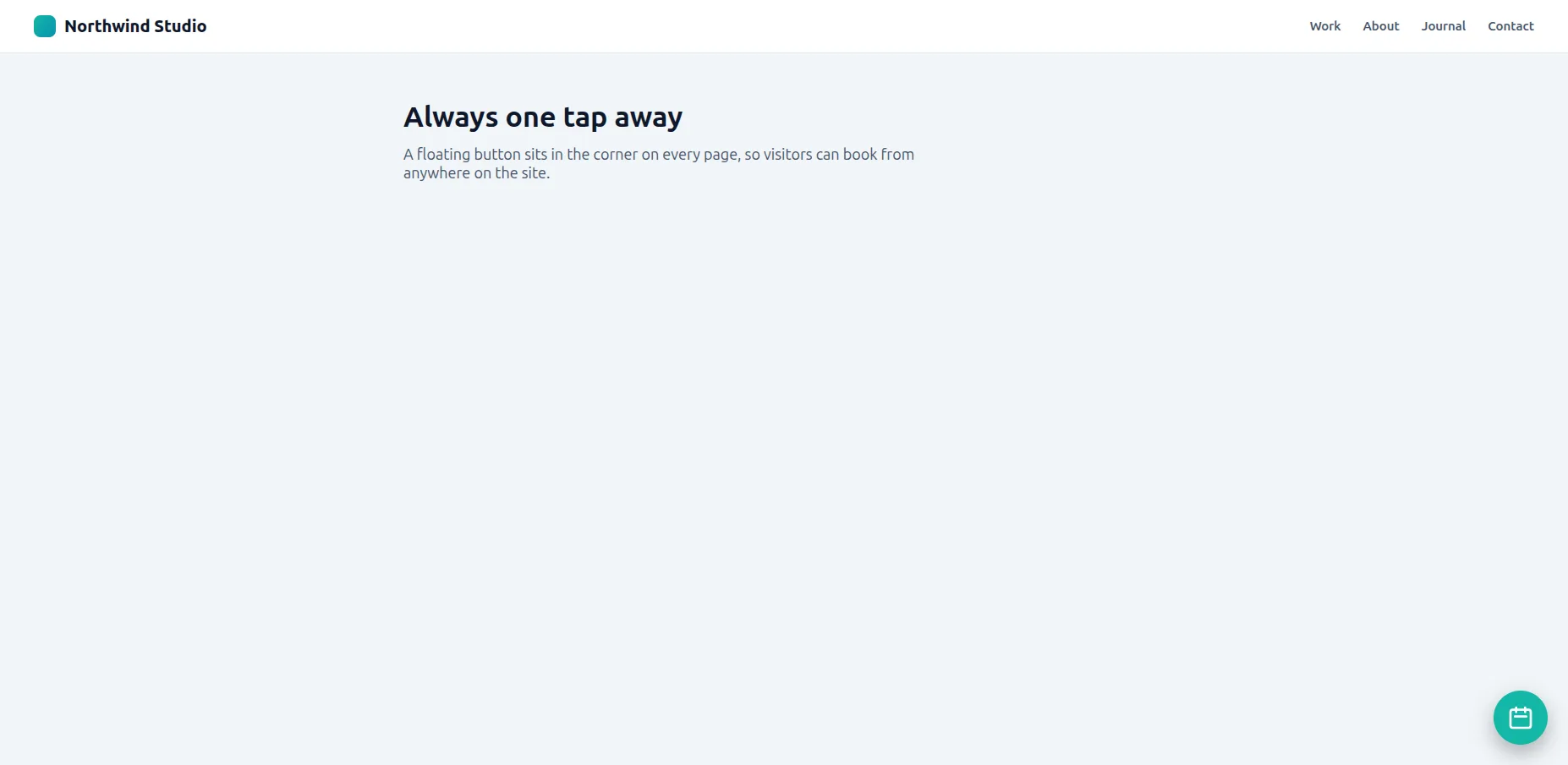
TymeslotBooking.initFloating('your-username', {
  buttonColor: '#14B8A6'  // Tymeslot Turquoise
});Step-by-step instructions for popular website builders, each of which adds custom code in its own way.
Easiest: install the official Tymeslot WordPress plugin to add your booking page with a Gutenberg block, a shortcode or a floating button, with no HTML to paste. The steps below cover the manual Custom HTML method, for when you'd rather not use a plugin.
These steps use the Block Editor (Gutenberg), the default editor since WordPress 5.0. In the Classic Editor, paste the code into the Text tab instead.
Go to Pages → Add New or open an existing page in the Block Editor.
Click the + button where you want the widget, then search for "Custom HTML".
💡 Tip: type /html
in the editor as a shortcut.
Copy the inline embed code from Dashboard → Embed & Share and paste it into the HTML block.
<div id="tymeslot-booking" data-username="your-username"></div>
<script src="https://your-domain.com/embed.js"></script>Click Preview to see how it looks, then Publish or Update your page.
⚠️ Common WordPress Issues:
Webflow's Code Embed element takes the embed code as-is, so you can place the widget anywhere in your layout.
Open the page that should hold the booking widget in the Designer.
Select the container or section where the widget should appear. Leave its height on Auto: the widget resizes itself to fit its content.
💡 Tip: a dedicated Div Block with a class such as "booking-widget-container" makes the widget easier to space and align.
From the Add panel on the left, drag a Code Embed element into your container.
The code editor opens straight away. Paste your Tymeslot embed code, then click Save & Close
Publish your site, then open the published page to test the widget.
⚠️ Note: Webflow doesn't run custom scripts in the Designer, so the widget only appears on the published site. If you test on your
webflow.io
staging address, add that domain to your allowed embed domains too.
🎨 Webflow-Specific Tips:
max-height: the widget then scrolls inside the box instead of growing to fit.
z-index
below 999999, the value the popup uses.
Wix adds custom code through its HTML iframe element. The steps below use the Wix Editor; Wix Studio works the same way (see the tips at the end).
Log in to your Wix account and click Edit Site to open the editor for your chosen page.
Click the Add (+) button on the left sidebar, then navigate through the menus:
Path:
Embed → Embed a Widget → HTML iframe
💡 Shortcut: search for "HTML" in the Add panel.
An HTML iframe box appears on your page. Click Enter Code in the settings panel that opens.
Select "Code" (not "Website Address") at the top of the settings panel.
Copy the inline embed code from Dashboard → Embed & Share and paste it into the code editor.
<div id="tymeslot-booking" data-username="your-username"></div>
<script src="https://your-domain.com/embed.js"></script>Drag the corners of the HTML element to resize it. Unlike other builders, Wix keeps this box at a fixed size, so make it big enough for the whole booker, at least 800px wide × 700px tall
💡 Tip: use the alignment guides to centre the widget on your page.
Click Update in the settings panel, then Publish your site to make it live.
🔧 Wix Troubleshooting:
https://
pages.
Squarespace's Code Block takes custom HTML on both 7.0 and 7.1 sites. Squarespace only runs scripts on plans that support custom code, so check your plan if the widget doesn't appear.
Navigate to the page where you want to add the widget, then click Edit in the top left.
Hover over the area where you want to add the widget. Click the + (insert point) that appears between content blocks.
💡 Tip: the widget works in any section or column layout.
In the block menu, it's under the "More" category. Search for or select Code
Path:
Insert Point → More → Code
A code editor appears. Check these settings:
Copy your embed code from Dashboard → Embed & Share and paste it into the code editor.
<div id="tymeslot-booking" data-username="your-username"></div>
<script src="https://your-domain.com/embed.js"></script>Click Apply to close the code editor, then click Save in the top left to publish your changes.
⚠️ Changes won't appear until you click Save.
🎯 Squarespace-Specific Tips:
Let customers book product consultations, personal shopping sessions or support calls from your Shopify store.
Create a new page (for example, "Book a Consultation") or edit an existing one under Online Store → Pages
Shopify's page editor strips <script>
tags, so the embed script must be added separately. Go to Online Store → Themes, open the
⋯
menu next to your theme, choose Edit code,
and add this line to theme.liquid
just before </body>:
<script src="https://your-domain.com/embed.js"></script>
Back in your page, click Show HTML
(the <>
icon) and paste the container div:
<div id="tymeslot-booking" data-username="your-username"></div>Click Save in the top right. The widget is now live on that page.
💼 E-commerce Use Cases:
🎯 Shopify-Specific Tips:
theme.liquid,
you can place the booking container on any page: the script already loads site-wide.
For plain HTML sites and JavaScript frameworks such as React, Vue or Next.js, where you control placement and styling yourself.
Paste the embed code anywhere in your HTML body:
<body>
  <!-- Your content -->

  <div id="tymeslot-booking" data-username="your-username"></div>
  <script src="https://your-domain.com/embed.js"></script>
</body>Load the script in your layout or component:
// In React/Next.js
useEffect(() => {
  const script = document.createElement('script');
  script.src = 'https://your-domain.com/embed.js';
  script.async = true;
  document.body.appendChild(script);

  return () => {
    document.body.removeChild(script);
  };
}, []);Use the JavaScript API to open the popup or embed the widget from your own code:
// Open modal programmatically
document.getElementById('my-button').addEventListener('click', () => {
  TymeslotBooking.open('your-username', {
    theme: '2',
    primaryColor: '#4F46E5'
  });
});

// Embed dynamically
TymeslotBooking.embed('#container', 'your-username');
🔧 Developer Tips:
script-src
(for embed.js) and
frame-src
(for the booking iframe).
| Platform | Best For | Difficulty | Recommended Method |
|---|---|---|---|
| WordPress | Blogs, business sites, portfolios | Easy | Inline Embed |
| Webflow | Designer portfolios, agencies | Easy | Inline Embed |
| Wix | Small businesses, personal sites | Moderate | Inline Embed |
| Squarespace | Creative professionals, boutiques | Easy | Inline Embed |
| Shopify | E-commerce, consultations | Easy | Inline or Popup |
| Custom HTML | Developers, full control | Easy | Any method |
Options set the widget's theme, colour, language, layout and size. Pass them as a JavaScript object, or as
data-
attributes on an inline embed.
| Option | Data attribute | Description |
|---|---|---|
theme |
data-theme |
'1' (Quill) or '2' (Rhythm) |
primaryColor |
data-primary-color |
Hex colour override (e.g. '#14B8A6') |
locale |
data-locale |
'en', 'de', 'uk', 'fr', 'it', 'cs', 'pl', or 'pt' |
layout |
data-layout |
'default'
(centred, capped at about 640px; used when no layout is set) or 'column'
(fills its container at any width; the dashboard recommends it)
|
initialHeight |
data-initial-height |
Placeholder height in px shown before the iframe reports its content height (default: 400, range: 200–2000).
data-min-height
is accepted as a legacy alias.
|
maxWidth |
data-max-width |
Maximum width in px (default: 640, or 1000 with the column layout; range: 200–2000) |
buttonColor |
None |
Floating button colour (hex). Only for initFloating().
|
Every option is validated, and invalid values (such as a colour that isn't a hex code) are ignored without an error.
TymeslotBooking.open('your-username', {
  theme: '2',               // Theme ID (1=Quill, 2=Rhythm)
  primaryColor: '#14B8A6',  // Hex color
  locale: 'en',             // Force language
  layout: 'column',         // 'default' or 'column'
  maxWidth: '800'           // Max width in pixels
});
For standard inline embeds, you can use data-
attributes to customise the widget directly in your HTML:
<div id="tymeslot-booking"
     data-username="your-username"
     data-theme="2"
     data-primary-color="#4F46E5"
     data-locale="en"
     data-layout="column"
     data-initial-height="600"
     data-max-width="800">
</div>
To place the widget in an element of your choice from your own JavaScript, call TymeslotBooking.embed:
// Embed into a specific container
TymeslotBooking.embed('#my-container', 'your-username', {
  theme: '1',
  primaryColor: '#14B8A6',
  locale: 'en',
  layout: 'column',
  initialHeight: '600',
  maxWidth: '800'
});
The embed script has to load before you call its functions. Check that the
<script>
tag is present on the page and has finished loading.
The widget is responsive, but it can only adapt if your page is too. Check that your page has a viewport meta tag in the <head>:
<meta name="viewport" content="width=device-width, initial-scale=1">https://
pages, so on a plain http://
page the widget is blocked.
Choose which websites can show your booking page
Embedding is disabled by default, so no other website can show your booking page. To embed it, add each domain you trust to your allowed list.
Your booking page then loads only on those domains. On any other site, visitors see "This booking page can’t be embedded here" instead of your booker.
Open Embed & Share
In your dashboard, open Embed & Share from the sidebar.
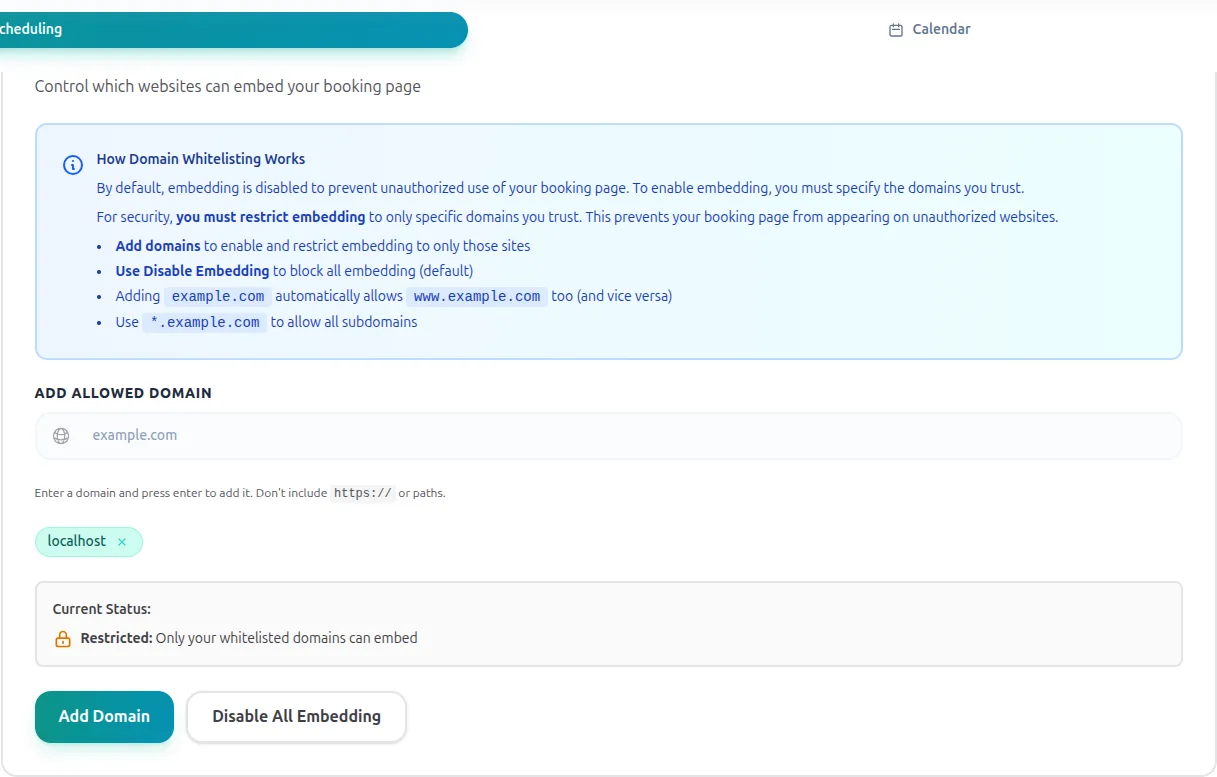
Open the Security Tab
Click the Security tab to show the "Security & Domain Control" panel.
Add Trusted Domains
Type a domain into Add Allowed Domain. To add several at once, separate them with commas (e.g. example.com, myportfolio.net). Adding
example.com
also allows www.example.com, and *.example.com
allows every subdomain.
https:// or page paths
Add the Domain
Click Add Domain (or press Enter). The change applies straight away, and the domain appears as a tag you can remove later. Disable All Embedding clears the list and blocks every site again.
Unauthorised Embedding
Your booking page appears only on websites you approve
Brand Control
Other sites can't present your booking page as if you were affiliated with them
Clickjacking Risks
Blocks attacks that hide your booking page under a fake interface to trick visitors into clicking
Tip: Testing on a staging or preview address? Add that domain too, then remove it when you go live.
Open Embed & Share in your dashboard to copy code with your username already filled in. The Live Preview tab lets you try each method before you add it to your site.
Go to Your DashboardMany professionals put a booking widget on their own website. See how coaches , photographers , and web designers use it to turn visitors into booked clients.
Add your Tymeslot booking page to WordPress with the official plugin: a Gutenberg block, a shortcode or a floating button. No code needed, and it works with Tymeslot Cloud and self-hosted instances.