Widget Embedding
Embed the Tymeslot booking widget as an inline section, popup, or floating button. Works with WordPress, Webflow, Wix, Squarespace, Shopify, and custom HTML.
Add your Tymeslot booking page to WordPress with the official plugin — a Gutenberg block, a shortcode, or a floating button. No HTML to paste, and no drift from your dashboard settings.

Updated June 30, 2026
The Tymeslot plugin is free and open source, listed in the official WordPress.org plugin directory. Install it in a couple of clicks from your WordPress admin, or grab the source on GitHub.
Prefer a manual install? Download
tymeslot.zip
from the
WordPress.org listing
(or a tagged build from
GitHub releases
) and upload it under Plugins → Add New Plugin → Upload Plugin.
Open Tymeslot → Setup and choose where your account lives:
Then set your booking username — the handle in your booking URL,
e.g. tymeslot.app/your-handle.
Every block and shortcode inherits this unless you override it.
The Setup tab includes a live embedding status check: it loads your real booking page from inside WordPress and tells you, right in the browser, whether this site is allow-listed yet — so you never have to guess.
Three ways, all driven by the same engine:
In the editor, insert the Tymeslot Booking block and configure it in the sidebar — mode (inline, popup, floating, or link), theme, layout, language, and size. The canvas shows a branded placeholder; your booking page renders on the published page.
Drop the shortcode into any post, page, or widget:
[tymeslot username="your-handle" mode="inline"]
Supported attributes: username,
mode
(inline / popup / floating / link), theme, layout, locale, height, width, and label.
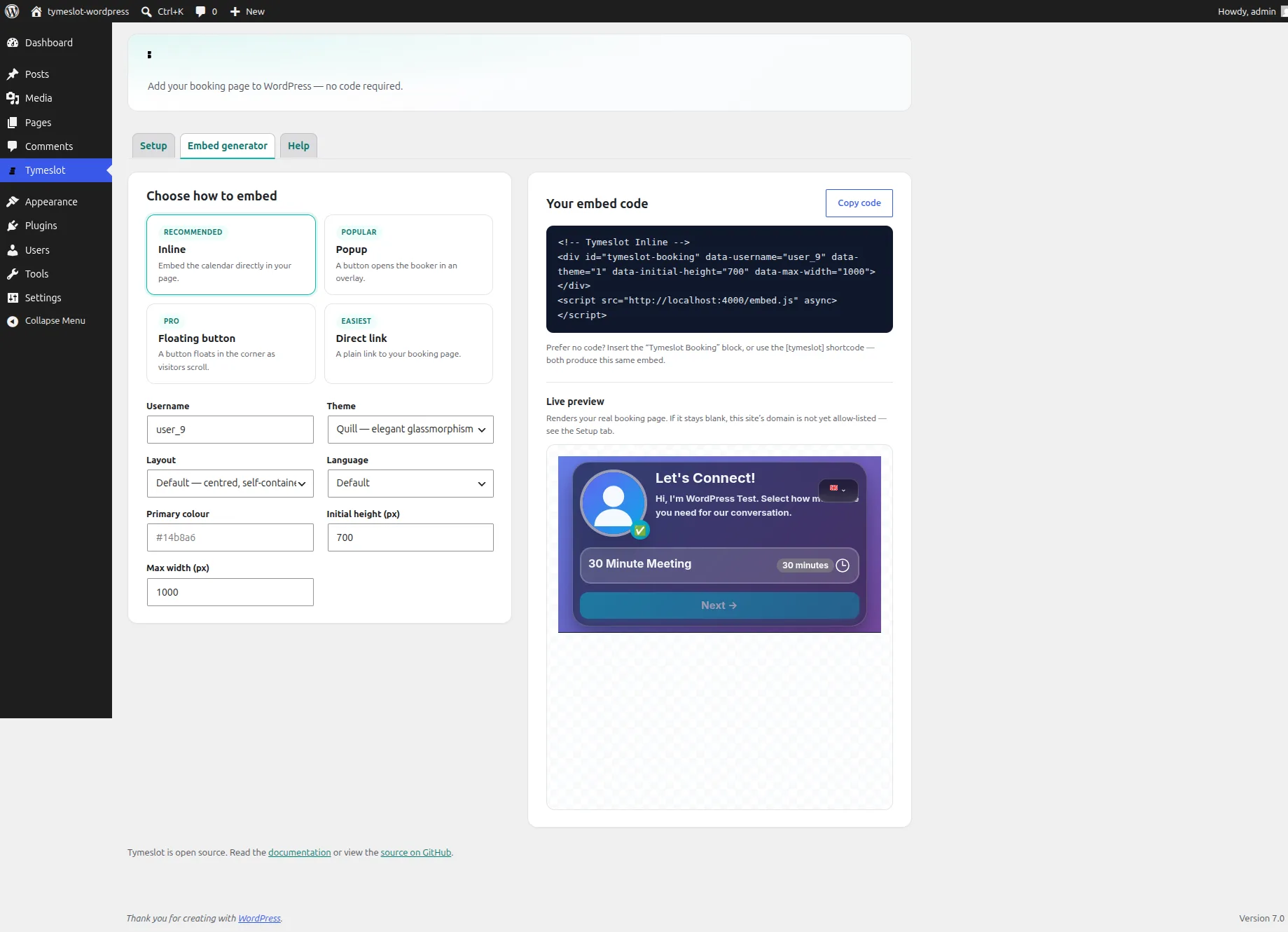
Prefer to paste a snippet into a page builder or custom theme? Tymeslot → Embed generator builds the same code with a live preview and a one-click copy — identical to the snippet your Tymeslot dashboard produces.
Choose a theme (Quill or Rhythm), a layout (column for a wide canvas, or default for a centred card), and a language. Set defaults once on the Setup tab, or override them per block and shortcode.
'unsafe-inline'
in your
script-src
(or a nonce/hash).
Not on WordPress, or want the raw snippets for any platform? See the Widget Embedding guide, which covers Webflow, Wix, Squarespace, Shopify, and custom HTML.
Embed the Tymeslot booking widget as an inline section, popup, or floating button. Works with WordPress, Webflow, Wix, Squarespace, Shopify, and custom HTML.