n8n Automation
Connect Tymeslot to n8n via webhooks for no-code automation. Trigger CRM updates, Slack notifications, and custom workflows on every booking event.
Full reference for Tymeslot webhook events: payloads, headers, retry behaviour and token verification.

Aktualizováno 2. března 2026
You will need:
ALLOW_PRIVATE_IPS_FOR_WEBHOOKS=true.
By the end of this guide, you will know how to set up a webhook, verify its deliveries and handle each event in your own application.
Whenever a booking event you subscribed to happens, Tymeslot sends an HTTP POST with a JSON payload describing it to your endpoint URL. Before you start, know how deliveries behave:
X-Tymeslot-Delivery-Id
header that stays the same across its retries. Use it to discard duplicates.
webhook.test) to your endpoint. Test calls are not logged; real deliveries appear under [Logs].
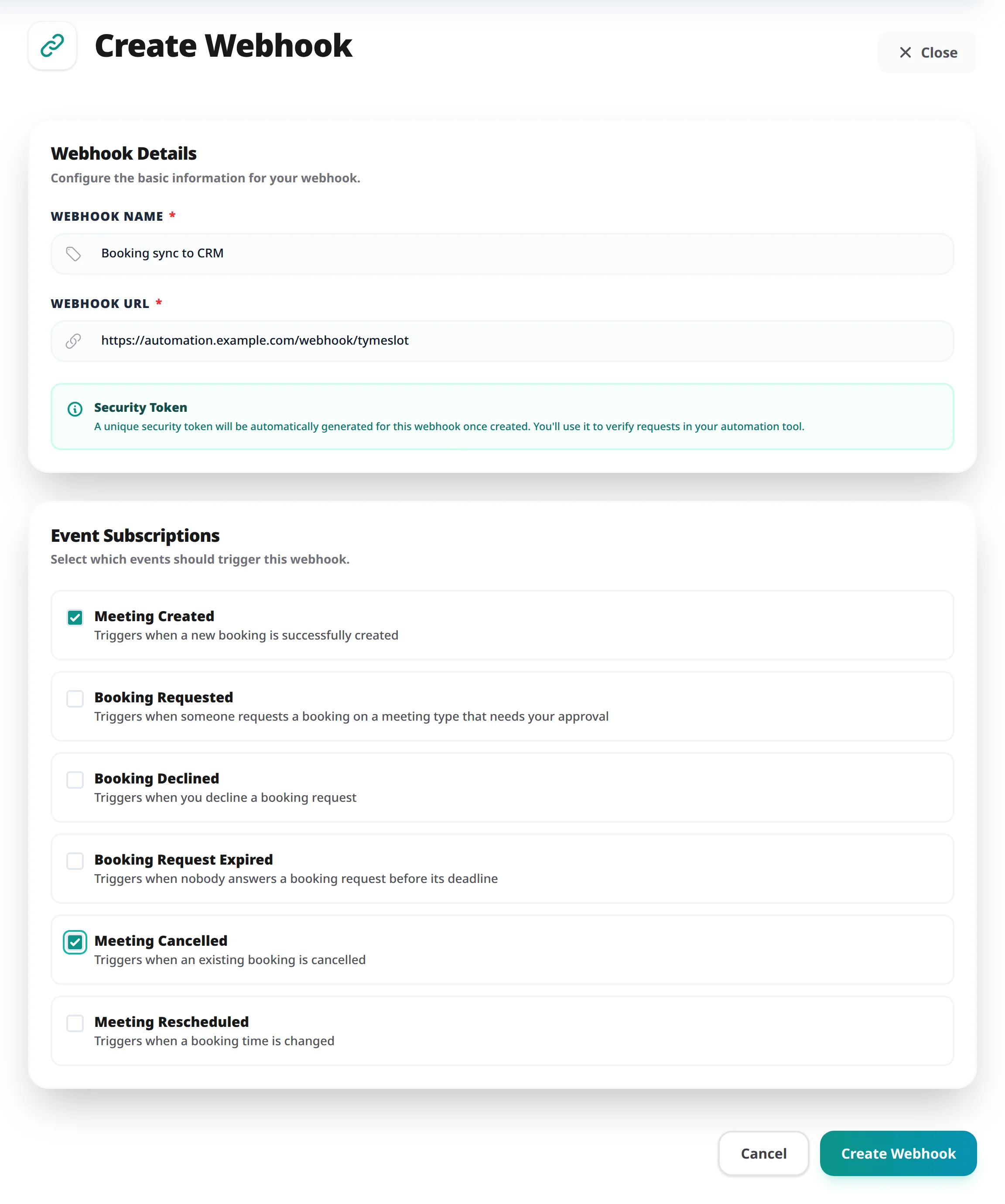
A webhook receives only the events you subscribe to. The three booking-request events fire only on meeting types that need your approval; other meeting types never send them.
meeting.created
Meeting Created
Fired when a booking is confirmed. On a meeting type that needs your approval, it fires when you approve the request, not when the invitee submits it. It fires once per booking, so it is the event to drive CRM updates, chat notifications and similar automation. When the booking has a video room, the event waits for the room, so the join link is in the payload.
meeting.requested
Booking Requested
Fired when someone requests a slot on a meeting type that needs your approval. The slot is held until you approve or decline. The payload carries an
approval
object with requested_at,
deadline_at
and resolved_at.
meeting.declined
Booking Declined
Fired when you decline a booking request. The slot is free again, and the payload carries a
decline
object with
declined_at
and the
reason
you gave.
meeting.request_expired
Booking Request Expired
Fired when nobody answers a booking request before its deadline. The slot is free again.
meeting.cancelled
Meeting Cancelled
Fired when the host or the attendee cancels a meeting. The payload carries a
cancellation
object with
cancelled_at
and reason. Use it to notify people, update a CRM record or free up a resource.
meeting.rescheduled
Meeting Rescheduled
Fired when a meeting moves to a new date or time. The meeting keeps its id, and
start_time
and
end_time
hold the new time, so update your records by meeting id. The original time is not included, except for a group-meeting seat (see
seat.previous
below).
Every webhook delivery includes these headers:
X-Tymeslot-Token: <your-webhook-security-token>
X-Tymeslot-Timestamp: <ISO 8601 time the request was sent>
X-Tymeslot-Delivery-Id: <delivery-id, the same on every retry>
Content-Type: application/json
User-Agent: Tymeslot-Webhooks/1.0
X-Tymeslot-Token
The webhook's security token, sent as it is. Check it on every request before you process the payload, and reject anything that does not match.
X-Tymeslot-Timestamp
When Tymeslot sent this request, in ISO 8601 UTC. A retry carries its own, later timestamp.
X-Tymeslot-Delivery-Id
Identifies one delivery. It is the same on every retry of that delivery and different for every other delivery, so record the IDs you have processed and skip any you have seen before. Test requests do not carry it.
Content-Type
Always application/json. Parse the body as JSON.
User-Agent
Always Tymeslot-Webhooks/1.0. Useful for filtering access logs, but not a security check.
All events use the same envelope. The
event
field identifies the type; the
data
field carries the event-specific payload:
{
  "event": "meeting.created",
  "timestamp": "2026-03-01T10:00:00Z",
  "webhook_id": "42",
  "data": {
    "meeting": {
      "id": "3f2b8c1e-9a4d-4e7b-b0c2-5d6e7f8a9b0c",
      "uid": "8d1e4a7c-2b3f-4c5d-9e6f-0a1b2c3d4e5f",
      "title": "30-Minute Consultation with Jane Smith",
      "summary": "30-Minute Consultation with Jane Smith",
      "description": null,
      "start_time": "2026-03-05T14:00:00Z",
      "end_time": "2026-03-05T14:30:00Z",
      "duration": 30,
      "status": "confirmed",
      "meeting_type": "30-Minute Consultation",
      "location": "Video call",
      "organizer": {
        "name": "Alex Johnson",
        "email": "alex@example.com",
        "title": null,
        "user_id": 7
      },
      "attendee": {
        "name": "Jane Smith",
        "email": "jane@example.com",
        "phone": null,
        "company": null,
        "timezone": "Europe/Berlin",
        "message": null
      },
      "guests": [],
      "urls": {
        "view": "https://tymeslot.yourdomain.com/alex/meeting/8d1e4a7c-2b3f-4c5d-9e6f-0a1b2c3d4e5f",
        "reschedule": "https://tymeslot.yourdomain.com/alex/meeting/8d1e4a7c-2b3f-4c5d-9e6f-0a1b2c3d4e5f/reschedule",
        "cancel": "https://tymeslot.yourdomain.com/alex/meeting/8d1e4a7c-2b3f-4c5d-9e6f-0a1b2c3d4e5f/cancel",
        "meeting": "https://meet.google.com/abc-defg-hij"
      },
      "video": {
        "enabled": true,
        "room_id": "abc-defg-hij",
        "organizer_url": "https://meet.google.com/abc-defg-hij",
        "attendee_url": "https://meet.google.com/abc-defg-hij",
        "created_at": "2026-03-01T10:00:00Z",
        "expires_at": null
      },
      "created_at": "2026-03-01T09:59:58Z",
      "updated_at": "2026-03-01T10:00:00Z"
    }
  }
}
Some keys appear only when they apply.
approval
is present on any booking that went through approval, including the
meeting.created
sent when you approve it.
cancellation
(cancelled_at, reason) is present on a cancelled meeting, and
decline
(declined_at, reason) replaces it when you declined a request.
seat
is present on group meetings only.
location
is the location the booking is held at, as one line of text: the label the booker saw, with any address or phone number in parentheses, for example "Our office (12 High Street)". The video join link is not part of it; read it from urls.meeting, which is
null
when no video room was created.
seat
appears only on group meetings, where several people book the same slot. Each person's booking is its own event: a seat booked fires meeting.created, a seat cancelled fires meeting.cancelled, a seat moved to another time fires meeting.rescheduled, and the host cancelling the whole slot fires one
meeting.cancelled
per remaining seat. In each,
attendee
and
guests
are that seat's booker and the guests they invited, and
seat
holds
id
(the seat's own id),
capacity
(the seats the slot offers),
seats_taken
(people booked on the slot, guests included, when the event fired) and previous. The meeting
id
is the slot's, shared by every seat on it.
A moved seat gets a new seat id, and usually a new meeting id; its
meeting.rescheduled
carries
seat.previous
(seat_id, meeting_id, start_time) naming the booking it replaced. On every other event
previous
is null.
All timestamps are ISO 8601 in UTC. To show a time the way the attendee saw it, convert it to attendee.timezone.
Compare the
X-Tymeslot-Token
header with your stored token before you process any payload. Use a constant-time string comparison: a plain equality check (===) is open to timing attacks, which let an attacker guess the token one character at a time.
Examples in common languages:
// Node.js
const crypto = require('crypto');

function isValidToken(received, expected) {
  const a = Buffer.from(received);
  const b = Buffer.from(expected);
  if (a.length !== b.length) return false;
  return crypto.timingSafeEqual(a, b);
}# Python
import hmac
def is_valid_token(received: str, expected: str) -> bool:
return hmac.compare_digest(received, expected)<?php
// PHP
function is_valid_token(string $received, string $expected): bool {
return hash_equals($expected, $received);
}X-Tymeslot-Token
header is missing or does not match, and do not process the payload. Without this check, anyone who finds your webhook URL can inject fake events into your system.
Because Tymeslot retries failed deliveries, your endpoint may receive the same event more than once. A request that timed out on Tymeslot's side may still have reached you. Make your handler idempotent: processing the same delivery twice should have the same effect as processing it once.
The simplest approach is to store every
X-Tymeslot-Delivery-Id
you process successfully in a database or cache. Retries finish within minutes, so a 24-hour expiry is ample. On each request, check whether you have already processed the delivery ID. If you have, return 200 without running the handler again.
X-Tymeslot-Delivery-Id
stays the same on every retry of a delivery. Record it once your handler has finished: if the handler fails partway through, the retry arrives with the same ID and you should process it again.
A delivery fails when your endpoint cannot be reached, does not respond within 10 seconds, or returns a status code outside 2xx. Tymeslot then retries it with exponential backoff, up to 5 attempts in all:
A response of 401, 403 or 404 is treated as a configuration problem and is not retried. After the fifth failed attempt, Tymeslot stops trying; the dashboard has no manual resend.
After 10 consecutive failed deliveries, Tymeslot disables the webhook and shows the reason on its card under [Dashboard] → [Automation] → [Webhooks]. Fix your endpoint, then switch the webhook back on; its failure count starts again from zero.
Tymeslot follows up to 5 redirects. A 301, 302 or 303 turns the request into a GET without the payload, and a redirect that changes the scheme, host or port (even http to https on the same host) drops the
X-Tymeslot-Token
header, so point the webhook at the final URL rather than one that redirects.
The delivery log is the first place to look when an integration misbehaves. To open it:
[Test] requests are not logged; the result appears on screen straight away.
Your endpoint receives empty GET requests instead of the payload
Your URL redirects with a 301, 302 or 303, which turns the POST into a GET without a body. Use the final destination URL, for example with or without the trailing slash or
www
your server expects.
All deliveries fail straight away
Check your endpoint's TLS certificate. Tymeslot rejects self-signed certificates and certificates from untrusted CAs, so use one from a public CA (Let's Encrypt, ZeroSSL or your cloud provider's managed certificate). The [Logs] entry usually shows the TLS error.
Deliveries succeed but events are processed twice
Deduplicate on the
X-Tymeslot-Delivery-Id
header as described under "Handling Retries" above: store the IDs you have processed and skip any that arrive again.
The connection test succeeds but real events do not arrive
[Test] sends its request directly, while real events go through a background job queue. First check that the webhook is subscribed to the event you expect and still shows as Active under [Dashboard] → [Automation] → [Webhooks]; after 10 consecutive failures it is disabled automatically. On a self-hosted instance, also check that the background job worker (Oban) is running.
Tymeslot sends the webhook's security token unchanged in the
X-Tymeslot-Token
header on every delivery. On your endpoint, read that header and compare it with the token you stored. If they do not match, reject the request with a 401 and do not process the payload.
Use a constant-time comparison rather than a plain equality check. It stops attackers from working out your token character by character from how long the comparison takes:
// Node.js
const received = req.headers['x-tymeslot-token'];
const expected = process.env.WEBHOOK_SECRET;
const a = Buffer.from(received ?? '');
const b = Buffer.from(expected);
const valid = a.length === b.length && crypto.timingSafeEqual(a, b);Usually the token your endpoint compares against differs from the one Tymeslot holds for the webhook. Check for:
To test quickly, click [Test] and log the headers your endpoint receives.
Tymeslot retries a delivery whenever your endpoint does not respond within 10 seconds or returns a status code other than 2xx, except 401, 403 and 404, which are treated as configuration problems and not retried. To stop retries, make sure your endpoint:
200 OK
(or any other 2xx status) as its final response.
Acknowledge the webhook first, then process the event in a background job:
X-Tymeslot-Token
header.
200 OK
before any slow work begins.
Tymeslot then never sees your endpoint as slow, and you have as long as you need for CRM updates or outbound API calls.
No. Tymeslot sends events as they happen, but a retried delivery can arrive after a later event. For example, a
meeting.rescheduled
event that needed three attempts may arrive after a
meeting.cancelled
event for the same meeting.
To handle out-of-order delivery:
updated_at
is later than the version you already hold.
X-Tymeslot-Delivery-Id
header to skip deliveries you have already processed.
X-Tymeslot-Token
with a constant-time comparison before processing
X-Tymeslot-Delivery-Id
values and skips duplicates
meeting.created
event arrived at your endpoint with the expected payload
Connect Tymeslot to n8n via webhooks for no-code automation. Trigger CRM updates, Slack notifications, and custom workflows on every booking event.