Sync Tymeslot with Google Calendar
Connect Tymeslot to Google Calendar. Busy, Tentative and Out of Office events all block bookings, so you are never double-booked, and every booking is added to your calendar.
Connect Tymeslot to your Apple iCloud calendars. iCloud needs an app-specific password from appleid.apple.com; your Apple ID password will not work for CalDAV.

Atualizado em 30 de junho de 2026
App-specific password required
iCloud always rejects your normal Apple ID password for calendar access from other apps, however your account is set up. You need a dedicated app-specific password.
iCloud Calendar speaks standard CalDAV at caldav.icloud.com. When you pick Apple iCloud, Tymeslot fills in this address and locks it, so you only supply your Apple ID email and an app-specific password.
Behind the scenes, iCloud keeps each account on its own server (for example p110-caldav.icloud.com). Tymeslot handles that during calendar discovery, so there is nothing extra to configure.
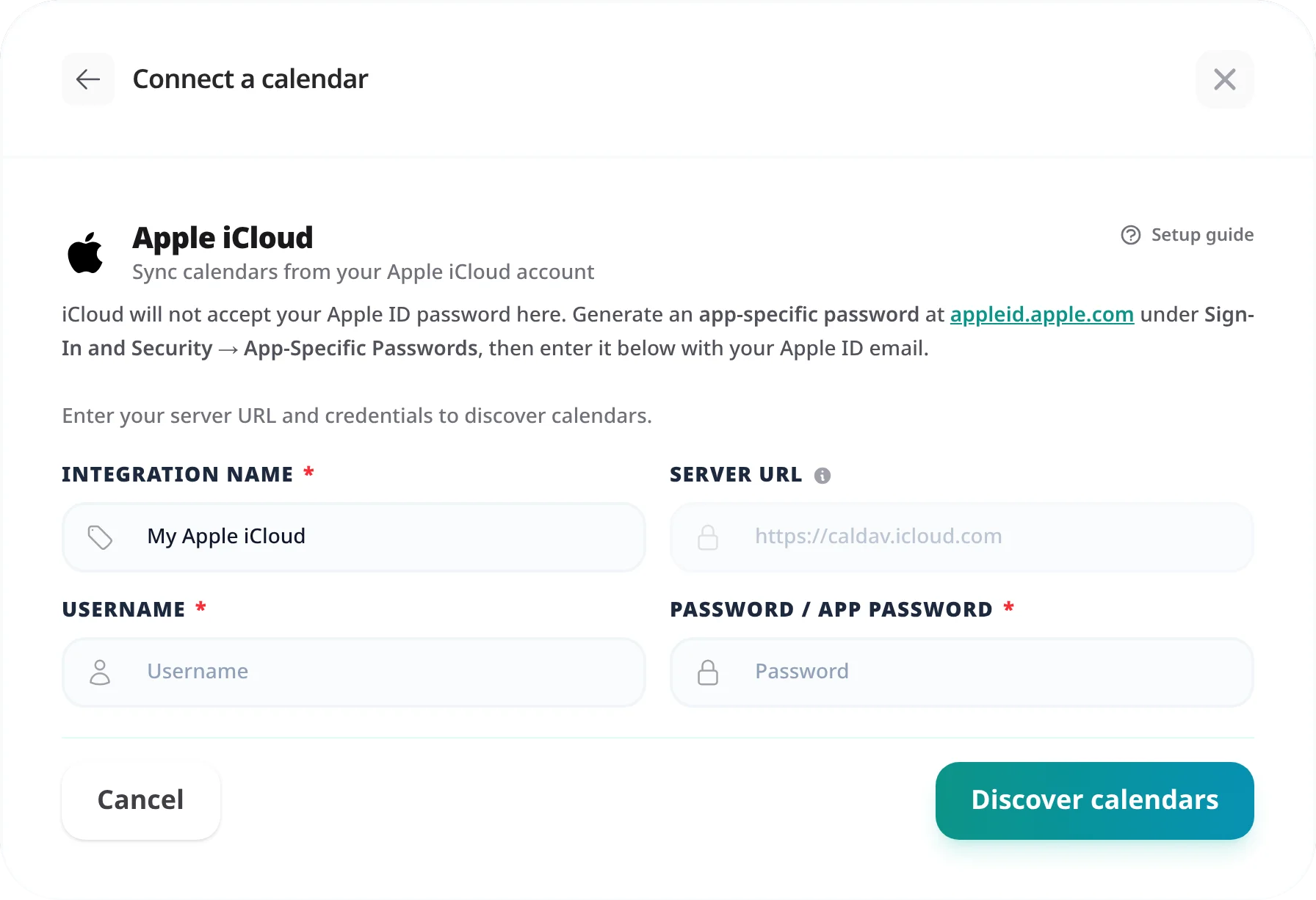
iCloud will not accept your Apple ID password for CalDAV. Create a dedicated app-specific password instead:
abcd-efgh-ijkl-mnop). You will paste it into Tymeslot.
iCloud uses one fixed CalDAV server, and Tymeslot fills it in for you:
| Field | Value |
|---|---|
| Server URL | https://caldav.icloud.com (pre-filled and locked) |
| Username | Your Apple ID email address (e.g. you@icloud.com) |
| Password | The app-specific password from Step 1, not your Apple ID password |
@me.com
or @mac.com
addresses. iCloud resolves all of them through caldav.icloud.com.
"Authentication failed"
iCloud rejects your Apple ID password for CalDAV, so use an app-specific password. Generate one at appleid.apple.com under Sign-In and Security → App-Specific Passwords and paste it as the password. Two-factor authentication must be on for your Apple ID; without it, Apple does not offer app-specific passwords at all.
App-specific password stopped working
Changing your main Apple ID password revokes all app-specific passwords. If you reset it, generate a new app-specific password and enter it with [Reconnect] on the connection in [Integrations]. You can review and revoke app-specific passwords at any time at appleid.apple.com.
Bookings not appearing in iCloud Calendar
Tymeslot adds the event in the background shortly after a booking is confirmed, and retries if iCloud does not accept it straight away. If it is still missing, check two things: the meeting type's Booking Destination names the iCloud calendar you are looking at, and the connection's status in [Integrations] is Healthy. Connection issues or Reconnect means Tymeslot could not reach iCloud.
Apple blocks other apps from using your main Apple ID password for iCloud services such as CalDAV. App-specific passwords exist for exactly this: they grant calendar access without exposing your main password, and you can revoke each one on its own.
Yes. Apple only offers app-specific passwords on Apple IDs that have two-factor authentication enabled. If the App-Specific Passwords option is missing at appleid.apple.com, turn on two-factor authentication first, then return to generate one.
Yes. When you click [Discover calendars], Tymeslot lists every calendar in your iCloud account and you choose which ones to sync. One Apple iCloud connection covers every calendar under that Apple ID, and you can change the selection later under [Manage calendars].
Connect Tymeslot to Google Calendar. Busy, Tentative and Out of Office events all block bookings, so you are never double-booked, and every booking is added to your calendar.
Sync Tymeslot with Outlook Calendar via Microsoft Graph. Your Outlook events block conflicting bookings and every booking is added to your calendar. Works with Outlook.com and Microsoft 365.
Sync Tymeslot with CalDAV calendars: Nextcloud, Radicale, Baikal, Zimbra, mailbox.org, iCloud and Fastmail. Conflict checks and new bookings work without a Google or Microsoft account.