Sync Tymeslot with Google Calendar
Connect Tymeslot to Google Calendar. Busy, Tentative and Out of Office events all block bookings, so you are never double-booked, and every booking is added to your calendar.
Connect Tymeslot to an on-premises Microsoft Exchange Server over Exchange Web Services. Covers the EWS endpoint, domain logins versus mailbox addresses, self-signed certificates, and how bookings are written back to your mailbox.

Aktualisiert am 3. September 2026
/EWS/Exchange.asmx
DOMAIN\username
login
Tymeslot has two Microsoft calendar integrations, and they cover different products. Pick by where your mailbox lives, not by which client you use to read it.
Exchange (this page) is for a server your organisation runs itself. It speaks Exchange Web Services with a username and password.
Outlook Calendar is for Microsoft 365, Exchange Online and personal Outlook.com accounts. It signs in with Microsoft and speaks the Graph API. If Microsoft hosts your mailbox, use that one: this integration will not reach it.
An Exchange mailbox works like every other calendar Tymeslot connects to: it blocks your availability, and it can be the calendar your confirmed bookings are written to.
It blocks your availability
Meetings in your Exchange mailbox remove the matching times from your booking page, and appear on your Tymeslot dashboard calendar.
It receives bookings
A confirmed booking is added to your mailbox as an appointment, and rescheduling or cancelling in Tymeslot updates or removes it there.
The endpoint is the same for every mailbox on the server and follows this pattern:
https://mail.example.com/EWS/Exchange.asmx
Replace
mail.example.com
with the hostname you use for Outlook Web App. If you are unsure, your Exchange administrator will know it; it is the same URL Outlook itself uses for Autodiscover.
/owa, will not work. Tymeslot reports
"EWS endpoint not found"
when the address it was given is reachable but is not an EWS endpoint. The usual cause is a missing
/EWS/Exchange.asmx
suffix.
Self-hosting Tymeslot on that same network is the exception.
A host that resolves to a private address is refused by default, as protection against
server-side request forgery. Set
ALLOW_PRIVATE_IPS_FOR_CALENDAR=true
on your Tymeslot deployment to permit an Exchange server on an internal network. This applies to
self-hosted installs only. On the managed service at tymeslot.app our servers have no route
to your network, so a private address cannot work there whatever you configure.
The form asks for these separately, and on many servers they are not the same string.
Username and password
Whatever your server accepts for Basic authentication. On many deployments that is your email address; on others it is a domain login such as CONTOSO\alice. If you can sign in to Outlook Web App with it, it will work here.
Mailbox address
The SMTP address of the mailbox, such as alice@contoso.com. Exchange needs a real address to answer a free/busy question, and a domain login is not one. That is why the form asks for it even when it repeats the username.
.local,
.corp
or .internal
are accepted, because on-premises mailboxes routinely use them.
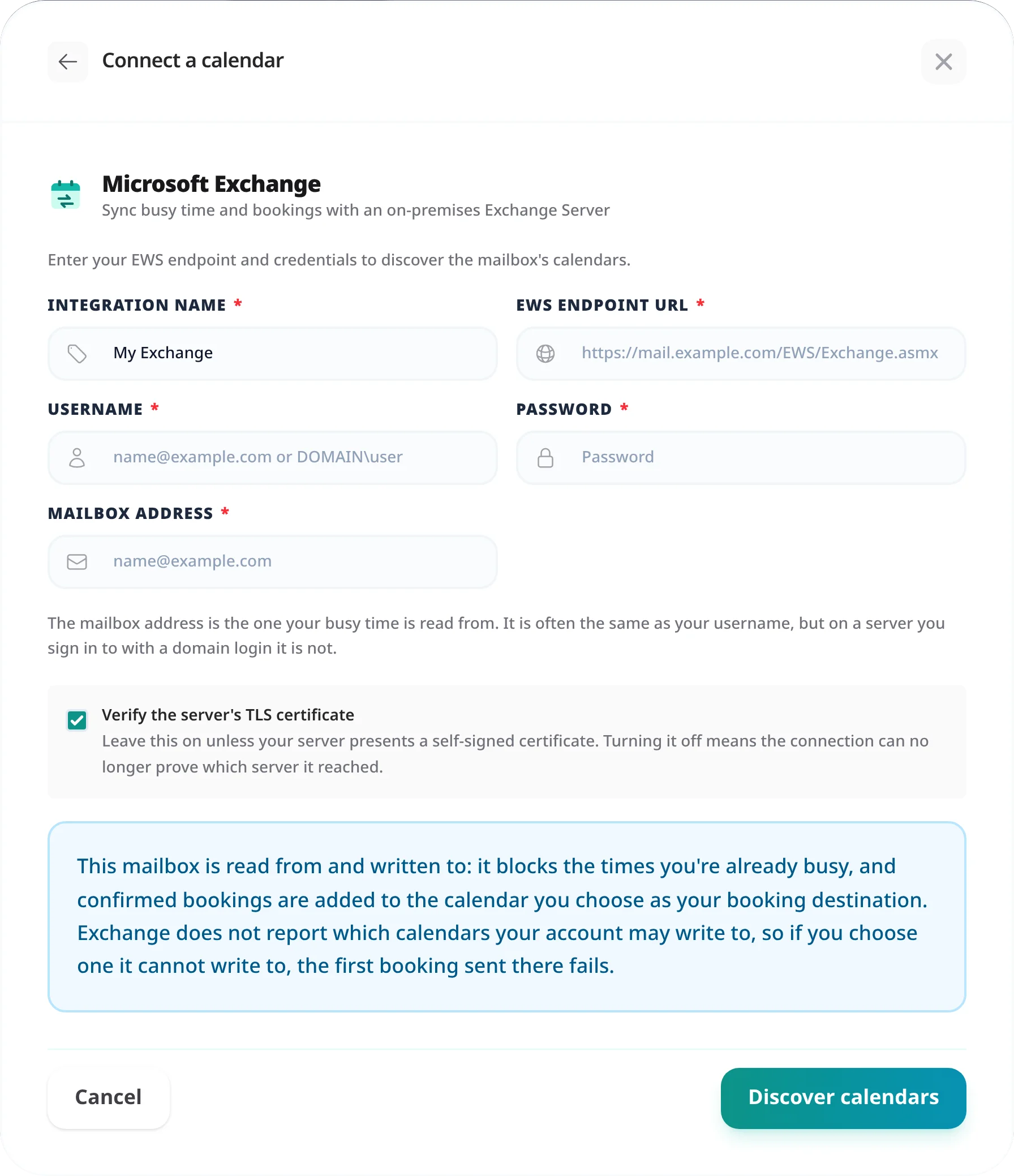
Plenty of on-premises Exchange deployments present a certificate issued by an internal certificate authority, or a self-signed one. Tymeslot refuses those by default, the same as any HTTPS client would.
If the connection test reports a certificate problem, untick Verify the server's TLS certificate on the connection form. The connection stays encrypted; Tymeslot stops checking who signed the certificate.
"Authentication failed"
The server rejected the username or password. Try the other login form: if you used your email address, try DOMAIN\username, and the other way round. Tymeslot signs in with Basic authentication only, so a server that accepts only NTLM or Kerberos rejects every attempt; your administrator would need to enable Basic authentication on the EWS virtual directory.
"EWS endpoint not found"
The URL was reachable but is not an EWS endpoint. Check it ends in /EWS/Exchange.asmx.
A certificate error
See step 4. Tymeslot distinguishes a refused certificate from an unreachable server, so if the message names the certificate, the network path is fine and the fix is the verification checkbox.
Connected, but no events appear on the dashboard
Tymeslot starts the first sync as soon as you connect, but it takes a moment to finish; after that, Exchange is synced every 30 minutes. If the calendar is still empty after a few minutes, confirm you ticked at least one folder, and that the mailbox address is the one holding the appointments.
The connection is refused from a private network
A server on a private address is refused by default. See the note in step 1; this applies to self-hosted installs only.
No, and it should not be used for one. Microsoft is retiring the EWS endpoint for Exchange Online, so a Microsoft-hosted mailbox belongs on the Outlook Calendar integration, which uses the Graph API and signs you in with Microsoft. This integration is for servers your organisation runs itself.
Exchange Server 2016, 2019 and Subscription Edition. Older versions expose EWS as well and may work, but they are not tested. Any server presenting a standards-compliant EWS endpoint with Basic authentication has a good chance of connecting.
The calendar folder you choose as the meeting type's Booking Destination, in the meeting type settings. Exchange does not report which folders your account may write to, so if you choose one it cannot write to, the first booking sent there fails.
Yes. Tymeslot asks Exchange for your busy time directly rather than inferring it from the individual meeting entries, which is what makes a weekly stand-up block every week rather than only the first. Your dashboard calendar may show the series once while your booking page correctly blocks each occurrence.
Usually not. EWS is enabled by default on a standard Exchange installation. Two policies can get in the way: EWS access restricted by throttling or client-access rules, and Basic authentication disabled on the EWS virtual directory. Both are things your Exchange administrator can check.
Only if you have credentials that authenticate directly to that mailbox and its address is the one you enter as the mailbox address. Tymeslot does not currently authenticate as one account to read another account's mailbox.
Connect Tymeslot to Google Calendar. Busy, Tentative and Out of Office events all block bookings, so you are never double-booked, and every booking is added to your calendar.
Sync Tymeslot with Outlook Calendar via Microsoft Graph. Your Outlook events block conflicting bookings and every booking is added to your calendar. Works with Outlook.com and Microsoft 365.
Sync Tymeslot with CalDAV calendars: Nextcloud, Radicale, Baikal, Zimbra, mailbox.org, iCloud and Fastmail. Conflict checks and new bookings work without a Google or Microsoft account.