Google Meet Integration
Auto-create Google Meet rooms for every confirmed booking via the Calendar API. Attendees receive the link by email and can join without a Google account.
Create a Zoom meeting for every booked appointment, on the Zoom account you connect. A paid Zoom plan (Pro, Business or Enterprise) is recommended.

Atualizado em 23 de setembro de 2026
By the end of this guide, every confirmed booking will get its own Zoom meeting on your account, and the join link will appear in the confirmation emails sent to you and your guest. Rescheduling a booking moves the meeting, and cancelling it deletes the meeting.
On tymeslot.app, the Zoom app is already set up. Connect Zoom from the Video tab of your dashboard's Integrations page, approve Zoom's consent screen, and skip to Step 5.
Self-hosters need to create their own Zoom Marketplace app and set four environment variables. The rest of this guide walks through that process.
http://localhost
for local development).
Tymeslot Self-Hosted
. Users see this name on Zoom's consent screen.
On the Marketplace app's Basic Information
page, enter your callback URL as the OAuth redirect URL. Replace
your-domain.com
with your Tymeslot host:
https://your-domain.com/auth/zoom/video/callbackZoom adds the redirect URL to the OAuth Allow List for you. Add any further URLs, such as a staging host, in the same Allow List section.
On the same page, scroll down to Deauthorization Notification and paste your deauthorization endpoint:
https://your-domain.com/auth/zoom/deauthorize
Zoom signs every deauthorization request with HMAC-SHA256 against the
Secret Token
shown in that same section. Copy it; you will set it as
ZOOM_DEAUTH_SECRET
in the next step. Zoom requires the deauthorization endpoint before you can submit
the app for production review.
Then in the Scopes tab, add:
meeting:write:meeting
: create meetings on the user's behalf
meeting:update:meeting
: move the meeting when a booking is rescheduled
meeting:read:meeting
: verify meeting status
meeting:delete:meeting
: remove the meeting when a booking is cancelled
user:read:user
: fetch the connected user's profile for display
meeting:write
covers creating, moving and deleting meetings on its own.
meeting:update:meeting
or
meeting:delete:meeting
has to reconnect their account before reschedules and cancellations will reach
Zoom. Tymeslot asks them to on the dashboard and by email.
From the Basic Information tab, copy your Client ID and Client Secret, and the Secret Token from the Deauthorization Notification section. Generate a random 32-byte state secret, which protects the sign-in flow against forged requests. Then add all four to your Tymeslot environment:
export ZOOM_CLIENT_ID="<your client id>"
export ZOOM_CLIENT_SECRET="<your client secret>"
export ZOOM_STATE_SECRET="$(openssl rand -hex 32)"
export ZOOM_DEAUTH_SECRET="<marketplace secret token>"
For Docker Compose deployments, add these to your
.env
file. For Cloudron, set them in the App Configure dialog. Restart Tymeslot after
setting them.
meeting:update:meeting
by default. If you cannot add it to your Zoom app, set
ZOOM_UPDATE_SCOPE_ENABLED=false
so users are not asked to reconnect for a permission the app cannot grant.
Rescheduled bookings then keep their Zoom meeting at the original time.
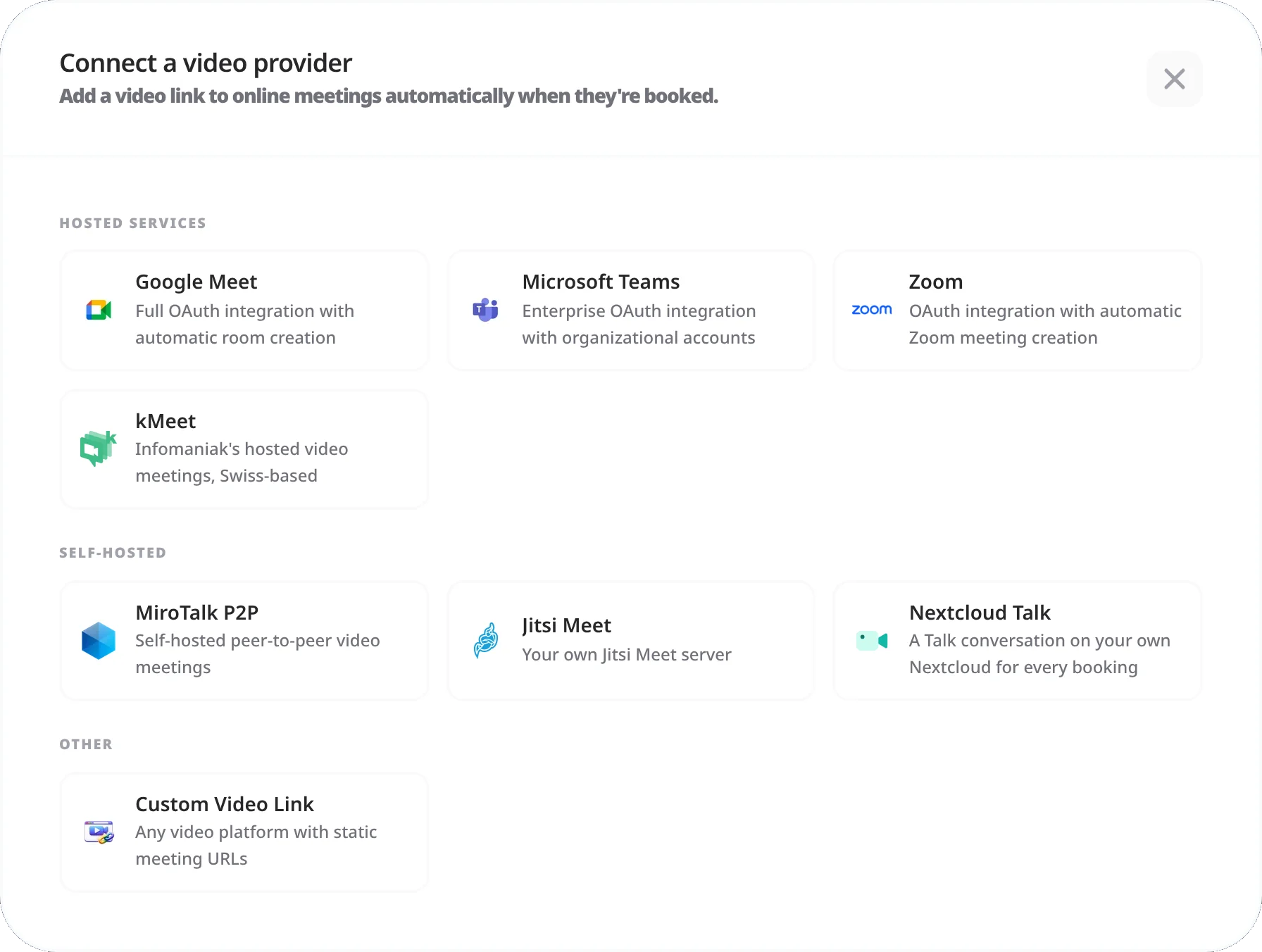
Each meeting type chooses its own video providers. To use Zoom for a specific meeting type:
You can tick several providers on the same location, for example Zoom alongside Google Meet or Microsoft Teams. The person booking then chooses which one the room is created on. See Meeting Locations for everything a meeting type's locations can do.
While your Zoom app is in Development mode, only your own Zoom account can install it. That is fine when you are the only person on your Tymeslot instance who connects Zoom.
To let other users (for example team members or your customers) connect their own Zoom accounts to your Tymeslot deployment, submit the Marketplace app for publication via App Submission in the portal. Zoom's review typically takes one to three weeks. Meanwhile, you can allow individual Zoom accounts through the Marketplace's Beta Test → Add User form.
Zoom's review requires:
Not reliably. Zoom applies its free-plan limits to meetings created through its API, including the cap on meeting length, and may refuse some API requests from free accounts. Use a paid plan (Pro or above) for meetings your guests depend on.
That is how Zoom's OAuth works. Tymeslot uses the refresh token to get a new access token whenever the stored one has expired. Refresh tokens last 90 days; if a refresh fails, Tymeslot asks you to reconnect on the dashboard and by email.
Yes. Either disconnect from the Tymeslot dashboard, or revoke at zoom.us/profile → Apps → Tymeslot → Remove.
Yes. Tymeslot's Zoom integration is User-managed: each user authorises their own Zoom account independently, and their OAuth tokens are stored separately. As long as your Marketplace app is either published or has the user's Zoom account added via Beta Test, each user can connect their own Zoom account and book meetings from it.
The deauthorization webhook
is required: Zoom POSTs to
/auth/zoom/deauthorize
whenever a user removes your app, and Tymeslot then deletes that user's Zoom
integration and its stored tokens. It works as soon as
ZOOM_DEAUTH_SECRET
is set (see Step 3). Tymeslot does not use any other Zoom event subscriptions,
so you do not need to set any up.
https://zoom.us/j/...
.
Auto-create Google Meet rooms for every confirmed booking via the Calendar API. Attendees receive the link by email and can join without a Google account.
Auto-create Microsoft Teams meetings for every confirmed booking. Covers the Graph permissions Tymeslot asks for, when a tenant admin has to consent, and what happens when an account cannot host meetings.
Host video meetings on your own MiroTalk P2P server, with no subscription and peer-to-peer video between participants. Covers Docker setup, reverse proxy, and TURN server config.