Self-Hosting
Self-host the complete scheduling platform on your own server. Docker, Cloudron, or Railway, your own PostgreSQL. Open source AGPLv3, no per-seat fees.
Promote your first admin, use the /admin UI, and change runtime settings without restarting the container, for any setting whose environment variable is unset.

Updated 24 June 2026
Admins are regular Tymeslot users with one extra flag: is_admin = true. Once promoted, a user can open /admin, where they can:
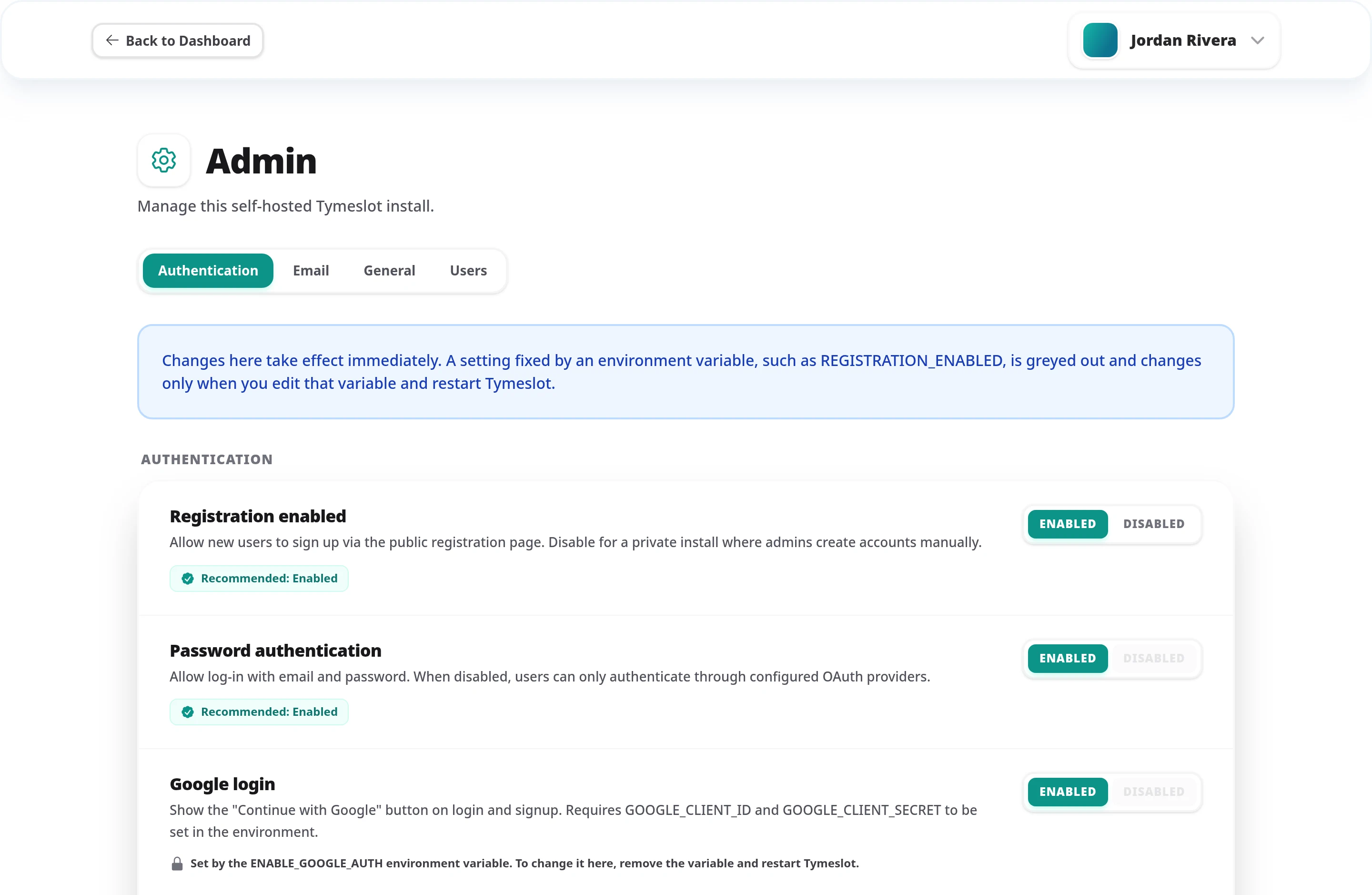
/admin
settings page: runtime controls, changed without a restart, for every setting the environment does not fix.
/admin
route: it returns a 404 by design, because settings are managed centrally there. This guide applies only to self-hosted deployments.
On a brand-new install, the first user to register is automatically promoted to admin,
provided the
users
table holds no one else at that moment. That first promotion closes automatic promotion for good: it never reopens, even if every user is later deleted. Installs that already had users when the admin feature arrived start with it closed.
Fresh install
The first user signs up by email or OAuth and becomes admin automatically. No command needed.
Existing install / upgrade
Automatic promotion never happens. Promote an existing user with the release helper or mix task below.
Pick the snippet that matches how you deployed Tymeslot. Each command takes the email of an already-registered user; none of them creates accounts.
From the host running the container (started with
docker run
or Compose):
docker exec tymeslot \
bin/tymeslot rpc 'Tymeslot.Release.promote_admin("you@example.com")'Open Apps → Tymeslot → Terminal in the Cloudron dashboard, then:
bin/tymeslot rpc 'Tymeslot.Release.promote_admin("you@example.com")'
From your laptop you can also use the Cloudron CLI:
cloudron exec --app tymeslot.yourdomain.com -- bin/tymeslot rpc '...'
.
Open a shell in the running service with
railway ssh
(from a directory linked to the project), then run the release binary. With the default Railpack build it lives under /app/_build/prod/rel/tymeslot; with
Dockerfile.railway
it is /app/bin/tymeslot:
railway ssh
# then, inside the service:
/app/_build/prod/rel/tymeslot/bin/tymeslot rpc 'Tymeslot.Release.promote_admin("you@example.com")'
Running Tymeslot directly from the source tree (mix phx.server)?
Use the mix task:
mix tymeslot.promote_admin you@example.comThe mix task and the release helper share one implementation, so they behave identically.
bin/tymeslot rpc
runs the call against the already-running
Tymeslot node, and the admin helpers on this page (promote, demote, list admins and delete account) need that running node. Under
bin/tymeslot eval
they refuse with an error rather than start a second copy of the application. If Tymeslot is not running, start it first and then use rpc; on a source install, the mix tasks start the application themselves.
Demotion mirrors promotion. The same command pattern works for every deployment target; swap
promote_admin
for demote_admin:
# Docker / Cloudron / Railway
bin/tymeslot rpc 'Tymeslot.Release.demote_admin("former-admin@example.com")'

# Source install
mix tymeslot.demote_admin former-admin@example.com

# Demote the last admin anyway (e.g. a compromised account)
bin/tymeslot rpc 'Tymeslot.Release.demote_admin("former-admin@example.com", true)'
mix tymeslot.demote_admin former-admin@example.com --force--force
to the mix task, or
true
as the release helper's second argument. Be deliberate. If you do end up with zero admins on a populated install, see
Recovering from total admin loss
below.
Check which users hold admin status at any time:
# Production / release builds
bin/tymeslot rpc 'Tymeslot.Release.list_admins()'

# Source install
mix run -e 'IO.inspect(Tymeslot.Release.list_admins())'
The output is a list of
%{id: integer, email: string}
maps, one per admin user.
Visit
/admin/settings
while signed in as an admin, or choose Admin Settings
in the user menu. Settings are grouped into three tabs, next to a fourth for users, and every change takes effect immediately.
Authentication
Registration, password sign-in, Google, GitHub and generic OIDC login, and reCAPTCHA for sign-ups and bookings, with its minimum scores.
Admin alerts and their recipient (the UI counterpart of
ADMIN_ALERT_EMAIL
), plus email branding: brand name, accent colour and logo.
General
Meeting payments, booking analytics, and the fallback languages for the dashboard and booking pages.
environment variable (e.g. REGISTRATION_ENABLED), if set to a recognised value
  ↓ falls back to
value saved in the admin UI (database)
  ↓ falls back to
built-in default
While an environment variable is set to a recognised value, it wins. A blank variable counts as unset. Otherwise a value saved in the UI applies, and the built-in default applies when neither exists. A value saved in the UI survives restarts.
A setting whose environment variable is set to a recognised value is greyed out here and names that variable. Remove the variable and restart Tymeslot to manage it from this page; a value saved here earlier applies again.

What counts as recognised depends on the variable:
true
or false
for most, a number from 0.0 to 1.0 for the reCAPTCHA minimum scores, any non-blank address for ADMIN_ALERT_EMAIL; the
environment variable reference
lists each one. An unrecognised value, such as REGISTRATION_ENABLED=1, does not take precedence: the setting stays editable here, and Tymeslot logs a warning at startup, for example
REGISTRATION_ENABLED="1" is not a recognised value, so it does not fix the setting: the admin settings page can still change it. REGISTRATION_ENABLED accepts true or false.
If you turn password sign-in off and SSO on from this page, then upgrade with
ENABLE_OAUTH_AUTH=false
still in your .env, no admin could sign in and this page could not fix it. Tymeslot then logs this error at startup:
No admin can sign in: no sign-in method is usable, and the environment variables ... fix sign-in settings, so the admin page cannot turn one back on.
Unset the variables it names, or correct them (for example, enable a provider whose client ID and secret are set), then restart. If you are already locked out, see Recovering From Total Admin Loss below.
REGISTRATION_ENABLED=false
.
PASSWORD_AUTH_ENABLED
.
The full list of environment variables (including those not exposed in the UI) lives in the Environment Variables Reference.
If every admin has been demoted or deleted on an install that still has users, the release helper (or mix task) is the way back. It needs no admin, only shell access to the server:
docker exec tymeslot \
bin/tymeslot rpc 'Tymeslot.Release.promote_admin("you@example.com")'If every account is gone, signing in says "Registration is currently disabled" and the startup log warns that no accounts exist. The first account to sign up will not become admin either, because that only happens once per install. Open registration from the command line, sign up, promote your new account as above, then close registration again in the admin settings:
docker exec tymeslot \
  bin/tymeslot rpc 'Tymeslot.Release.reopen_registration()'
If REGISTRATION_ENABLED
is set, it fixes registration and the command refuses to change it: set the variable to
true
and restart instead, then remove it again once you are back in.
Tymeslot itself only ever deletes abandoned sign-ups: password accounts left unverified for 30 days that never signed in or finished onboarding. Admins and accounts created through Google, GitHub or SSO are never removed this way.
If the application itself will not start, you can promote an admin directly in PostgreSQL (shown here for the database bundled in the Docker image). Keep this for genuine emergencies; the release helper is better because it runs the same code path as the UI:
docker exec -i tymeslot su - postgres -c "psql tymeslot" <<'SQL'
UPDATE users SET is_admin = true WHERE email = 'you@example.com';
SQL
ADMIN_EMAIL
variable. Admin status lives in the database and changes only through the mix task, the release helper, the admin UI or, as above, direct SQL. This is deliberate: someone who can change an environment variable should not be able to grant themselves admin silently.
Three reasons, in order of likelihood: (1) you are not signed in as an admin, so
the link is hidden and visiting /admin sends you back to the dashboard with
"Admin access required."; (2) you are on the managed SaaS, which disables the
admin UI entirely; (3) the enable_admin_ui config flag has been set to false
for this deployment, in which case /admin returns a 404. After running the
promotion command, reload the page: the admin flag is read from the database on
every request.
Yes, there is no limit. Run the promote command once per email. The /admin/users
page lets existing admins promote and demote each other from the UI once at least
one admin exists.
While the environment variable is set to a recognised value, it takes precedence
and the UI shows that setting greyed out, naming the variable. Remove the
variable and restart Tymeslot to manage the setting from the UI; a value saved
there earlier applies again. No .env file is ever edited.
Promotions and demotions are logged as JSON with the event name below, the target
user's ID and the acting admin's ID (or "cli"). Setting changes are logged as
"App settings updated" with the changed keys, but without the actor. There is no
audit-log UI; for a longer history, ship the application logs to a log store and
filter on admin_role_change.
Reload /admin; a page loaded before the promotion still reflects the old state.
If it still fails, confirm the promotion took effect with
bin/tymeslot rpc 'Tymeslot.Release.list_admins()' and verify that
enable_admin_ui is not set to false in your deployment's configuration (a 404
points to this).
bin/tymeslot rpc 'Tymeslot.Release.list_admins()'
returns at least one entry.
/admin
is sent back to the dashboard with an "Admin access required." message.
/admin/settings
shows Enabled
or Disabled
as your environment variables intend.
Self-host the complete scheduling platform on your own server. Docker, Cloudron, or Railway, your own PostgreSQL. Open source AGPLv3, no per-seat fees.
Deploy Tymeslot with Docker Compose on any VPS or home server. Includes reverse proxy setup, file upload volumes, and WebSocket configuration for LiveView.
Install Tymeslot on Cloudron in minutes. PostgreSQL, SSL certificates, email relay, and automatic updates are all provisioned and managed for you.
Deploy Tymeslot to Railway with one click. PostgreSQL is provisioned and connected for you; add a signing secret and your email settings and your instance is live.