Google Meet Integration
Auto-create Google Meet rooms for every confirmed booking via the Calendar API. Attendees receive the link by email and can join without a Google account.
Host video meetings on your own MiroTalk P2P server, with a separate room for every booking and no video provider account to sign up for.

Mis à jour le 23 septembre 2026
By the end of this guide, you will have a MiroTalk P2P server running, and Tymeslot will create a separate room on it for every new booking.
Run the following command on your server. Replace
your-strong-random-key
with a strong secret. You will enter this key in Tymeslot later:
docker run -d \
  --name mirotalk \
  -p 3000:3000 \
  -e API_KEY_SECRET=your-strong-random-key \
  --restart unless-stopped \
  mirotalk/p2p:latest
To generate a random API key:
openssl rand -hex 32
Expected result: after the container starts, open
http://your-server:3000
in a browser. You should see the MiroTalk P2P landing page.
API_KEY_SECRET
to a strong random value before exposing MiroTalk to the internet.
Browsers only allow camera and microphone access over HTTPS, so calls do not work over plain HTTP. Put a reverse proxy in front of MiroTalk's port 3000. Caddy obtains and renews TLS certificates for you:
meet.yourdomain.com {
    reverse_proxy localhost:3000
}
After reloading Caddy, open
https://meet.yourdomain.com
. The MiroTalk landing page should load over HTTPS.
Verify MiroTalk works independently before connecting it to Tymeslot:
https://meet.yourdomain.com
If the room loads and the camera permission prompt appears, MiroTalk is working. Move on to Step 4.
Now register your MiroTalk instance with Tymeslot:
https://meet.yourdomain.com
API_KEY_SECRET
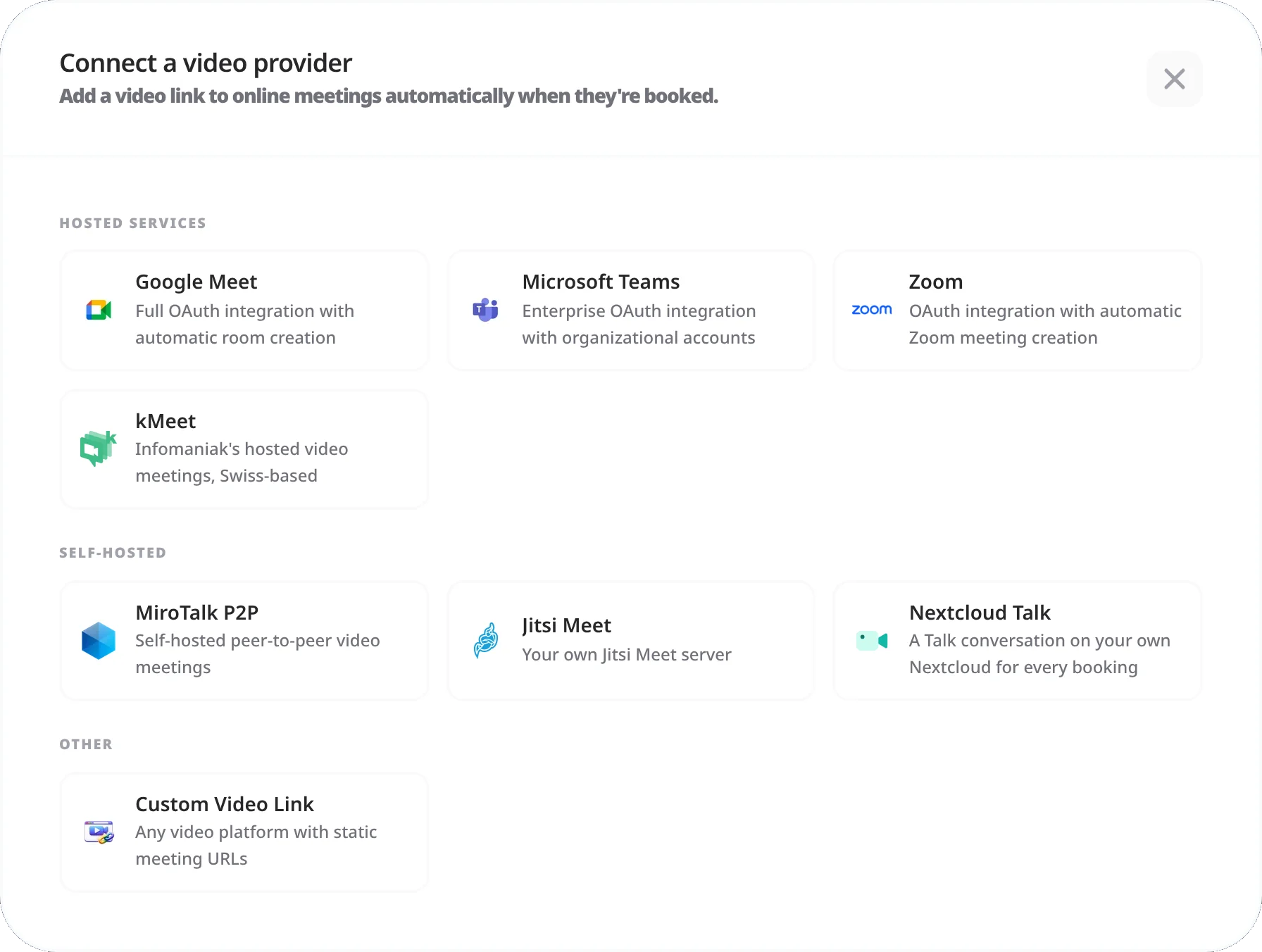
Expected result: the integration appears in your list of video integrations under the name you gave it (My MiroTalk by default), with your server's host beside it.
MiroTalk is enabled per meeting type. Repeat for each meeting type where you want self-hosted video:
Expected result: each new booking that uses this location gets its own MiroTalk room link.
You can tick several providers on the same location, for example MiroTalk alongside Google Meet or Zoom. The person booking then chooses which one the room is created on. See Meeting Locations for everything a meeting type's locations can do.
Because MiroTalk P2P is peer-to-peer, your server only introduces participants to each other (WebRTC signalling); it does not relay video or audio. Video travels directly between participants' browsers, so signalling traffic stays small and a basic VPS is enough. Bandwidth and resource needs only grow noticeably if you run your own TURN server on the same machine.
Peer-to-peer WebRTC works for most home and mobile connections. Participants on strict corporate or institutional networks may have direct connections blocked by a firewall or NAT. A TURN server relays their audio and video instead.
Coturn is the standard open-source TURN server:
apt install coturn
# Edit /etc/turnserver.conf: set your domain and credentials
# Then restart: systemctl restart coturn
After installing Coturn, point MiroTalk at it with the TURN_SERVER_URL,
TURN_SERVER_USERNAME
and
TURN_SERVER_CREDENTIAL
environment variables, and restart the container.
MiroTalk P2P uses WebRTC, which establishes a direct connection between participants' browsers. This works for most home and mobile networks, but fails when participants are behind strict NAT or corporate firewalls that block direct peer-to-peer UDP traffic. Joining the room (signalling) succeeds, but no audio or video comes through.
The fix is a TURN server (such as Coturn) alongside MiroTalk. A TURN server relays media traffic for participants who cannot establish a direct connection. See the TURN Server Setup section above for setup instructions.
No. MiroTalk can run on any server, such as a separate VPS or a machine with another provider. Two things must reach it: Tymeslot, which calls MiroTalk's API at its Server URL to create each booking's room, and your participants' browsers, which open the room.
Self-hosting Tymeslot on that same network is the exception.
A host that resolves to a private address is refused by default, as protection against
server-side request forgery. Set
ALLOW_PRIVATE_IPS_FOR_VIDEO=true
on your Tymeslot deployment to permit a meeting server on an internal network. This applies to
self-hosted installs only. On the managed service at tymeslot.app our servers have no route
to your network, so a private address cannot work there whatever you configure.
Tymeslot calls the MiroTalk API when a booking is confirmed to create that booking's room link. If rooms are not found, first check that the Server URL of your MiroTalk integration points to the right MiroTalk server, with the correct scheme and port. Test connection on the integration checks the address and the API key together.
Also verify that the API key stored in Tymeslot matches the
API_KEY_SECRET
value
your MiroTalk container was started with. With a mismatch, MiroTalk refuses to create rooms, and
bookings arrive without a working room link.
No. Tymeslot integrates with MiroTalk P2P only. MiroTalk SFU is a separate product with a different API and a different room URL structure. Pointed at a MiroTalk SFU server, Tymeslot either fails to create rooms or produces links that do not work.
For large groups, choose another video provider that Tymeslot supports.
MiroTalk P2P works well for 2 to 4 participants. Because it is peer-to-peer, each participant sends their video and audio directly to every other participant. With 4 participants, each person uploads 3 streams at once, and bandwidth and CPU use grow with every extra participant.
Beyond 4 participants, call quality and reliability drop. Larger groups are better served by a platform that routes streams through a central media server, such as Jitsi Meet, Google Meet, Zoom or Microsoft Teams, all of which Tymeslot supports.
Auto-create Google Meet rooms for every confirmed booking via the Calendar API. Attendees receive the link by email and can join without a Google account.
Auto-create Microsoft Teams meetings for every confirmed booking. Covers the Graph permissions Tymeslot asks for, when a tenant admin has to consent, and what happens when an account cannot host meetings.
Auto-create Zoom meetings for every confirmed booking. Connects over OAuth. Use a paid plan (Pro, Business or Enterprise): Zoom applies its free-plan limits, including meeting length, to meetings created this way.