Sync Tymeslot with Google Calendar
Connect Tymeslot to Google Calendar. Busy, Tentative and Out of Office events all block bookings, so you are never double-booked, and every booking is added to your calendar.
Sync Tymeslot with Outlook Calendar, for personal Outlook.com accounts and Microsoft 365 work accounts.

Atualizado em 18 de setembro de 2026
If you self-host Tymeslot, complete these steps first; the connection fails without them. On tymeslot.app they are already done, so go straight to step 1.
OUTLOOK_CLIENT_ID
and
OUTLOOK_CLIENT_SECRET
set in your environment (see the
Microsoft Azure App Setup
guide if you haven't done this yet)
Calendars.ReadWrite
delegated permission is added to your Azure app registration under
API permissions
Outcome
By the end of this guide, Tymeslot will check your Outlook Calendar for conflicts before offering a time, and create a calendar event for every confirmed booking.
Tymeslot connects through the Microsoft Graph API using the
Calendars.ReadWrite
permission. It works the same way for personal Outlook.com accounts and Microsoft 365 work accounts.
Checking availability
When someone opens your booking page, Tymeslot reads the events in your selected calendars to work out which times are taken. Event details are used to show your events on your own Tymeslot dashboard calendar; your invitees only ever see open and taken times.
Creating booking events
When a booking is confirmed, Tymeslot writes an event into the meeting type's booking calendar, with the invitee's name and the meeting link. Rescheduling or cancelling in Tymeslot updates or removes that event. Tymeslot does not change events it did not create.
WEBHOOK_BASE_URL
environment variable (see the
Environment Variables
reference). Existing connections switch to push when you reconnect them.
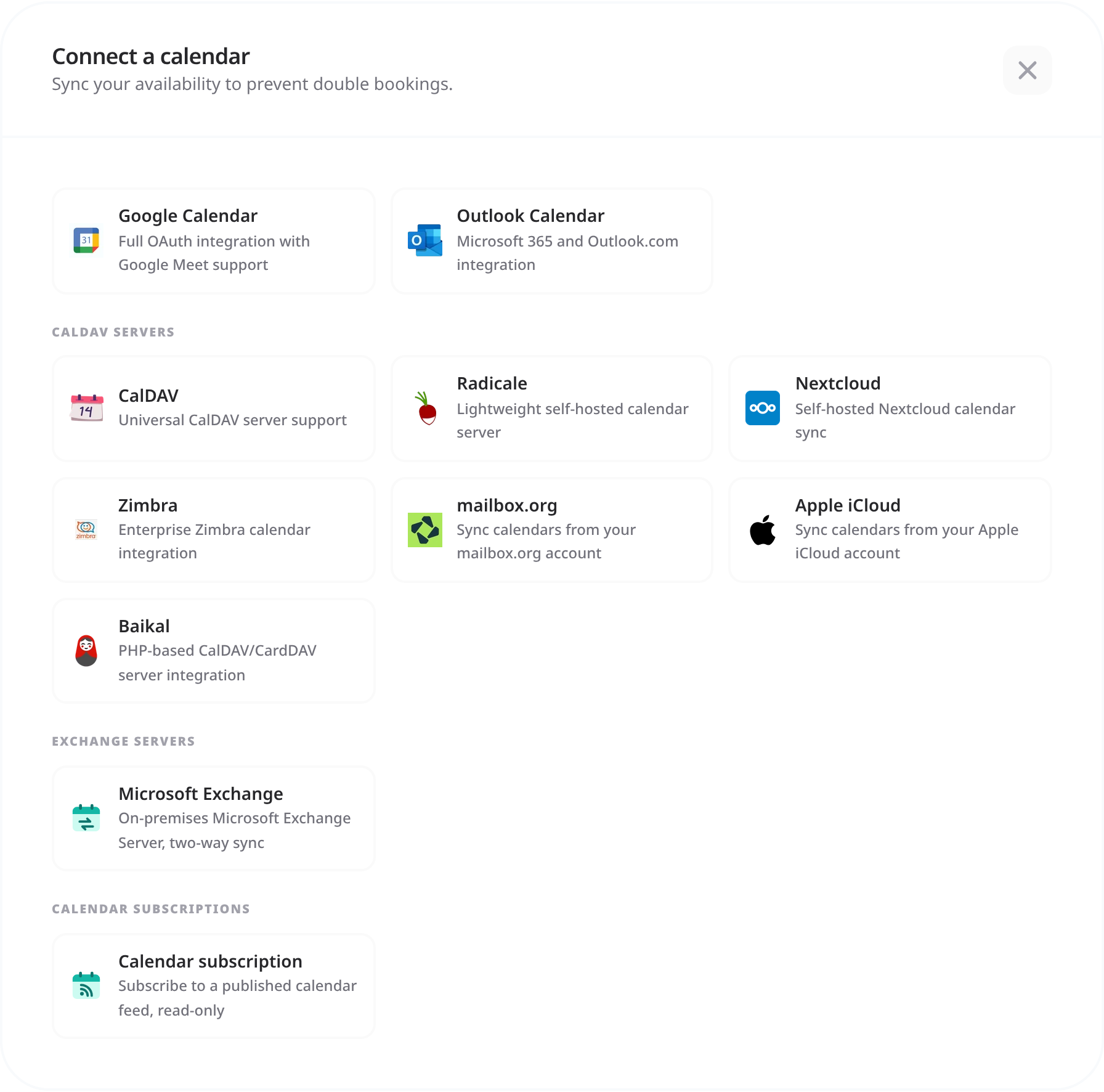
Tymeslot finds every calendar in your Outlook account. Two separate settings decide how they are used:
Calendars checked for conflicts
Click [Manage calendars] on the Outlook connection and tick every calendar that should block your availability. When an event in a ticked calendar is not set to Show As: Free, that time disappears from your booking page.
Where bookings are written
Each meeting type writes its bookings to one calendar, its Booking Destination. Open the meeting type, choose the Outlook account under 1. Select Calendar Account, then the calendar under 2. Select Specific Calendar. Until you choose, bookings go to your default calendar.
Outlook's Show As field determines whether an event blocks your Tymeslot availability.
| Show As value | Blocks availability? |
|---|---|
| Busy | Yes, the slot is unavailable |
| Free | No, the slot stays open |
| Tentative | Yes, the slot is unavailable |
| Out of Office | Yes, the slot is unavailable |
| Working Elsewhere | Yes, the slot is unavailable |
Calendar connects but blocks no time? Check that your Outlook events are not set to Show As: Free. Free events are ignored on purpose, so that placeholders and reminders don't block your bookings. Declined meetings and cancelled events don't block time either.
Both personal Outlook.com and Microsoft 365 work accounts are supported. Work accounts can need one extra step: admin consent.
"Access denied" or "AADSTS" error during connection
Make sure the
Calendars.ReadWrite
delegated permission is added to your Azure app under API permissions, and that admin consent has been granted for organisational accounts.
"Invalid redirect URI"
The redirect URI in your Azure app registration must exactly match the one Tymeslot uses, including the
https://
prefix and the full path. Check the URI in your Azure app's
Authentication
settings.
Calendar connects but bookings still go through when busy
Check two things: (1) the right calendar is ticked under [Manage calendars] on the Outlook connection, and (2) the Outlook events in question are not set to Show As: Free.
Bookings are confirmed without a Teams link
Calendar sync and Microsoft Teams ask different things of the account: syncing needs a calendar, hosting a meeting needs a Teams licence. Where the connected account has no licence that can host one, bookings still go through, with no join link in the confirmation email.
A Microsoft 365 organisation can require admin consent before users connect third-party apps. With that policy, sign-in stops at a "Need admin approval" screen. Your IT administrator needs to open
portal.azure.com
→ your app registration → API permissions
and click Grant admin consent for [organisation]. Once granted for the tenant, everyone in the organisation can connect without asking again.
Check that the right calendar is ticked under [Manage calendars] on the Outlook connection. An Outlook account can hold several calendars, and Tymeslot only checks the ones you tick. Also confirm the events in question are not set to Show As: Free: Free events are ignored on purpose, so that placeholders and reminders do not block your availability.
No. Tymeslot supports only your own calendars. Calendars shared with you or delegated to you need extra Microsoft Graph permissions (such as Calendars.Read.Shared) that Tymeslot does not request.
Check two things. First, the calendar holding those events must be ticked under [Manage calendars] on the Outlook connection; with several calendars, only the ticked ones count. Second, the events must not have Show As set to Free, because Tymeslot ignores Free events so that reminders and placeholders do not block bookings. If you only just created the events, give it two minutes: the booking page keeps what it reads from your calendar for that long.
Not this integration. Tymeslot connects here via the Microsoft Graph API, which only covers Exchange Online (Microsoft 365) and personal Outlook.com accounts; an on-premises Exchange Server does not expose the Graph endpoints it depends on.
On-premises Exchange has its own integration, which speaks Exchange Web Services with a username and password. See Microsoft Exchange Integration . It both blocks your availability and receives your bookings.
Connect Tymeslot to Google Calendar. Busy, Tentative and Out of Office events all block bookings, so you are never double-booked, and every booking is added to your calendar.
Sync Tymeslot with CalDAV calendars: Nextcloud, Radicale, Baikal, Zimbra, mailbox.org, iCloud and Fastmail. Conflict checks and new bookings work without a Google or Microsoft account.
Connect Tymeslot to an on-premises Microsoft Exchange Server over EWS. Covers the endpoint URL, domain logins versus mailbox addresses, self-signed certificates, and the read-only limits.