Back to Overview

Booking Approval

Hold a booking until you have agreed to it, and tell the person who booked exactly where they stand.

Luka Breitig — Software Engineer & AI Developer
Luka Breitig

Software Engineer & AI Developer

Not every booking should confirm itself

Some meetings you are glad to have booked into your week automatically. Others you want to look at first: a new client, a long session, anything where the answer might be "not this time". Turn approval on for a meeting type and its bookings stop confirming themselves. The time is held so nobody else can take it, you get asked, and only your answer confirms it.

👀 What the person booking sees

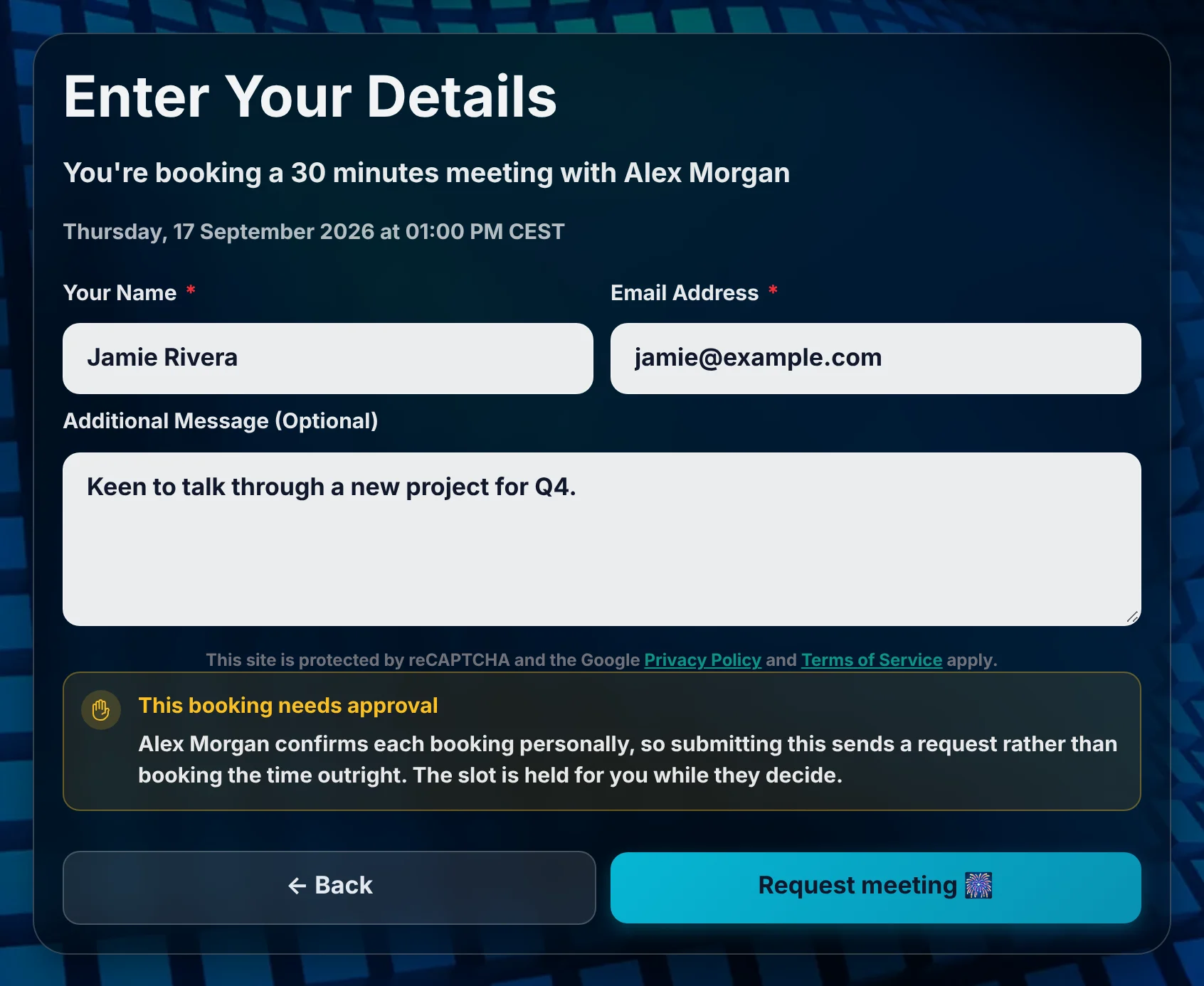
The whole point is that they are never misled about where they stand. Approval is visible at every step, not sprung on them afterwards.

  • On your profile page — if they land on your list of meeting types, the one requiring approval is marked "Needs approval" before they pick anything. A link straight to that meeting type skips this step, but the form itself still tells them before they submit.
  • On the form — the button says Request meeting, not "Book", and a note explains that submitting sends a request.
  • After they submit — the screen says the request was sent, not that the meeting is confirmed.
  • In their inbox — a "request received" email with no calendar attachment. The calendar invite only arrives with the confirmation, once you have accepted.

Answering a request

You get an email with Approve and Decline buttons. Both open a page where the decision is one more click — nothing is answered just by opening the link, so a mail scanner following it on your behalf cannot accept a meeting for you.

  • Approving confirms the booking exactly as an ordinary one: the confirmation email, the calendar invite, the video link, the reminders. From that moment it is a normal meeting.
  • Declining releases the slot immediately and emails the person who booked. You can add a note, which is quoted in that email; leaving it blank is fine.
  • From the dashboard instead — a Requests tab appears on your meetings page whenever something is waiting, with a count. Requests are kept out of Upcoming, because they are not meetings yet.

If you do not answer

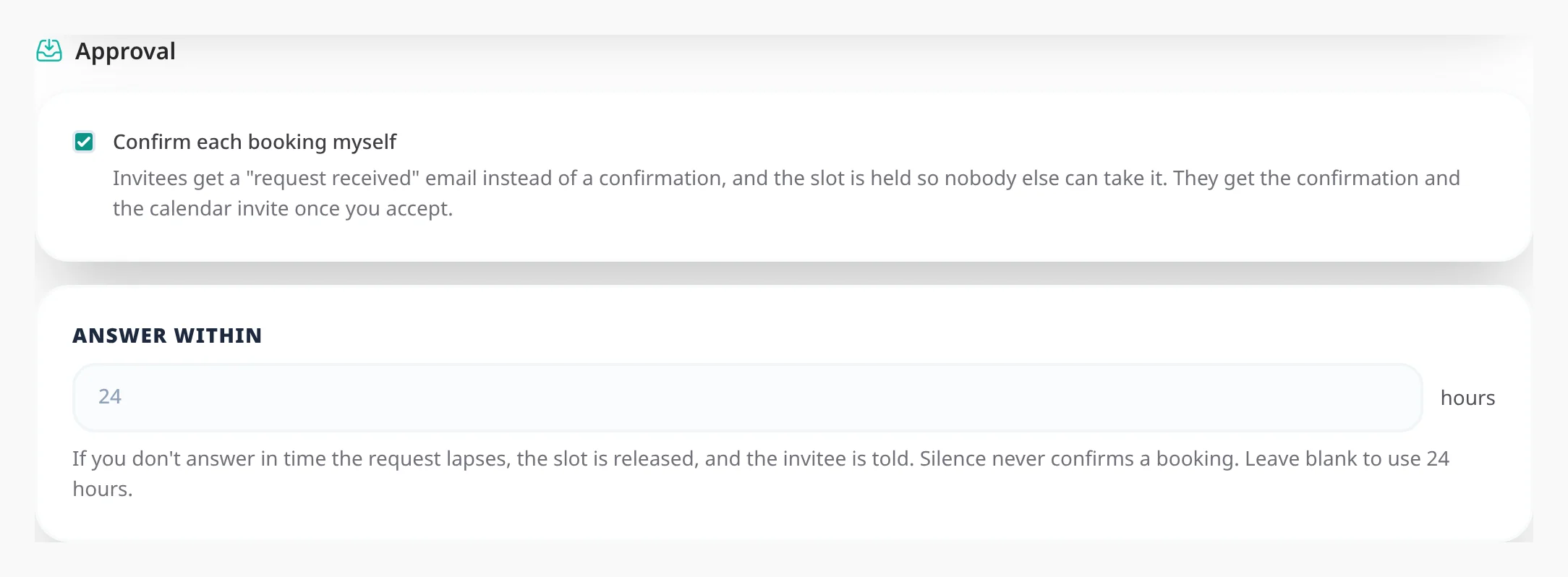
Silence never confirms a booking. Each meeting type has an answer window, 24 hours by default and anything from one hour to two weeks.

  • Halfway through you get one reminder. Only one — a request you are ignoring on purpose should not keep nagging.
  • At the deadline the request lapses, the slot is released, and the person who booked is told. The wording is careful to say the request expired rather than that you refused.
  • Never past the meeting itself — a request for a slot two hours away cannot have a 24-hour window. The deadline is capped at the meeting's own start time.

The held time is on your calendar

A held request appears in your connected calendar straight away, marked tentative. It blocks the slot, so nothing else can be booked over it, but it reads as provisional to you and to anyone checking your availability. Approving turns it into a confirmed event; declining removes it.

⚙️ Turning it on

Approval is set per meeting type, so you can require it for new-client calls and leave your regular catch-ups booking instantly.

  1. Open the meeting type and go to Booking Rules.
  2. Tick Confirm each booking myself.
  3. Set how long you want to answer within, or leave it blank for 24 hours.

Frequently Asked Questions

What happens to a paid meeting type?
The payment is taken first and the request is raised once it clears — you are only asked about bookings that have actually been paid for. If you decline, the request expires, or the person who booked withdraws it, the payment is refunded in full, automatically: while it is still only a request there is no meeting to weigh a partial refund against, so there is no choice to make. Your meeting type's own cancellation and refund policy only starts applying once you approve. The one exception is a booking you had already approved and that a reschedule sent back to you. There the person did have a confirmed meeting, so your cancellation and refund policy is the one that applies: nothing is refunded automatically, and you decide how much to return from the payments screen.
Can somebody reschedule around the approval?
No. Moving a booking on a meeting type that requires approval sends it back for your approval at the new time, with a fresh window. You agreed to a specific time, not to any time.
What if I answer twice, or from two places at once?
The first answer wins and the second is told what already happened, rather than overwriting it. That covers the ordinary cases: the emailed link and the dashboard open in different tabs, or a colleague answering from a forwarded email.
Can the person who booked withdraw the request?
Yes, with the same link they would use to cancel a booking. The slot is released and you stop being asked about it. If the meeting type is paid, withdrawing refunds them in full, the same as a decline or an expiry — and with the same exception, if the booking had already been approved once before being rescheduled.
Do reminders go out while a request is waiting?
No. Reminding somebody about a meeting nobody has agreed to would contradict the email they just received. Reminders are scheduled in full once you approve.

🔗 Related Articles

Read Availability Schedules

Availability Schedules

Keep several named sets of working hours — weekday office hours, evening consults, weekend intensives — each with its own breaks and booking rules, and give every meeting type the one it belongs to.

Read Meeting Polls

Meeting Polls

Propose several candidate times, let every guest mark each one Yes, If need be or No, then confirm the winner and Tymeslot books it as a real meeting with everyone invited.

Read Custom Booking Questions

Custom Booking Questions

Ask bookers anything you need before the meeting — short text, choices, yes/no, dates, acknowledgements, and more. Answers ride along to confirmations, emails, and your calendar.