Sync Tymeslot with Google Calendar
Connect Tymeslot to Google Calendar. Real-time conflict detection respects Busy, Tentative, and Out of Office events — no double-bookings, automatic event creation.
Connect Tymeslot to your Apple iCloud calendar. iCloud requires an app-specific password generated at appleid.apple.com — your Apple ID password will not work for CalDAV.

Updated June 30, 2026
App-specific password required
Unlike some CalDAV servers, iCloud always rejects your normal Apple ID password for calendar access. You must generate a dedicated app-specific password — this is true whether or not you would otherwise consider your account "secured".
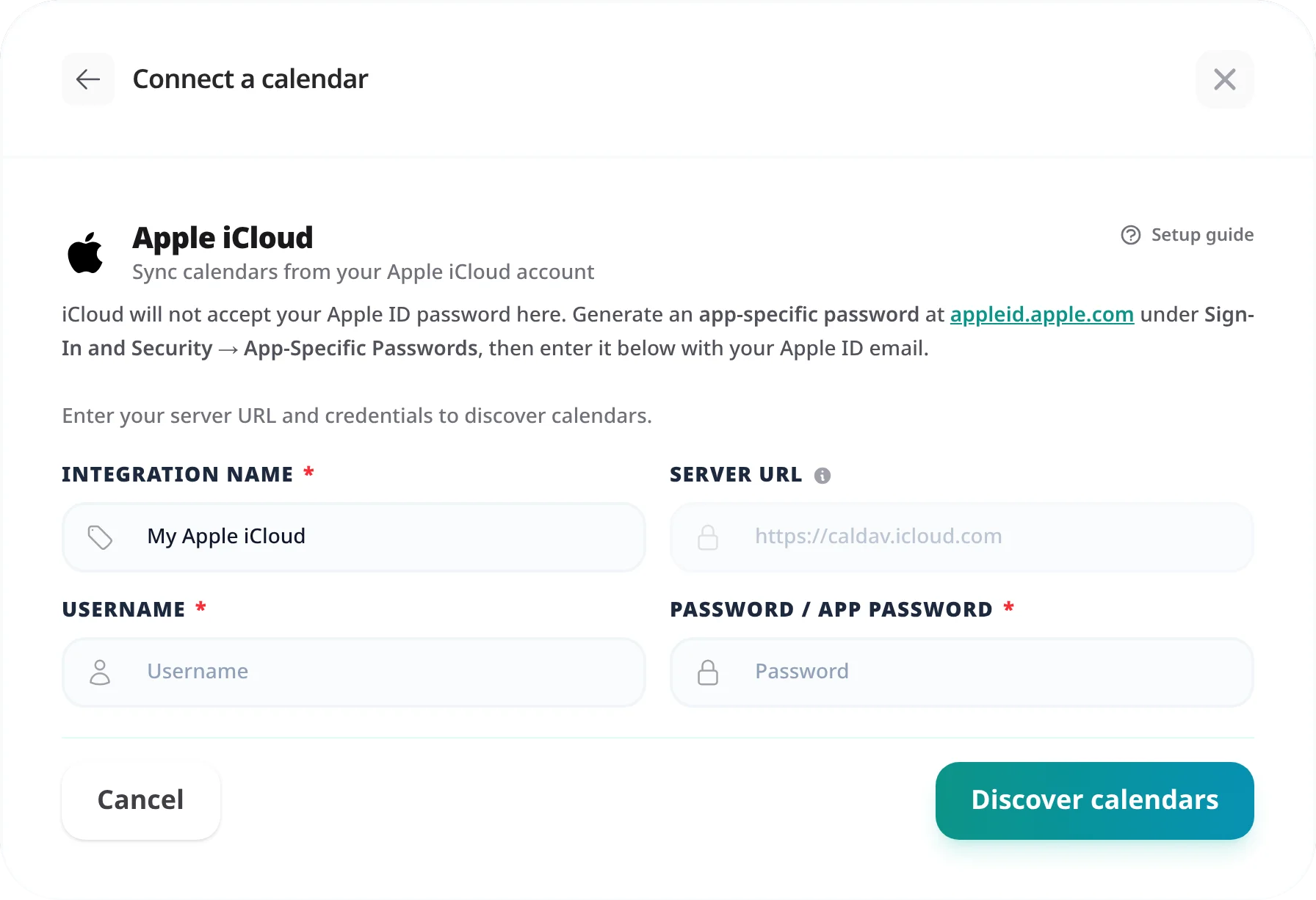
iCloud Calendar speaks standard CalDAV at caldav.icloud.com. Tymeslot pins this server for you — when you pick Apple iCloud, the address is filled in and locked, so you only supply your Apple ID email and an app-specific password.
Behind the scenes iCloud routes each account to a per-user server (e.g. p110-caldav.icloud.com); Tymeslot follows that automatically during calendar discovery, so there is nothing extra to configure.
iCloud will not accept your Apple ID password for CalDAV. Create a dedicated app-specific password instead:
abcd-efgh-ijkl-mnop). You will paste it into Tymeslot.
iCloud uses a single fixed CalDAV server — Tymeslot fills it in for you:
| Field | Value |
|---|---|
| Server URL | https://caldav.icloud.com (pre-filled and locked) |
| Username | Your Apple ID email address (e.g. you@icloud.com) |
| Password | The app-specific password from Step 1 — not your Apple ID password |
@me.com
or @mac.com
addresses. iCloud resolves all of them through caldav.icloud.com.
"Authentication failed"
iCloud rejects your Apple ID password for CalDAV — you must use an app-specific password. Generate one at appleid.apple.com under Sign-In and Security → App-Specific Passwords and paste it as the password. Make sure two-factor authentication is enabled on your Apple ID; without it, Apple does not offer app-specific passwords at all.
App-specific password stopped working
Changing your main Apple ID password revokes all app-specific passwords. If you reset your Apple ID password, generate a fresh app-specific password and update the integration. You can review and revoke app-specific passwords any time at appleid.apple.com.
Bookings not appearing in iCloud Calendar
CalDAV sync runs on a schedule — allow up to 5 minutes after a booking is confirmed for it to appear. If events are still missing, check the sync status in [Integrations]. A red status indicator means the last sync failed; the error detail appears alongside it.
Apple blocks third-party apps from using your main Apple ID password for iCloud services like CalDAV. App-specific passwords exist precisely for this — they grant calendar access without exposing your primary credentials, and you can revoke them individually.
Yes. Apple only offers app-specific passwords on Apple IDs that have two-factor authentication enabled. If the App-Specific Passwords option is missing at appleid.apple.com, turn on two-factor authentication first, then return to generate one.
Yes. After saving the connection, Tymeslot discovers all calendars in your iCloud account and lets you choose which ones to sync. A single Apple iCloud integration covers every calendar under that Apple ID.
Connect Tymeslot to Google Calendar. Real-time conflict detection respects Busy, Tentative, and Out of Office events — no double-bookings, automatic event creation.
Sync Tymeslot with Outlook Calendar via Microsoft Graph. Real-time conflict detection and automatic event creation — works with Outlook.com and Microsoft 365.
Sync Tymeslot with CalDAV calendars — Nextcloud, Radicale, Baikal, Zimbra, mailbox.org, iCloud, and Fastmail. Real-time conflict detection with no Google or Microsoft dependency.