CalDAV Integration
Sync Tymeslot with CalDAV calendars — Nextcloud, Radicale, Baikal, Zimbra, mailbox.org, iCloud, and Fastmail. Real-time conflict detection with no Google or Microsoft dependency.
Connect Tymeslot to mailbox.org CalDAV. If two-factor authentication is enabled on your account, generate an application-specific password first — otherwise your account password works directly.

Updated April 28, 2026
App password required only with 2FA
Unlike iCloud or Fastmail, mailbox.org only requires an application-specific password when two-factor authentication is active on your account. Without 2FA, your regular account password works for CalDAV access.
mailbox.org is a privacy-focused German email and productivity service. Its CalDAV endpoint is at
dav.mailbox.org
and is available to all paid mailbox.org accounts. Calendar data is hosted entirely in Germany under German data protection law.
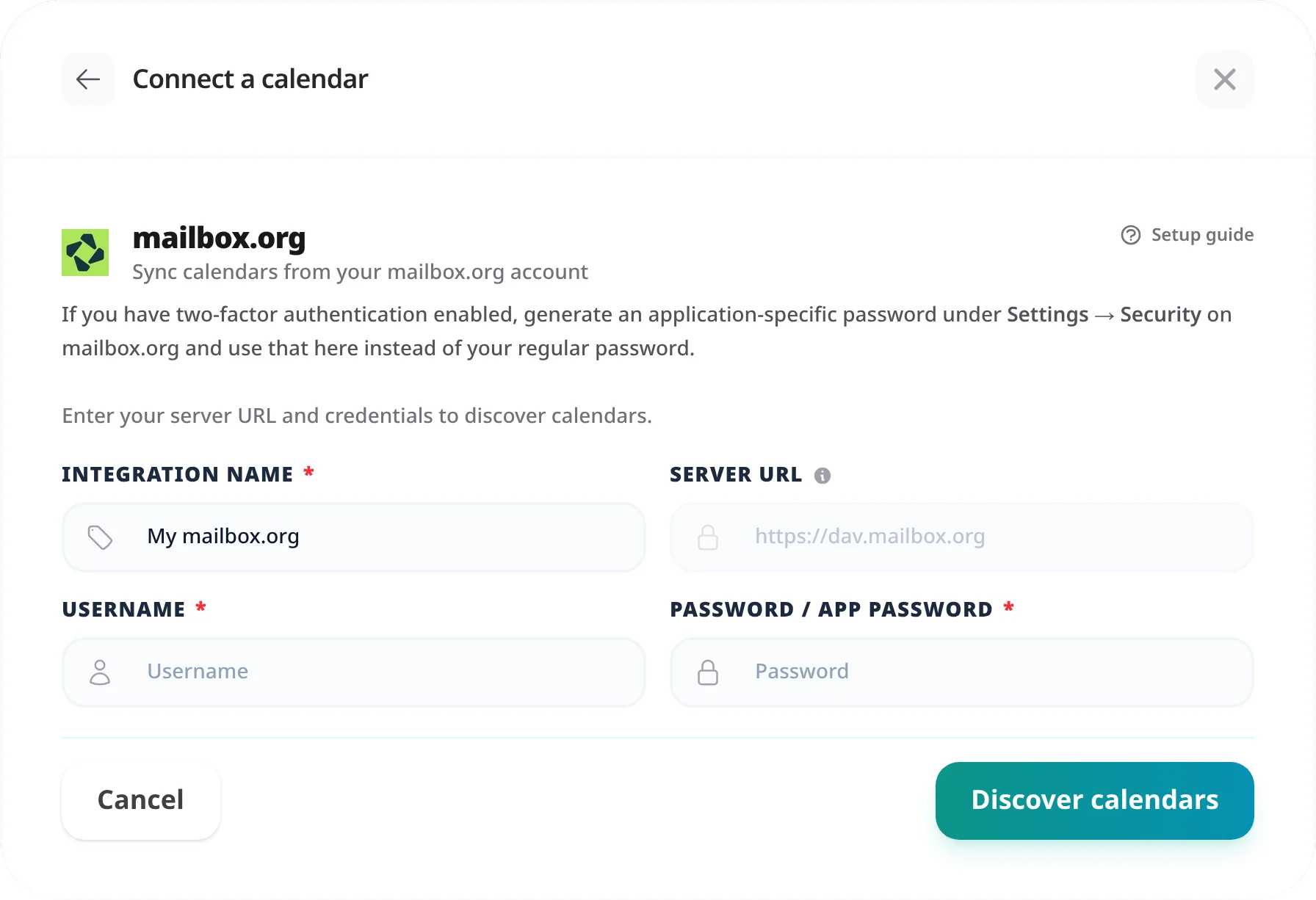
The connection process is straightforward: enter the fixed server URL, your email address, and your password. If 2FA is on, generate an application-specific password first using the steps below.
Skip this step if 2FA is not enabled on your account. If two-factor authentication is active, you must generate an application-specific password — your main account password will not work for CalDAV.
mailbox.org uses a fixed CalDAV server URL:
| Field | Value |
|---|---|
| Server URL | https://dav.mailbox.org/ |
| Username | Your full mailbox.org email address (e.g. user@mailbox.org) |
| Password | Your account password (or application-specific password if 2FA is enabled) |
dav.mailbox.org
handles all mailbox.org domains including custom ones.
https://dav.mailbox.org. Enter your mailbox.org email as the
Username
and your password (or app password) as the Password.
"Authentication failed"
If 2FA is enabled on your mailbox.org account, your main account password will be rejected for CalDAV access. Generate an application-specific password in Settings → Security → Application-specific passwords and use that instead. If 2FA is not enabled and authentication still fails, double-check your email address and password are entered correctly.
Application-specific password stopped working
Application-specific passwords in mailbox.org do not expire automatically, but they can be manually revoked. Check Settings → Security → Application-specific passwords to confirm the Tymeslot password is still listed. If it was removed, generate a new one and update the integration.
Bookings not appearing in mailbox.org Calendar
CalDAV sync runs on a schedule — allow up to 5 minutes after a booking is confirmed for it to appear. If events are still missing, check the sync status in [Integrations]. A red status indicator means the last sync failed; the error detail appears alongside it.
Log into the mailbox.org web client and go to Settings → Security. If two-factor authentication is listed as active, you need an application-specific password for CalDAV. If it shows as inactive or not set up, your regular account password works.
CalDAV access is available on paid mailbox.org plans. The Light plan (free) does not include CalDAV. Check your plan details at mailbox.org to confirm calendar sync is included.
The root URL
https://dav.mailbox.org/
performs CalDAV auto-discovery and resolves to your primary calendar. To connect an additional or named calendar, add a second CalDAV integration using the specific per-calendar URL. You can find per-calendar URLs by connecting a CalDAV client (e.g. Thunderbird) and inspecting the calendar properties.
Sync Tymeslot with CalDAV calendars — Nextcloud, Radicale, Baikal, Zimbra, mailbox.org, iCloud, and Fastmail. Real-time conflict detection with no Google or Microsoft dependency.
Connect Tymeslot to Google Calendar. Real-time conflict detection respects Busy, Tentative, and Out of Office events — no double-bookings, automatic event creation.
Sync Tymeslot with Outlook Calendar via Microsoft Graph. Real-time conflict detection and automatic event creation — works with Outlook.com and Microsoft 365.